Copyright Silhouette School 2016. Powered by Blogger.


Showing posts with label Silhouette Studio 4. Show all posts

How to Save a Silhouette File as an SVG for Any Laser

If you're trying to figure out how to save a Silhouette file as an SVG file so you can use it with your laser or another cutting machine - it's just a few clicks to convert. 

Co2 lasers,laser business,laser cutter,laser engrave,laser engraver,laser engraving,silhouette software,Silhouette Studio 4,xtool laser,xtool studio,


One of the biggest benefits of Silhouette Studio is that it can be used to design for so many other types of equipment and software and you don't even need to have a Silhouette machine. 

In this tutorial I'll show you step by step how to convert a Silhouette file to an SVG. 

Why Tracing in Silhouette Studio Creates Double Cut Lines (and the Workaround)

Are you getting double cut lines when you trace in Silhouette Studio?   

how to trace,import files,pdf,Silhouette Studio 4,trace and detach,Tracing,


This is a common issue when tracing lines in Silhouette Studio.  And the "issue" is actually how tracing works. 

Read on for the best way to to recreate lines in Silhouette Studio. 

How to Fill a Traced Image in Silhouette Studio (to Change the Colors)

When you trace an image in Silhouette Studio to create cut lines the cut lines are red and the design itself is transparent. 

silhouette 101, silhouette america blog, silhouette studio, silhouette studio v4, fill color tool

So how do you fill a traced image in Silhouette Studio with different colors. In this tutorial I'll explain step by step how to trace a design, separate it, and then fill with color. 

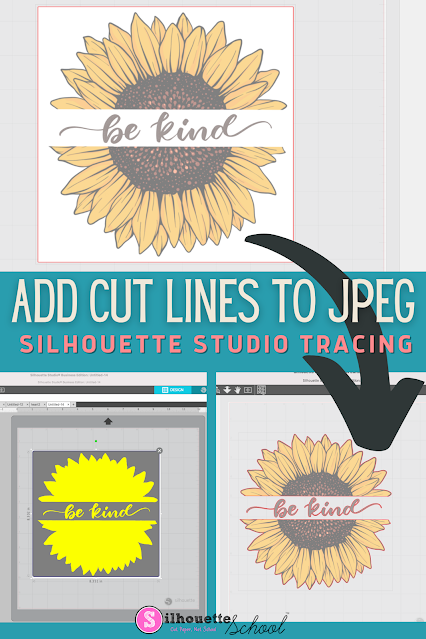
How to Add Cut Lines to JPEG in Silhouette Studio

You can add cut lines to a JPEG in Silhouette Studio by using the trace tool. 

silhouette america blog, silhouette 101, silhouette studio v4, JPEG files, beginner tutorial

The free version of Silhouette Studio allows you to import JPEG files making it a popular file type choice for some.  This tutorial will show you how to add a cut line to a JPEG image in the Silhouette software. 

How to Add a Weeding Box in Silhouette Studio...and Why You Should

If you haven't used weeding boxes in Silhouette Studio - that's going to change today. 

silhouette 101, silhouette america blog, weeding, silhouette studio v4, adhesive vinyl

Weeding boxes are extremely helpful when weeding vinyl and HTV for several different reasons. They help break up the negative space around the design or text which helps avoid problems while weeding specifically small pieces of your design pulling up.  This Silhouette tutorial will show you how to add a weeding box in Silhouette Studio and why you should.

Silhouette Studio V4 vs. V5: Which Version Should You Actually Be Using?

There's a lot of confusion right now about Silhouette Studio V4 and V5 — specifically whether you should update, whether you have to update, and why so many experienced Silhouette users are still on V4 by choice. 

V5,silhouette studio v5,Silhouette Studio 4,Silhouette Studio V4,silhouette software,silhouette studio software,

The short answer is that most people do not need (and should not be using) V5. For the majority of Silhouette machines, V4 is still the better option.

How (and Why) You Should be Using Select by Line Color - Silhouette Studio V5 Tutorial

If you've ever worked on a design in with a ton of elements and tried to manually click each one to select a specific color… this tip is going to save you so much time. 
CAMEO 4 tools,Advanced Silhouette Studio Tutorials,Silhouette Studio 4,silhouette studio v5,silhouette studio software,silhouette software,

Silhouette Studio has a feature built right into the top toolbar that lets you select all objects of the same line color — or the same fill color — in one single click. It's called Select by Line Color and Select by Fill Color.  This tutorial focuses on Silhouette Studio V5, but the process and the tool is the exact same in Silhouette Studio V4 as well. 

Silhouette Studio V5 Send Panel: Tool 2 Incompatible Error

If you've upgraded to Silhouette Studio V5 and are now struggling with controlling cut lines for Tool 1 vs Tool 2 in the Send panel - you're not alone. 

silhouette studio v5,V5,Silhouette Studio,Silhouette Studio 4,silhouette studio software,Software,

The cut line controls are probably the biggest change in Silhouette Studio from V4 - and for really no good reason. 

So if you're getting an incompatible error - read on for how to easily fix this common issue. 

How to Turn Any Image into a Sticker with White Border in Silhouette Studio

If you're a sticker maker, but exclusively looking for "sticker designs" you're really limiting yourself. 

Stickers,Designing,How to,Silhouette Studio 4,silhouette studio v5,print and cut sticker machine,sticker,

Any design or image can be turned into a sticker by adding a border in Silhouette Studio. So whether or not your design is "sticker ready" is really irrelevant - because you can make it sticker ready! 

Read on for the step by step on how to turn any image into a print and cut sticker. 

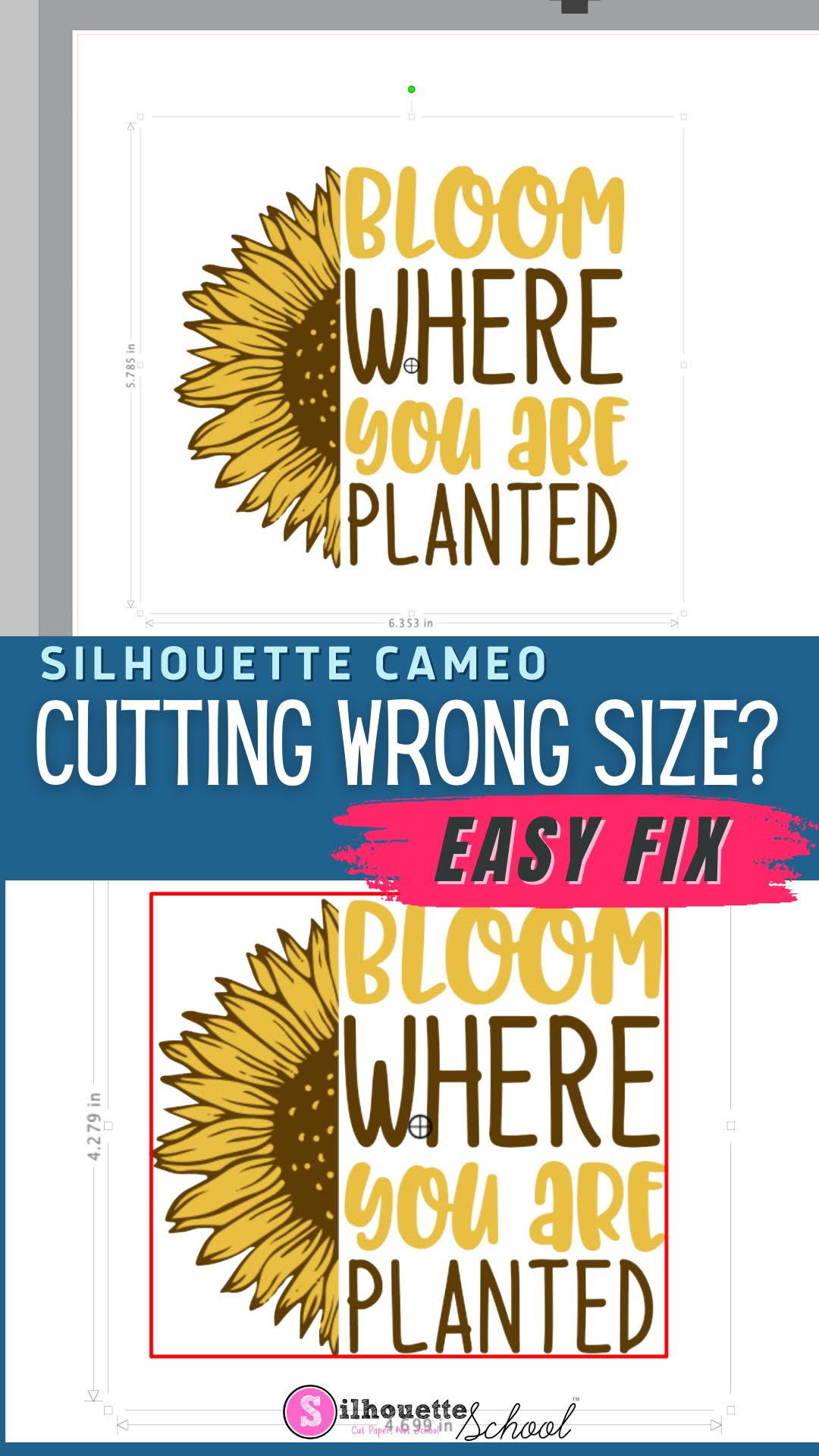
Silhouette Cutting Wrong Size? Here's the Fix

If your Silhouette CAMEO is cutting the wrong size, it can be extremely frustrating. 

silhouette america blog, silhouette 101, silhouette studio, silhouette studio 4, silhouette studio troubleshooting, silhouette cutting issue

Fortunately, there's an easy fix to make sure your Silhouette cuts the same size as the dimensions in Silhouette Studio. 

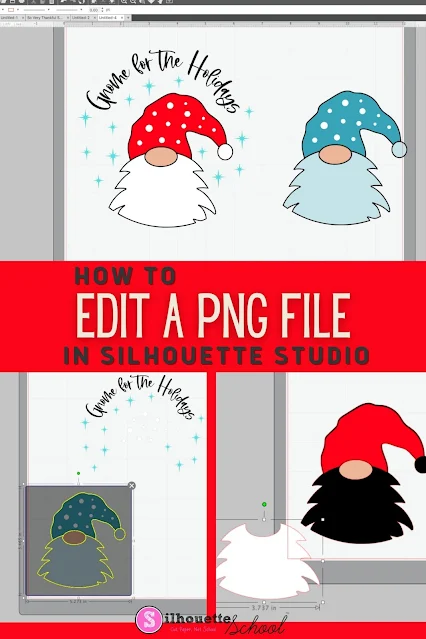
How to Edit a PNG File in Silhouette Studio

If you know the right tools to use, you can edit a PNG file in Silhouette Studio...but there a few things to know! 

Silhouette 101, Silhouette America blog, Silhouette Studio v4, Silhouette Studio, Trace by Color

The easiest file type to open and edit in Silhouette Studio is an SVG, but if you don't have that option you can edit PNG files in Silhouette software as well. This tutorial will explain the best way to go about editing PNGs in Silhouette Studio. 

Can't Select or Move PNG Images in Silhouette Studio? Here's the Fix

Have you ever pulled a PNG file into Silhouette Studio and then you literally can't do ANYTHING with it?

PNG,Silhouette Studio,Designer Edition,silhouette software,Software,Silhouette Studio 4,silhouette studio 5,


You can't click it. You can't move it. You can't select it. Nothing! It is SO frustrating, and it only happens with PNG files. Read on to learn how to fix this frustrating problem when importing PNG files into Silhouette Studio.  

Transparent Offset Won't Select in Silhouette Studio Quick Fix - Video Tutorial

If you've ever tried to select a layer in Silhouette Studio and wondered why your click isn't registering, you are not alone! 

silhouette studio,Silhouette Studio,silhouette,V5,Silhouette Studio 4,All Things Silhouette Studio,


This happens all the time with offsets and other shapes that don't have a fill color.

Silhouette Studio Design Trick: Change Your Art Board Background Color

Did you ever create a design in Silhouette Studio only to realize it doesn't look good on the surface where you put it? 

Designing,Silhouette Studio,Silhouette Studio 4,Silhouette Studio V4,SVG,svg files,

There's a little known trick in the Silhouette software that will help you avoid this completely! 

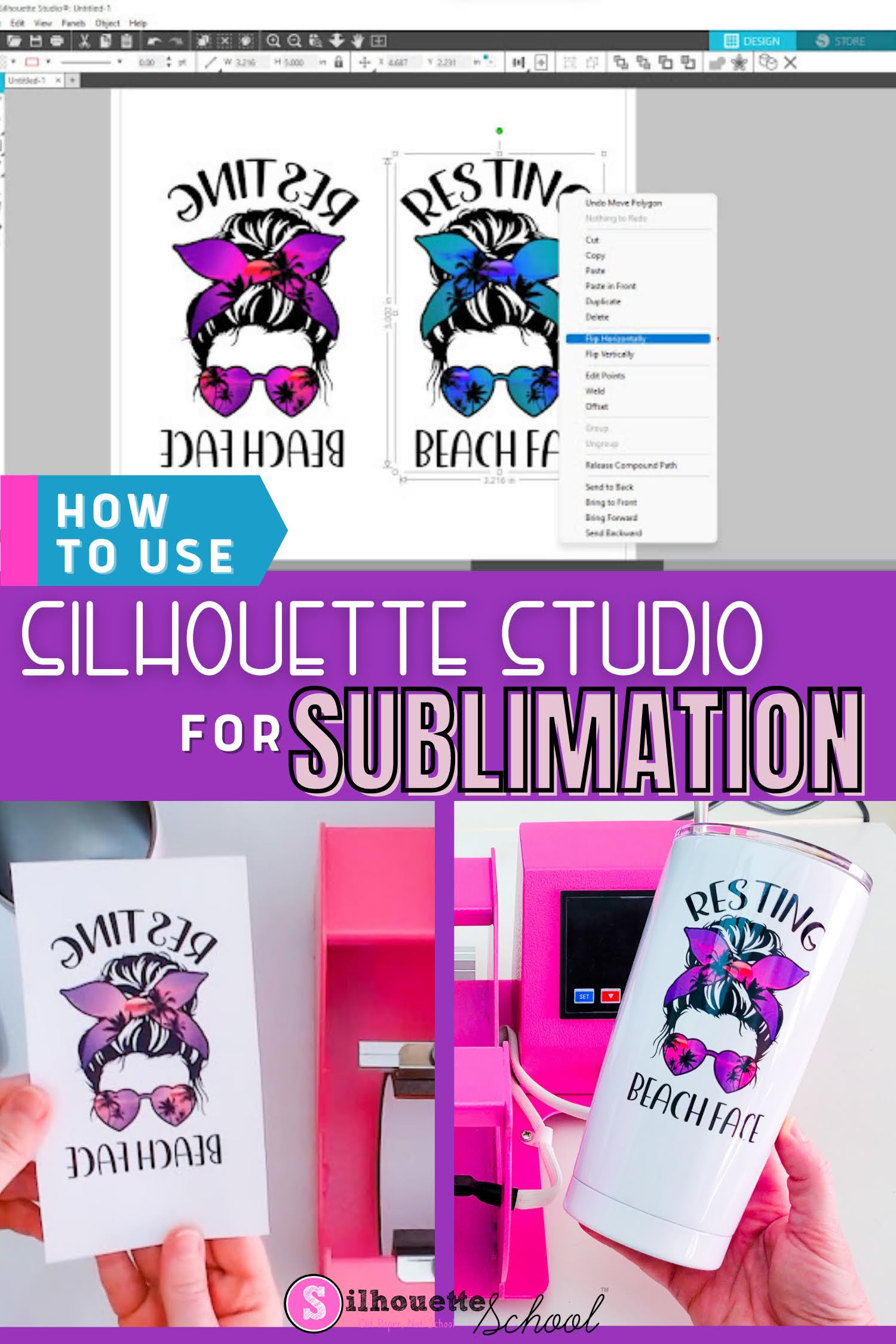
Silhouette Studio for Sublimation: Free Software for Epson and Sawgrass

Silhouette Studio can be used for Sublimation printing for not only designing, but also print layout. 

silhouette 101, silhouette america blog, sawgrass, epson sublimation, silhouette studio v4

You don't even need a Silhouette cutting machine to use Silhouette Studio for Sublimation! Just download Silhouette Studio free. 

This tutorial will explain how to use Silhouette Studio for sublimation. 

How to Install Silhouette Studio Software for CAMEO 5: Initial Setup

If you're trying to get your Silhouette CAMEO 5 connected to Silhouette Studio for the first time, there are a few steps you'll need to take. 

cameo 5, silhouette studio, silhouette studio v4, silhouette 101, silhouette america blog

In this CAMEO 5 beginner tutorial I'll walk you through everything so you can get Silhouette Studio downloaded, installed and setup so you're ready to begin cutting.

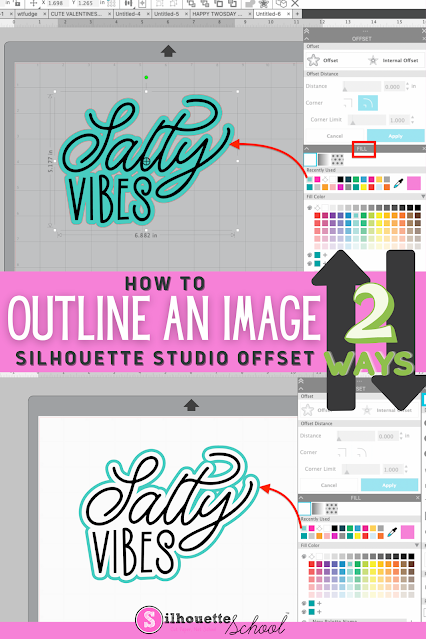
How to Outline an Image in Silhouette Studio

If you want to add an outline to an image in Silhouette Studio, it's easy to do with the Offset tool. 

silhouette 101, silhouette america blog, silhouette studio v4, offset, silhouette designing

Adding an outline in Silhouette Studio can help you create a base shape, thicken your design, or allow you to add layers to your design. Follow these simple steps for how to outline an image in Silhouette Studio.

How to Size a Design for a Tea Towel in Silhouette Studio

If you're wondering how to size designs to fit on your project the concept is the same whether it's a shirt or a tea towel or a wood sign. 

silhouette 101, silhouette america blog, silhouette studio v4, heat transfer vinyl, htv,

You need the design to appropriately fit the space. 

In this example we'll work with a set of tea towels to give you some ideas for how to create a quick mockup in Silhouette Studio to help you size your design.

How to Smooth Trace Lines in Silhouette Studio

If you're wondering "How do I smooth trace lines in Silhouette Studio?" you've come to the right place.

silhouette 101, silhouette america blog, trace lines, silhouette studio v4, tracing

Trace lines that are not smooth create jagged cut lines, which is why it's important to smooth trace lines in Silhouette Studio before you cut. This tutorial will explain how to smooth out Silhouette trace lines.

Why Does Silhouette Studio Keep Crashing? Try This FIX!

If Silhouette Studio keeps crashing on you there could be several reasons why. 

Silhouette Studio,Silhouette Studio V4.4,Silhouette Studio V4.5,Silhouette Studio 4,Silhouette Studio V4,silhouette software,Software,Troubleshooting

If you've already determined your computer meets the minimum requirements to run the Silhouette software, then it's time to take a look at the images or designs you're importing. Read on for how to stop Silhouette Studio from crashing.