Don't throw out all those holiday cards or store-bought greeting cards!! You can upcycle them with the help of your Silhouette!
Using the Silhouette Pixscan mat you can upcycle cards to re-use them as gift bag tags or scrapbook sentiments and handmade card sentiments.
Showing posts sorted by relevance for query pixscan. Sort by date Show all posts
Silhouette PixScan Mat Project Idea and Tutorial: Upcycle Store-Bought Cards
Wednesday, January 9, 2019
Silhouette Pixscan Registration Failed? 9 Ways to Fix the Error
Thursday, January 5, 2017
I have never had more love for a Silhouette product than I do for the Silhouette Pixscan Mat...unfortunately not all Silhouette crafters can say the same thanks to Pixscan registration errors.
If you've met the Pixscan registration failure error I really hope you'll give your mat another chance because the Pixscan technology is jaw dropping!
Silhouette PixScan Tutorial: Taking It Up a Notch (Part 2)
Friday, September 19, 2014
Last week I shared a beginner-level tutorial on how to use the newly released Silhouette PixScan Mat. If you didn't catch it, read through it here before you go any further as this tutorial will build off the basics.
Now that you understand the basics about using the PixScan technology let's about customizing your designs. In this example, I'm going to upcycle Christmas cards we received last year into gift tags for this year. Don't add the ribbon hole and you can have beautiful new sentiments for paper crafts like scrapbooking or cards!
3 Tricks to Avoid Wasting HTV Scraps: Silhouette Tutorial
Wednesday, December 12, 2018
If you're like me and you hate wasting material - including scraps - there are some tricks to making sure you get the most out of your materials.
Heat Transfer Vinyl is not cheap at anywhere from $3 to $3.25 per 12x15" sheet of solid color Siser Easyweed. Patterns and glitter HTV typically cost even more.
![]() |
| This is a sponsored post, but all opinions are my own. |
Heat Transfer Vinyl is not cheap at anywhere from $3 to $3.25 per 12x15" sheet of solid color Siser Easyweed. Patterns and glitter HTV typically cost even more.
Silhouette Print and Cut Without Registration Marks
Monday, December 20, 2021
You can do Silhouette Print and Cut without registration marks!
There are three main reasons why you might want or need to print and cut without Silhouette registration marks:
- The paper you are printing on is dark and the black registration marks don't show up
- You want to maximize the printable and cuttable space
- You are getting a Silhouette registration mark error
This Silhouette print and cut tutorial works for all three so read on for how to use the Pixscan mat instead of registration marks! And because I know you'll ask you can use Silhouette Pixscan with all Silhouette cutting machines.
Silhouette Pixscan Camera Calibration Tutorial
Tuesday, November 29, 2016
I recently got a new phone and all of the sudden Silhouette Studio was not recognizing my Pixscan images. The nerve....I love my Silhouette Pixscan mat! Truth is - I get emails about this Pixscan camera calibration error all the time - but it's hard to troubleshoot an issue you've never had. The good news is I can finally tell you how to calibrate your camera or phone for Silhouette Pixscan...because I just had to do it.
Calibrating your camera for Silhouette Pixscan is a multi step process.
Silhouette PixScan Tutorial for Beginners: Part 1 of 2
Thursday, September 11, 2014
In August, Silhouette announced the release of the new Silhouette PixScan Technoloy. The concept is cool, but to be honest I found the written directions and the video tutorial rather vague. Here at Silhouette School we like to spell.it.all.out. so it's baby steps the whole way.
First let's talk about what Pixscan is. Pixscan Technology utilizes a cutting mat that has pre-printed registration marks on it which allows you to cut out pre-printed patterns or images. Think of it like you're doing a print and cut, but someone else did the printing.
Beginner Silhouette Pixscan Mat Tutorial for CAMEO 4
Monday, August 17, 2020
The Silhouette Pixcan mat is one of those must-have accessories for your craft room. But how do you use it...and for what?
The Silhouette Pixscan mat is used for two main purposes: to accurately and preciously cut pre-printed materials (like a print and cut for pre-printed materials) and also to sketch, etch or cut with extreme accuracy on very small craft blanks or vinyl scraps.
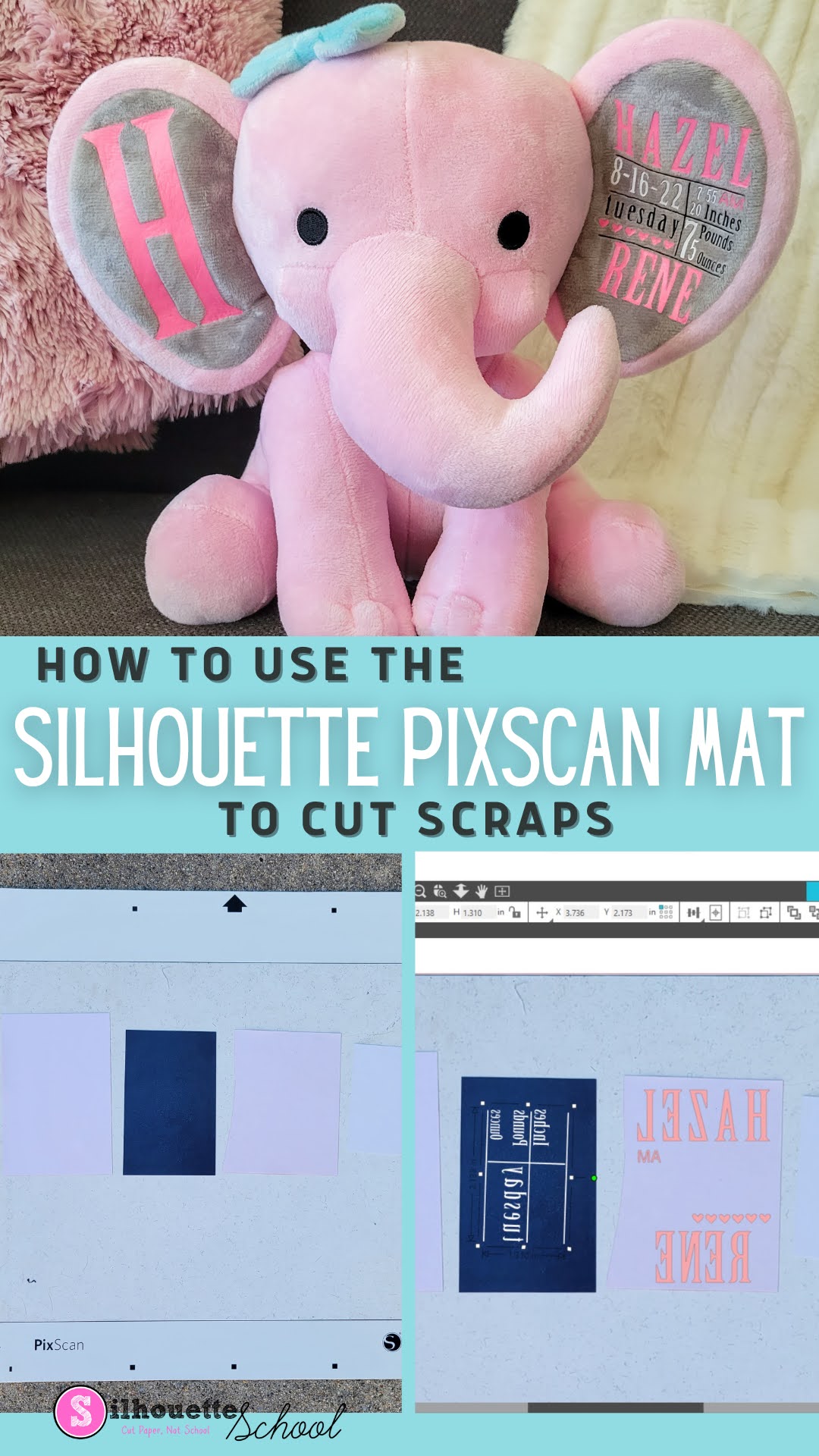
Cutting Heat Transfer Vinyl Scraps with Silhouette Pixscan
Tuesday, October 25, 2022
Wondering what to do with HTV scraps? Don't throw them away!
Cutting Silhouette Stickers Without Registration Marks (Free Sticker Set)
Tuesday, August 27, 2019
If you want to get more stickers out of each sticker sheet, you can print and cut stickers with Silhouette CAMEO without registration marks.
Registration marks take up space on the printed sheet and limit the max size of the area printed with stickers. But the Silhouette Pixscan mat actually lets you use the entire sticker sheet for stickers!
![]() |
| This is a sponsored post but all opinions are my own |
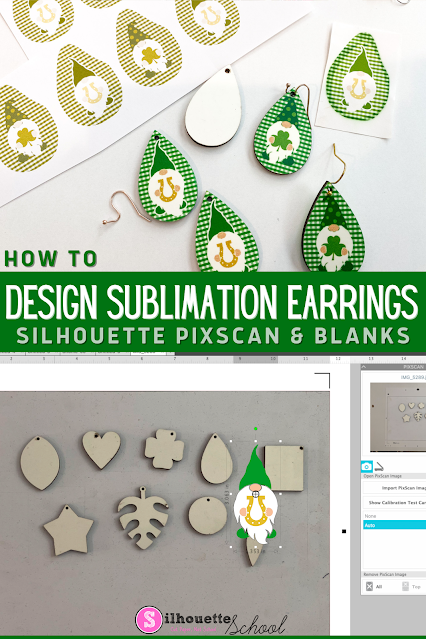
How to Design Sublimation Earrings in Silhouette Studio
Wednesday, March 9, 2022
The easiest way to design for sublimation earrings is to create your own templates using the sublimation earring blanks themselves.
The key to this is to use the Silhouette Pixscan mat. This will allow you to layout and print sublimation earring designs to perfectly match your sublimation blanks! Follow this Silhouette Pixscan tutorial for the step by step.
Using Silhouette PixScan to Maximize Scraps
Thursday, April 9, 2015
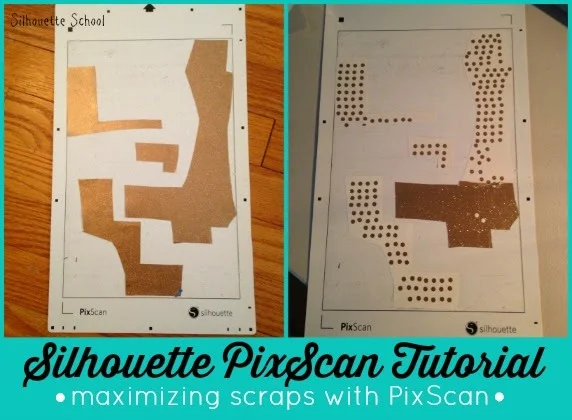
If you're like me you have a whole drawer (or two) full of scraps. I have one of paper, another of fabric, another of HTV and yet another of adhesive vinyl. That's a lot of scraps. Many of the scrap pieces are odd shaped which makes cutting on them difficult because you have to line up the design and the scrap exactly on the cutting mat to hit the target. Well....the Silhouette PixScan mat makes cutting scraps a whole lot easier. If you're not familiar, read my PixScan 101 tutorial here to fully understand how it works. In a nutshell, PixScan utilizes a special mat with pre-printed registration marks that the software and machine can read to cut out a very precise design. Usually you'd trace the design in the software, but in the case of scraps, we're going to place a design instead of tracing. You'll see what I mean in a minute.
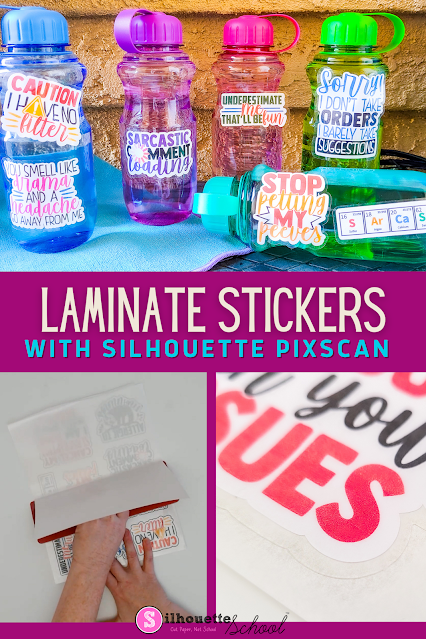
How to Make Waterproof Stickers with Laminate and Silhouette CAMEO
Tuesday, February 1, 2022
Looking to protect your printable stickers? In this post, we'll show you how to laminate your printable stickers so they'll look great for even longer!
The method explained in this tutorial uses the PixScan Mat. For a beginning PixScan mat tutorial, check out this blog post here.
Labels:
CAMEO 3,
Home Printer,
How to,
PixScan,
Print and Cut,
Printable,
Silhouette Pixscan,
Stickers
Cutting Laminated Shapes and Print and Cuts with Silhouette (Plus Perfect Cut Settings)
Thursday, June 22, 2023
If there's one thing I know it's that there is always another way to use your Silhouette machine....like, say, with a laminator. I recently got myself a (very basic) laminator and let me tell you, nothing is safe! I know what you're thinking: laminators are only for teachers. WRONG!
I've combined the powers of my Silhouette CAMEO and my laminator to make custom bookmarks, planner inserts, photo booth props, dry erase games for my kids, luggage tags, the list goes on.
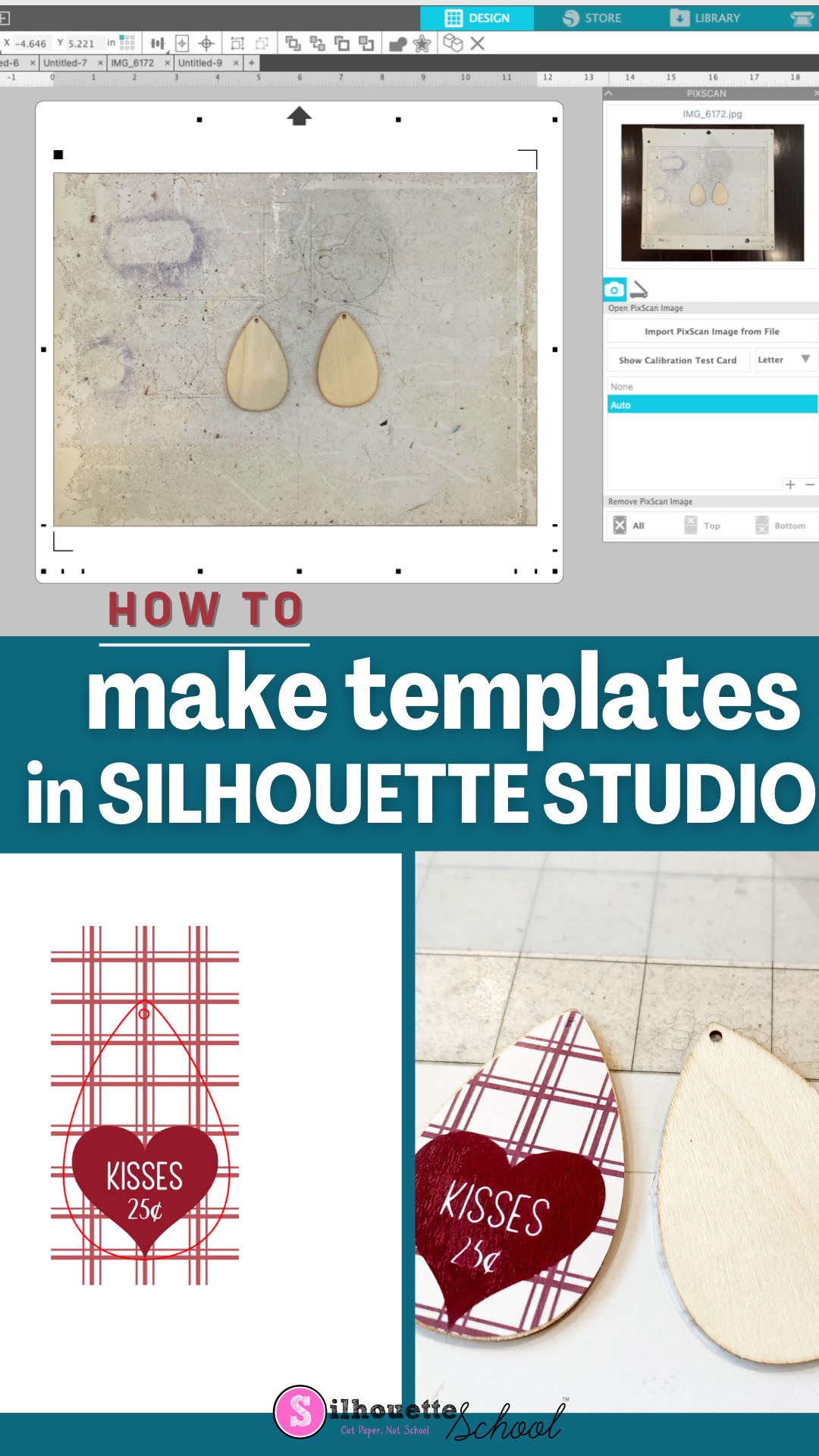
How to Make a Template in Silhouette Studio
Tuesday, January 17, 2023
Did you know you can make a template in Silhouette Studio to match your blanks perfectly?
Silhouette Pixscan Hack Avoids Sticker Paper Waste And Tracing
Monday, January 23, 2017
If you're like me you save every scrap of material you cut...and it probably makes you crazy that Silhouette print and cut registration marks result in so much wasted space!
I'm happy to tell you there's a workaround that will make make your print and cuts while saving material. We're going to focus specifically on sticker paper today.
![]() |
| This is a sponsored post, but all opinions are my own. |
Where's the Silhouette Pixscan Mat Option?
Wednesday, May 17, 2017
If you're a fan of the Silhouette Pixscan mat, like I am, you may have noticed a change in the software that took place in one of the updates along the way.
There's no longer a Pixscan mat option in the Silhouette Studio Design Settings window...it's like it just vanished!
How to Create a Perfect Shape Template (without PixScan)
Thursday, August 13, 2015
We all know how versatile our Silhouette machines can be, but one of the more difficult tasks is to create files for custom objects. This is what I found out when we attempted to work on one of these amazing tile Christmas ornaments that have been floating around the crafting world lately. Although a few different templates are being passed between friends, what do you do when a template isn't available? Create your own, of course!
Silhouette School contributors Becky and Glenna from My Paper Craze are back today to show us how - and they're sharing a method everyone can do - even if you don't have Pixscan.
How to Make an Envelope Liner Template with Silhouette Studio and Sticker Paper
Monday, September 12, 2016
So you're wondering how to make envelope liners in Silhouette Studio? You've come to the right spot because I've figured out an easy way to make custom size envelope liners using Pixscan and printable sticker paper. Oh you're gonna love this!
![]() |
| This is a sponsored post, but all opinions are my own. |
Labels:
Envelopes,
How to,
Paper,
Paper Crafts,
PixScan,
Print and Cut,
Sticker Paper,
Stickers,
Tips & Tricks
How to Use Silhouette PixScan To Size Your Arabesque Tile Ornaments Perfectly
Tuesday, September 6, 2022
If you want to make sure that an arabesque tile ornament design is the right shape for the tiles you have, then here's how to make sure they fit perfectly!
In this tutorial, we'll share how to use the Silhouette PixScan mat with your arabesque tiles and ornament designs to make the perfect ornament templates!
Subscribe to:
Comments (Atom)


.png)