


Showing posts with label PixScan. Show all posts
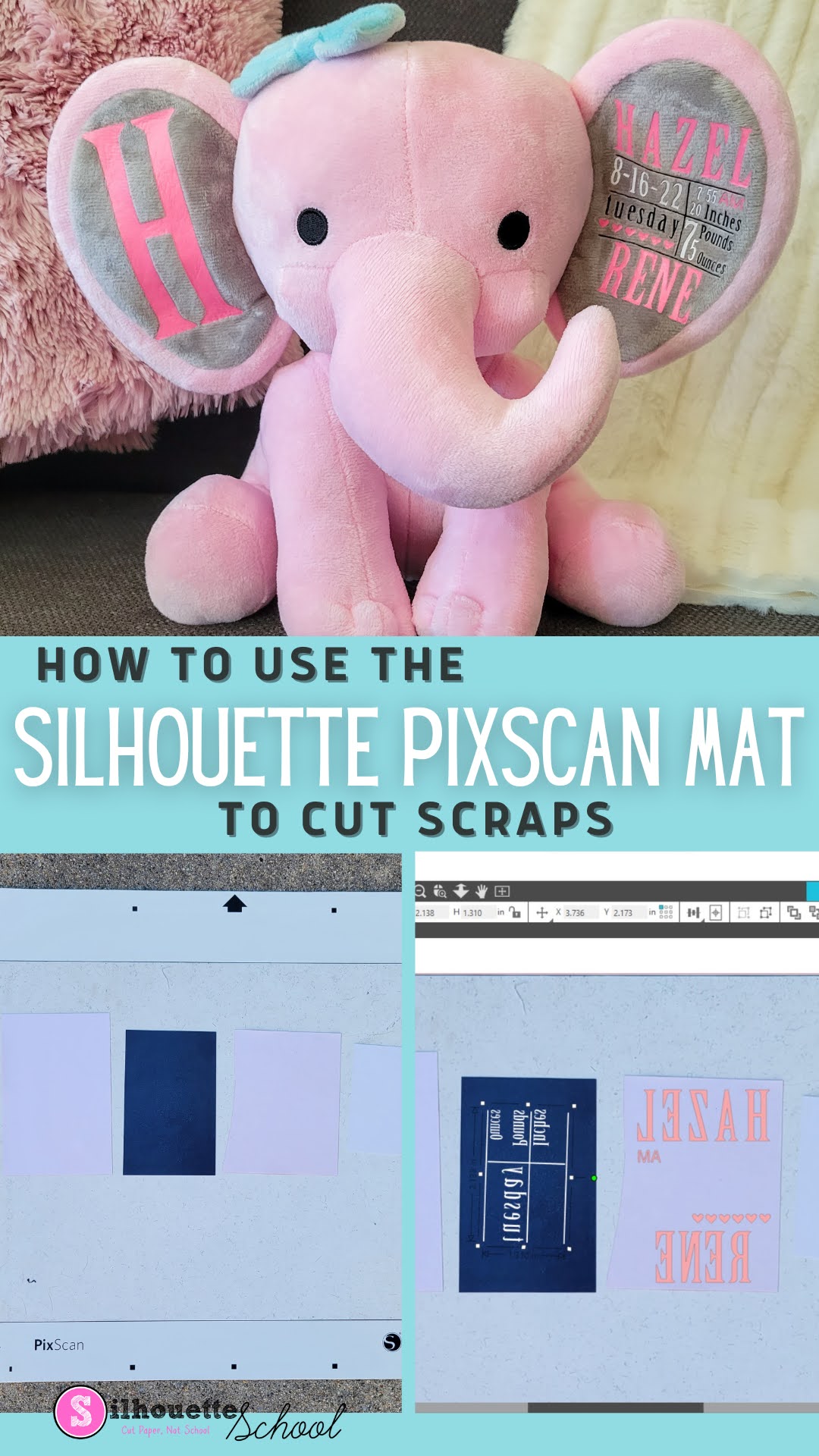
Cutting Heat Transfer Vinyl Scraps with Silhouette Pixscan
Tuesday, October 25, 2022
Wondering what to do with HTV scraps? Don't throw them away!
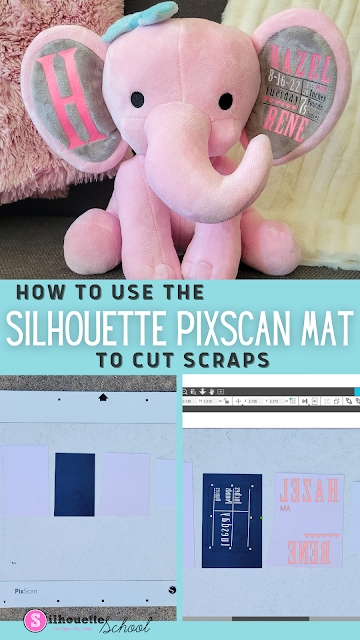
In this Silhouette Pixscan tutorial, learn how to use the Silhouette Pixscan mat to cut even the smallest heat transfer vinyl scraps.
How to Use Silhouette PixScan To Size Your Arabesque Tile Ornaments Perfectly
Tuesday, September 6, 2022
If you want to make sure that an arabesque tile ornament design is the right shape for the tiles you have, then here's how to make sure they fit perfectly!

In this tutorial, we'll share how to use the Silhouette PixScan mat with your arabesque tiles and ornament designs to make the perfect ornament templates!
How to Design Sublimation Earrings in Silhouette Studio
Wednesday, March 9, 2022
The easiest way to design for sublimation earrings is to create your own templates using the sublimation earring blanks themselves.
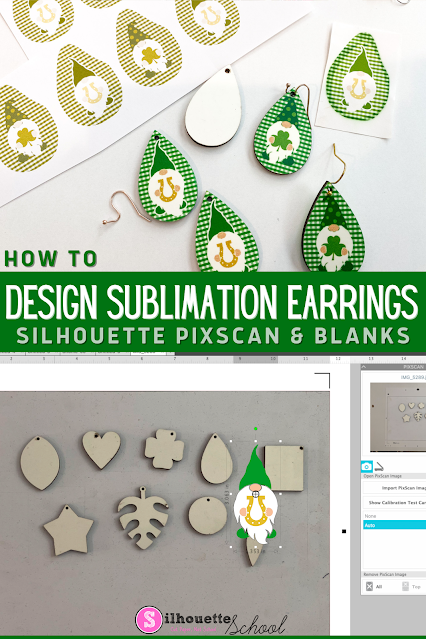
The key to this is to use the Silhouette Pixscan mat. This will allow you to layout and print sublimation earring designs to perfectly match your sublimation blanks! Follow this Silhouette Pixscan tutorial for the step by step.
How to Make Waterproof Stickers with Laminate and Silhouette CAMEO
Tuesday, February 1, 2022
Looking to protect your printable stickers? In this post, we'll show you how to laminate your printable stickers so they'll look great for even longer!
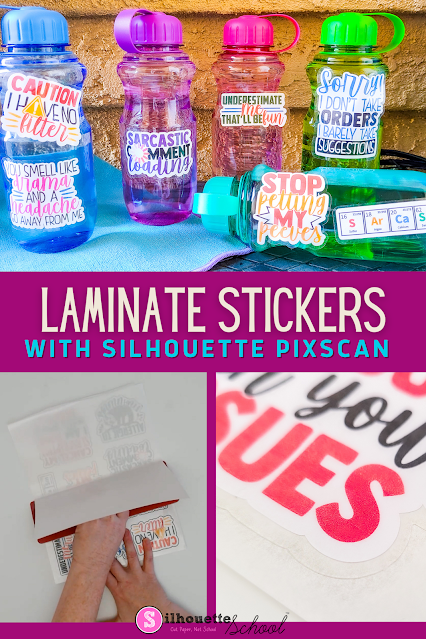
The method explained in this tutorial uses the PixScan Mat. For a beginning PixScan mat tutorial, check out this blog post here.
Silhouette Print and Cut Without Registration Marks
Monday, December 20, 2021
You can do Silhouette Print and Cut without registration marks!

There are three main reasons why you might want or need to print and cut without Silhouette registration marks:
- The paper you are printing on is dark and the black registration marks don't show up
- You want to maximize the printable and cuttable space
- You are getting a Silhouette registration mark error
This Silhouette print and cut tutorial works for all three so read on for how to use the Pixscan mat instead of registration marks! And because I know you'll ask you can use Silhouette Pixscan with all Silhouette cutting machines.
Beginner Silhouette Pixscan Mat Tutorial for CAMEO 4
Monday, August 17, 2020
The Silhouette Pixcan mat is one of those must-have accessories for your craft room. But how do you use it...and for what?

The Silhouette Pixscan mat is used for two main purposes: to accurately and preciously cut pre-printed materials (like a print and cut for pre-printed materials) and also to sketch, etch or cut with extreme accuracy on very small craft blanks or vinyl scraps.

The Silhouette Pixscan mat is used for two main purposes: to accurately and preciously cut pre-printed materials (like a print and cut for pre-printed materials) and also to sketch, etch or cut with extreme accuracy on very small craft blanks or vinyl scraps.
Cutting Silhouette Stickers Without Registration Marks (Free Sticker Set)
Tuesday, August 27, 2019
If you want to get more stickers out of each sticker sheet, you can print and cut stickers with Silhouette CAMEO without registration marks.
Registration marks take up space on the printed sheet and limit the max size of the area printed with stickers. But the Silhouette Pixscan mat actually lets you use the entire sticker sheet for stickers!
 |
| This is a sponsored post but all opinions are my own |
Silhouette PixScan Mat Project Idea and Tutorial: Upcycle Store-Bought Cards
Wednesday, January 9, 2019
Don't throw out all those holiday cards or store-bought greeting cards!! You can upcycle them with the help of your Silhouette!

Using the Silhouette Pixscan mat you can upcycle cards to re-use them as gift bag tags or scrapbook sentiments and handmade card sentiments.

Using the Silhouette Pixscan mat you can upcycle cards to re-use them as gift bag tags or scrapbook sentiments and handmade card sentiments.
VIDEO TUTORIAL: Use Silhouette Pixscan to Perfectly Size Planner Stickers (and Free Sticker Set)
Friday, August 24, 2018
Make your own custom printable planner stickers! Check out this Silhouette video tutorial for making sure your planner stickers are perfectly sized for your planner.

The trick here is to use your Silhouette Pixscan mat.

The trick here is to use your Silhouette Pixscan mat.
Goodbye Fussy Cut: Cutting Stamped Images with Silhouette CAMEO and Pixscan
Thursday, September 7, 2017
Say goodbye to fussy cuts! If you're not familiar with what a fussy cut is it's when you have to break out the scissors to cut around a shape printed or stamped shape, for example, all the way while trying to keep the shape centered.

Of course, Silhouette crafters would much prefer to use their cutter rather than fussy cut. That's where the Silhouette Pixscan mat comes in.

Of course, Silhouette crafters would much prefer to use their cutter rather than fussy cut. That's where the Silhouette Pixscan mat comes in.
Custom Printed Vinyl Decals: Silhouette Pixscan Tutorial Hack
Wednesday, August 16, 2017
You guys this might be my best idea yet...and for those of you who sell, make lots of the color vinyl decals or layered htv design, or just don't care to layer lots and lots of vinyl and HTV decals - this Silhouette tutorial hack is going to leave you speechless.

I've figured out a way to print any design multiple times on a single sheet of Oracal 651 vinyl and then cut out each of the designs to create individual decals. Whether you run a Silhouette business or not, this is a huge time, material, and money saver for anyone who needs to create multiple copies of the same custom vinyl decals.
Think about if you had a large order of tumblers, mugs, or shirts that all had the same decal design which required a lot of layering. Or perhaps you have a popular seller that slows you down because it's time consuming to cut and layer each one. With this hack you could have several custom vinyl decals printed on the same sheet of vinyl and then you could just cut them all at the same time and apply the personalization quickly.
Combining the power of Sparkle Berry Ink's Custom Design Upload tool to create custom printed vinyl, Pixscan, and Silhouette CAMEO or Portrait I think we can all agree this is a real game changer.

I've figured out a way to print any design multiple times on a single sheet of Oracal 651 vinyl and then cut out each of the designs to create individual decals. Whether you run a Silhouette business or not, this is a huge time, material, and money saver for anyone who needs to create multiple copies of the same custom vinyl decals.
Think about if you had a large order of tumblers, mugs, or shirts that all had the same decal design which required a lot of layering. Or perhaps you have a popular seller that slows you down because it's time consuming to cut and layer each one. With this hack you could have several custom vinyl decals printed on the same sheet of vinyl and then you could just cut them all at the same time and apply the personalization quickly.
Combining the power of Sparkle Berry Ink's Custom Design Upload tool to create custom printed vinyl, Pixscan, and Silhouette CAMEO or Portrait I think we can all agree this is a real game changer.
Where's the Silhouette Pixscan Mat Option?
Wednesday, May 17, 2017
If you're a fan of the Silhouette Pixscan mat, like I am, you may have noticed a change in the software that took place in one of the updates along the way.

There's no longer a Pixscan mat option in the Silhouette Studio Design Settings window...it's like it just vanished!

There's no longer a Pixscan mat option in the Silhouette Studio Design Settings window...it's like it just vanished!
Cut Faux Custom Acrylics with Silhouette CAMEO (Life Changing!)
Wednesday, March 8, 2017
I get asked a lot if it's possible to cut acrylic with Silhouette CAMEO...the short answer is no. But recently I was doing some testing in my craft room as I do....and I discovered it's possible to not only get the look and feel of acrylic, but to make custom shapes using your Silhouette machine.

Since the Silhouette cutting machines can't cut actual acrylic the secret is...Shrinky Dinks.

Since the Silhouette cutting machines can't cut actual acrylic the secret is...Shrinky Dinks.
Silhouette Pixscan Hack Avoids Sticker Paper Waste And Tracing
Monday, January 23, 2017
If you're like me you save every scrap of material you cut...and it probably makes you crazy that Silhouette print and cut registration marks result in so much wasted space!
I'm happy to tell you there's a workaround that will make make your print and cuts while saving material. We're going to focus specifically on sticker paper today.
 |
| This is a sponsored post, but all opinions are my own. |
Silhouette Pixscan Registration Failed? 9 Ways to Fix the Error
Thursday, January 5, 2017
I have never had more love for a Silhouette product than I do for the Silhouette Pixscan Mat...unfortunately not all Silhouette crafters can say the same thanks to Pixscan registration errors.

If you've met the Pixscan registration failure error I really hope you'll give your mat another chance because the Pixscan technology is jaw dropping!

If you've met the Pixscan registration failure error I really hope you'll give your mat another chance because the Pixscan technology is jaw dropping!
Silhouette Pixscan App: Tutorial and First Impressions
Wednesday, December 21, 2016
The new Silhouette Pixscan Mobile app was officially released today. The Pixscan mobile comes with no instruction so hopefully this quick tutorial on how to use the Silhouette Pixscan app will help you get started and shorten the learning curve.

You all know I love my Pixscan mat..and the technology is a solid "A" in my book. The app though didn't fare as well in my book.
I have to admit, I've had the app on my phone for quite awhile - that's what happens when you're a beta tester. When I tried the app out a few months ago I decided it was just easier to use my Pixscan mat with the ol fashioned way - with my phone and the Silhouette Studio software. But with the official release of the mobile app, I figured I'd try out the app again to see how the fully released version works.

You all know I love my Pixscan mat..and the technology is a solid "A" in my book. The app though didn't fare as well in my book.
I have to admit, I've had the app on my phone for quite awhile - that's what happens when you're a beta tester. When I tried the app out a few months ago I decided it was just easier to use my Pixscan mat with the ol fashioned way - with my phone and the Silhouette Studio software. But with the official release of the mobile app, I figured I'd try out the app again to see how the fully released version works.
Silhouette Pixscan Camera Calibration Tutorial
Tuesday, November 29, 2016
I recently got a new phone and all of the sudden Silhouette Studio was not recognizing my Pixscan images. The nerve....I love my Silhouette Pixscan mat! Truth is - I get emails about this Pixscan camera calibration error all the time - but it's hard to troubleshoot an issue you've never had. The good news is I can finally tell you how to calibrate your camera or phone for Silhouette Pixscan...because I just had to do it.

Calibrating your camera for Silhouette Pixscan is a multi step process.

Calibrating your camera for Silhouette Pixscan is a multi step process.
How to Make an Envelope Liner Template with Silhouette Studio and Sticker Paper
Monday, September 12, 2016
So you're wondering how to make envelope liners in Silhouette Studio? You've come to the right spot because I've figured out an easy way to make custom size envelope liners using Pixscan and printable sticker paper. Oh you're gonna love this!
 |
| This is a sponsored post, but all opinions are my own. |
Silhouette Pixscan Guide: Newest Mini Guide in The Ultimate Silhouette Guide Series!
Tuesday, June 7, 2016
Ahhh I have big news to share today! I just released my seventh book - and the fifth mini guide in The Ultimate Silhouette Guide series. The Ultimate Silhouette Guide to Pixscan is 16 pages packed full of step by step tutorials on how to use the Pixscan mat.

Use Silhouette to Make Perfect Die Cuts for Acrylic Blanks
Tuesday, October 6, 2015
Acrylic blanks are hugely popular to personalize with vinyl...but if you want to make a perfect template to fit the blank it's not always an easy task. Today I'm going to share the easiest way to do this using one of my favorite Silhouette accessories - PixScan.
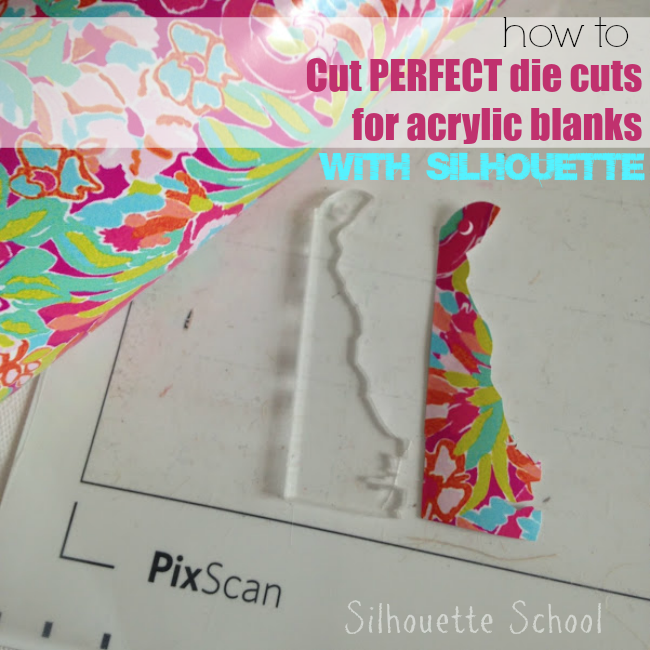 If you don't have Pixscan, I would highly recommend it - but in the meantime, I shared another way to make shape templates a few weeks ago, which works great if
you don't have Pixscan or if you have a white or clear blank that
doesn't pick up well on Pixscan.
If you don't have Pixscan, I would highly recommend it - but in the meantime, I shared another way to make shape templates a few weeks ago, which works great if
you don't have Pixscan or if you have a white or clear blank that
doesn't pick up well on Pixscan.
 If you don't have Pixscan, I would highly recommend it - but in the meantime, I shared another way to make shape templates a few weeks ago, which works great if
you don't have Pixscan or if you have a white or clear blank that
doesn't pick up well on Pixscan.
If you don't have Pixscan, I would highly recommend it - but in the meantime, I shared another way to make shape templates a few weeks ago, which works great if
you don't have Pixscan or if you have a white or clear blank that
doesn't pick up well on Pixscan.
Subscribe to:
Posts (Atom)


.png)


