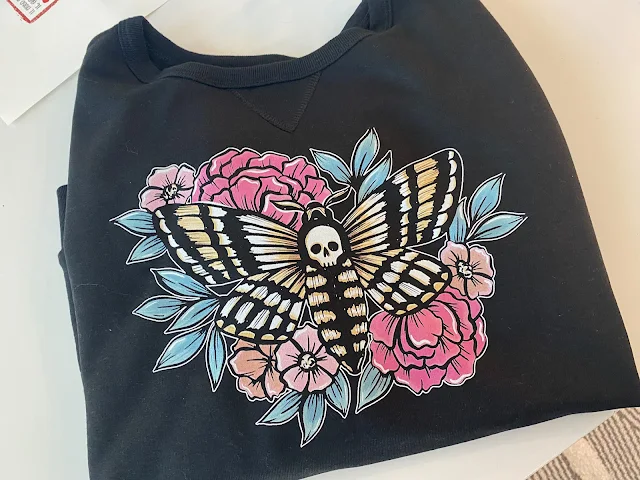
You know what's awesome? When you're printing DIY patterned vinyl and you can print edge to edge from Silhouette Studio!
Not only do you avoid the white border around the printable vinyl sheet, but you also maximize your printable - and therefore cuttable - area.
Showing posts with label Printable. Show all posts
How to Make Heat Transfers for T Shirts at Home
Thursday, February 19, 2026
There's a time and place for cutting and layering heat transfer vinyl, but when the number of layers become too many or when working with a full color images (with shading and faded edges) is required - printing and cutting heat transfers at home for t shirts will take your small business to the next level.
You'll save time, increase production, and increase the offerings in your shop by printing heat transfers on an eco solvent print and cut machine like the Roland BN-20A. Read on for how to make full color t shirt transfers at home with printable heat transfer vinyl.
How to Make White Border for Stickers with Silhouette CAMEO
Thursday, January 22, 2026
You can make a white border for stickers with Silhouette CAMEO by quickly adding an offset in Silhouette Studio.
This tutorial will show you step by step how to add a white border to stickers in Silhouette Studio.
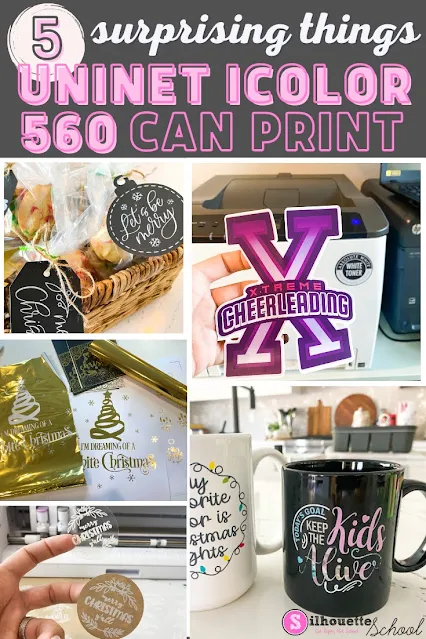
White Toner Printer: 5 Surprising Things You Can Make (And Sell) with a Uninet iColor 560
Thursday, December 25, 2025
A white toner printer makes creating ready to press full color transfers fast and easy to make. There's no cutting or weeding and you can put the decals on any color and type of garment. It's one of the reason I love my Uninet iColor 560. But if that's all you're printing...you're missing out and undervaluing the printer!
What I've found, in the six months since I've added it to my office, is that cut-free, weed-free transfers are only the tip of the iceberg for the Uninet iColor 560 White Toner printer.
With the price point close to $3600, the more you can do with this printer - the more the price is worth it for small businesses. Let's look at five surprising things you can make with the iColor that you will expand what you can make and sell!
5 Ways to Use Distressed Designs with Silhouette to Avoid Weeding
Thursday, October 9, 2025
You don't need to shy away from distressed designs just because you don't want to weed them.
I have few tricks my sleeve for avoiding weeding distressed and grunge designs and today I'm going to share them with you!
Waterproof Sticker Paper, Printable Foil, Printable Iron On...Oh My!
Thursday, April 24, 2025
Since writing my sticker book, The Ultimate Silhouette Sticker Guide, I get asked often about various types of sticker paper and where it can be purchased. I'm thrilled to say I've finally found my sticker paper people: OnlineLabels.com!
Ohhh emmm gee, you guys! Online Labels has every possible type of sticker paper you could ever think of! Not only do the majority of their printable sticker and label sheets come in both glossy and matte options, they're also available for both laser and inkjet printers!
![]() |
| This is a sponsored post but all opinions are my own. |
QR Code Generator: How to Make QR Code with Silhouette CAMEO
Tuesday, August 13, 2024
QR code signs are one of those craft trends that seems to be sticking around so today we have a tutorial on how to make a QR code with Silhouette.
Using a scannable QR code generator is the key which will allow you to take customization to the next level with your Silhouette projects! This is a really special, but super easy, way to add even more sentimental value to your projects. Here's how to do it!
Labels:
How to,
Printable,
printable material,
Signs,
Silhouette Vinyl,
Stickers,
Tracing,
Vinyl
How to Improve Print Colors from Silhouette Studio
Tuesday, August 6, 2024
If the color prints from Silhouette Studio are dull and not as bright and vibrant as you'd like when you're exporting them, there is a little trick to fixing that.
Silhouette Studio users often complain the colors of their exported PNG and JPEG files, specifically, are "off". In this tutorial I'll show you how to improve your print colors so you get bright, beautiful, and vibrant colors when exporting from Silhouette Studio.
How to Start a Small T Shirt Business With a Silhouette CAMEO
Tuesday, July 23, 2024
If you're a beginner looking to start a tshirt business with Silhouette CAMEO, I have so much info to share with you today that I jammed it into a video!
We're talking the biggest mistakes to avoid when starting an at home t shirt business and the best equipment to have to set up your shirt business. Plus pros and cons of various at home heat transfer printers and where HTV shirts SHOULD fit into your business.
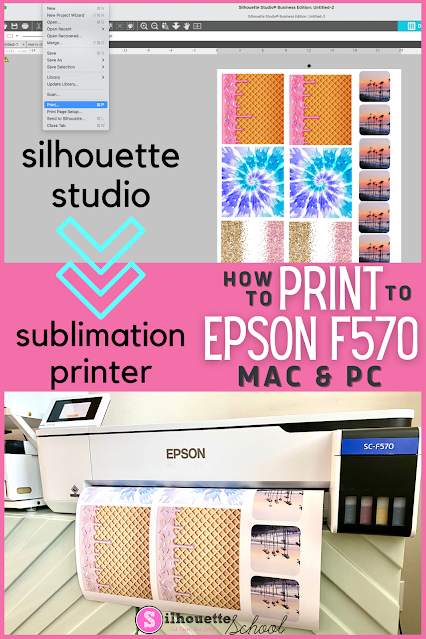
How to Print to Epson F570 Sublimation Printer from Silhouette Studio
Thursday, June 27, 2024
Unlike my smaller Sawgrass sublimation printer, it's possible to print directly from Silhouette Studio to an Epson sublimation printer on both a MAC and a PC.
While it's easy enough to hit Print and pick the Epson sublimation printer, the key to getting the best print is knowing how to navigate the Epson F570 sublimation color profiles and print settings. This Epson sublimation printer beginner tutorial will walk you through.
Sawgrass Sublimation Printer Printing Lines? Here's the Fix
Tuesday, June 11, 2024
If you're wondering why your Sawgrass SG400, SG500, SG800 or SG1000 Sublimation Printer is printing horizontal lines through your prints it could very well be because you are bypassing the Sawgrass Print Manger.
Horizontal lines in sublimation printing is a common complaint from Silhouette users who work on a MAC ... especially those who print directly from Silhouette Studio to their Sawgrass sublimation printer. To avoid these lines and get better, more vibrant prints, take the extra step of using the print manager.
Silhouette Studio Gradient Fill Tool Tutorial
Thursday, May 9, 2024
Did you know you can fill designs with a gradient fill in Silhouette Studio?
There are default quite a few gradient color options in Silhouette Studio, but you can also customize the gradient fills as well.
Epson Sublimation Printers Comparison: F570 vs F170 vs Converting an Inkjet
Tuesday, March 12, 2024
Epson officially jumped into the desktop sublimation printer game in 2020 by launching two dye sublimation printers: the Epson SureColor F570 and the Epson SureColor F170. They come after many crafters and at-home small business have long been converting Epson inkjet printers into sublimation printers by replacing the ink.
But what's the best Epson sublimation printer to go with...the 8.5" wide F170, the 24" wide F570 or a converted Ecotank or Workforce? I'll compare the three options here looking at a number of important factors to help you decide which Epson sublimation printer is best.
5 Ways to Fit More In the Silhouette Print Area
Thursday, February 22, 2024
If you are printing from Silhouette Studio and need to fit more in the Silhouette Studio print area there are multiple ways to do so.
The method - or combination of changes - that you make will depend on the design itself and if you are printing and cutting or just printing. Read on for five ways to fit more in the Silhouette printable area.
How to Use Silhouette Printable Shrink Sheets
Thursday, January 4, 2024
Grab your Shrinky Dink sheets...we've got a fun Silhouette kids craft today that you can customize in so many different ways.
Before you start using Silhouette printable shrinky dink sheets you want to make sure you have a solid understanding of the how to print and cut. If you need a refresher, this beginner Silhouette Print and Cut tutorial will catch you up.
Labels:
CAMEO 3,
CAMEO 4,
How to,
Jewelry,
kids,
Kids Stuff,
Print and Cut,
Printable,
Silhouette School for Kids
How to Kiss Cut and Die Cut Stickers on Same Sticker Sheet
Thursday, June 15, 2023
Labels:
autoblade,
CAMEO 4,
CAMEO 4 blades,
Home Printer,
How to,
Print and Cut,
Printable,
sticker,
Sticker Paper,
Stickers
When to Mirror Adhesive Vinyl for Silhouette Projects
Thursday, May 11, 2023
Mirroring, simply put, is when you flip your design backwards in Silhouette Studio before cutting it out. This is most often done with heat transfer vinyl and usually not done when using adhesive vinyl (like Oracal 651).
Now of course there are always exceptions, like some patterned
HTV that doesn't come on a carrier sheet that shouldn’t be mirrored, and believe it or not, there are actually some exceptions
with adhesive vinyl as well.
Inkjet Printable HTV vs Siser EasySubli Heat Transfer
Thursday, March 9, 2023
With the recent release of Siser EasySubli, there are a lot of questions about how it compares to the much less expensive inkjet printable heat transfer vinyl - and why you might pick one over the other.
While the Siser EasySubli and inkjet printable heat transfer vinyl share the same technique, when it comes to Silhouette, they are very different products. In this tutorial, we'll take a look at the pros and cons of EasySubli vs inkjet printable HTV.
How to Turn Off Print Preview in Silhouette Studio
Wednesday, February 15, 2023
If you have ever printed from Silhouette Studio, you know that there are times that a print preview window opens up.
I find this print preview window can, at times, cause more printing issues than it's worth and therefore you may actually want to disable this feature. Read on to learn how to turn off print preview in Silhouette Studio
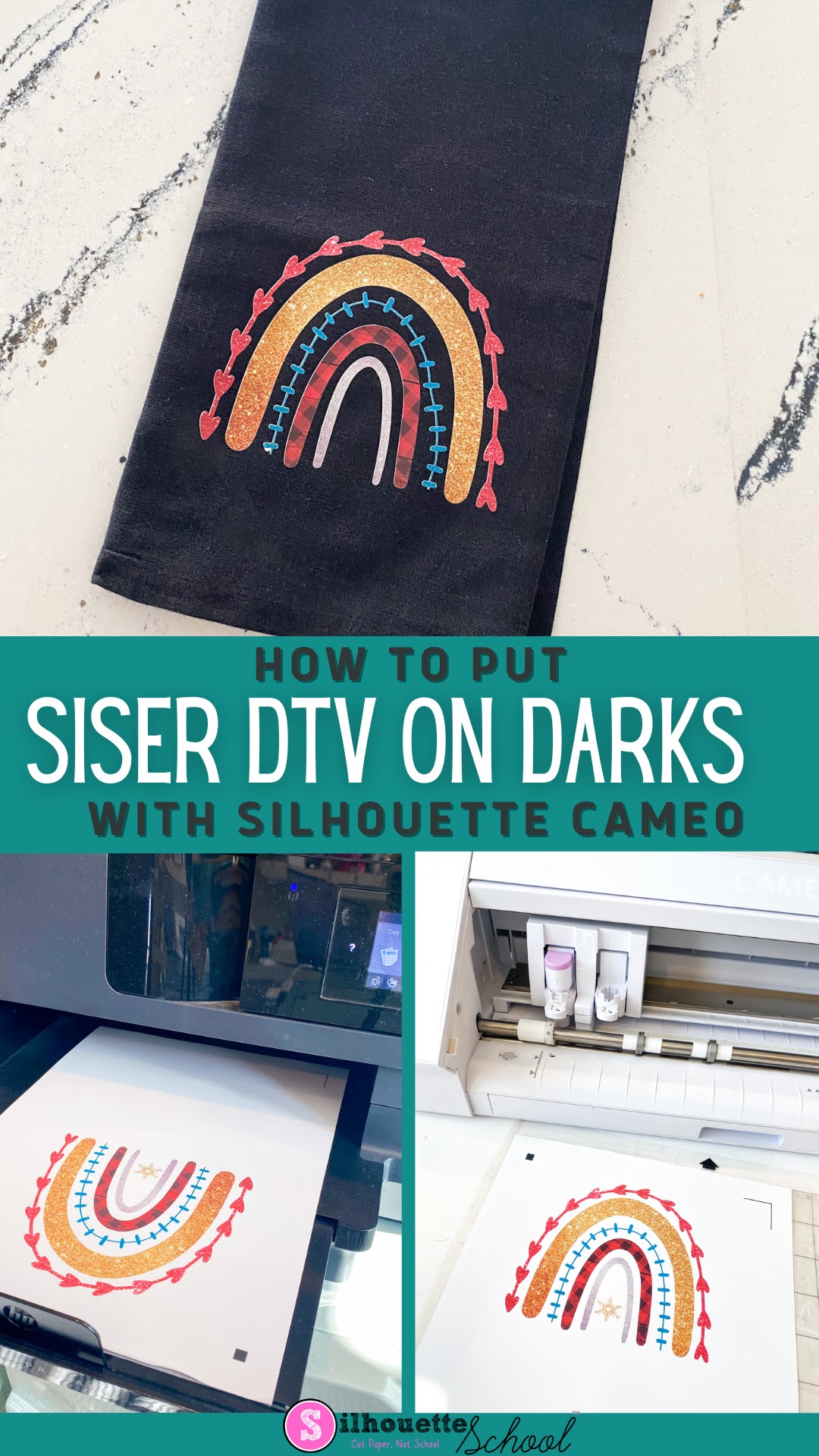
How to Use Siser Easy Color DTV on Darks for Beginners
Wednesday, November 9, 2022
Siser EasyColor DTV is an inkjet printable heat transfer vinyl material that allows you to print full color images directly on heat transfer vinyl and apply to light or dark garments.
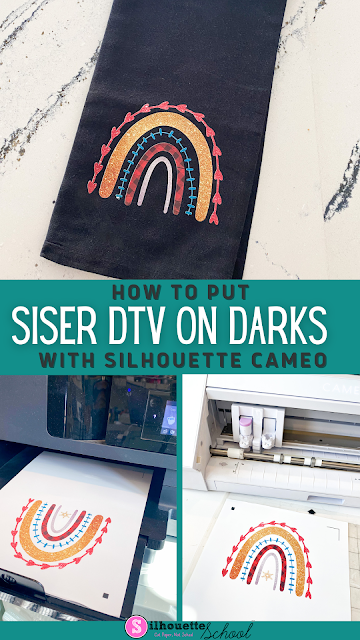
That means no layering and no bulky transfers on your shirt! This beginning tutorial will walk you through exactly how to put Siser Easy Color DTV on a dark shirt or surface using Silhouette CAMEO 4.
How to Set Up Silhouette Studio for Print and Cut with EasyColor DTV
Launch Silhouette Studio and start by adjusting your page size to match your inkjet printer. I'm using an 8.5x11 printer.
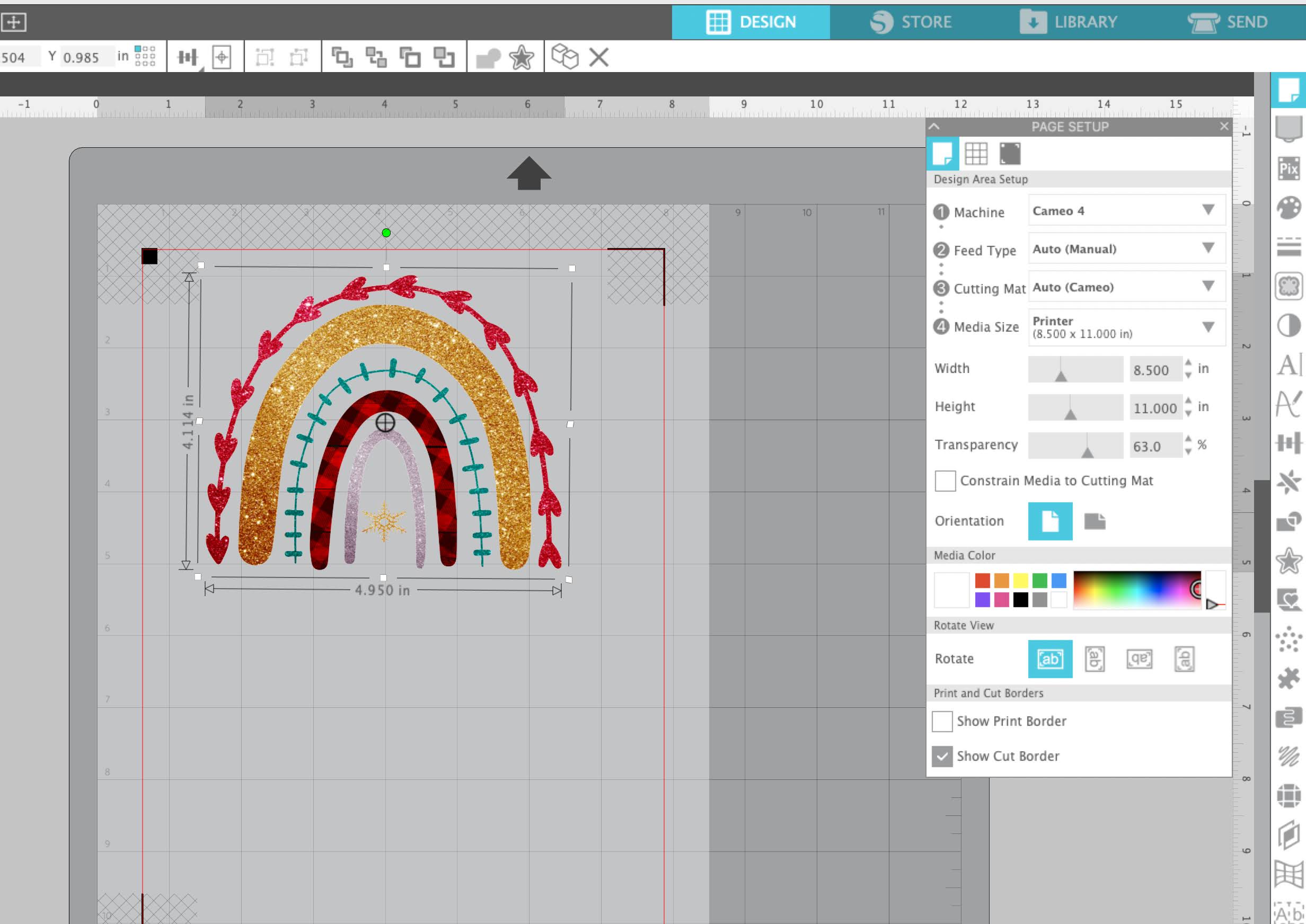
From the right sidebar, open Page Setup panel and be sure the Machine is set to CAMEO (Auto), select 12x12" cutting mat, and change the Material Size to "Printer".
Turn on the printer border and cut borders by checking the boxes for Show Print Border and Show Cut Border.
Finally, turn on the registration marks by pressing "M" on your keyboard or toggling the button to "On" on the Registration Marks tab of the Page Setup Panel.
How to Open a Design in Silhouette Studio Work Area for Print and Cut
If you haven't already, open your design into the work area by going to File > Merge. I'm using this Boho Rainbow Christmas design from So Fontsy's Mini Christmas $5 Buck Bundle.
It's easiest to use a SVG file or a PNG file (and keep auto trace turned on in Silhouette Studio). This will help you avoid needing to trace the image to create the cut lines. If you are using an JPEG or PNG that needs to be traced these beginner tracing tutorials will help you prepare you design.
Once the design has cut lines, scale it so it fits inside the print and cut boundaries and will fit on the surface where you plan to apply it.
You also want to make sure no part of the design is touching any of the hashed areas around the registration marks.
Best Printer Settings for Siser EasyColor DTV
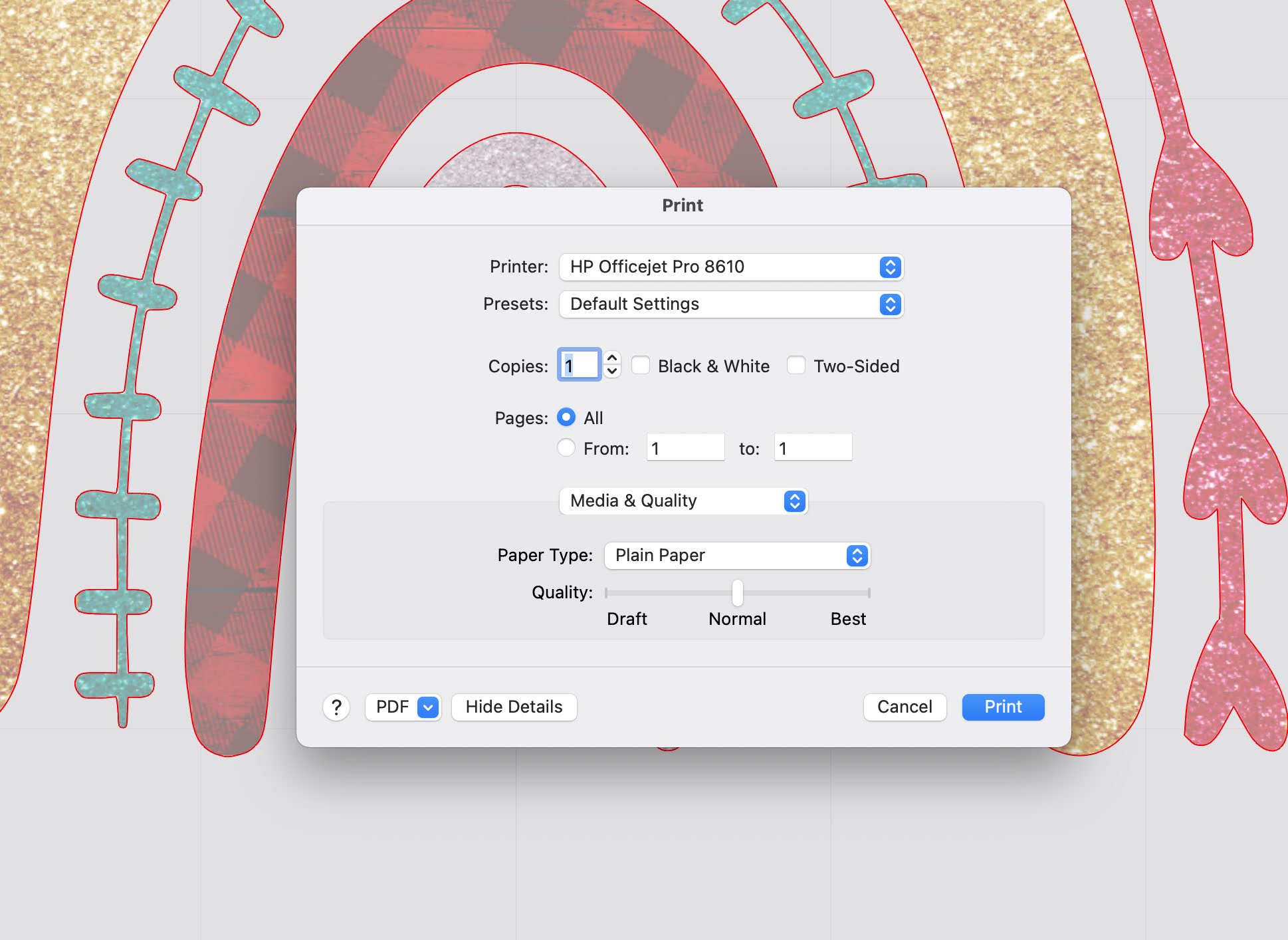
From Silhouette Studio click the "Print" button. Adjust the print settings for "Plain Paper". Usually I recommend putting the quality on "high quality" or "Best" but with Siser DTV that actually lays down too much ink so keep the quality on "Normal".
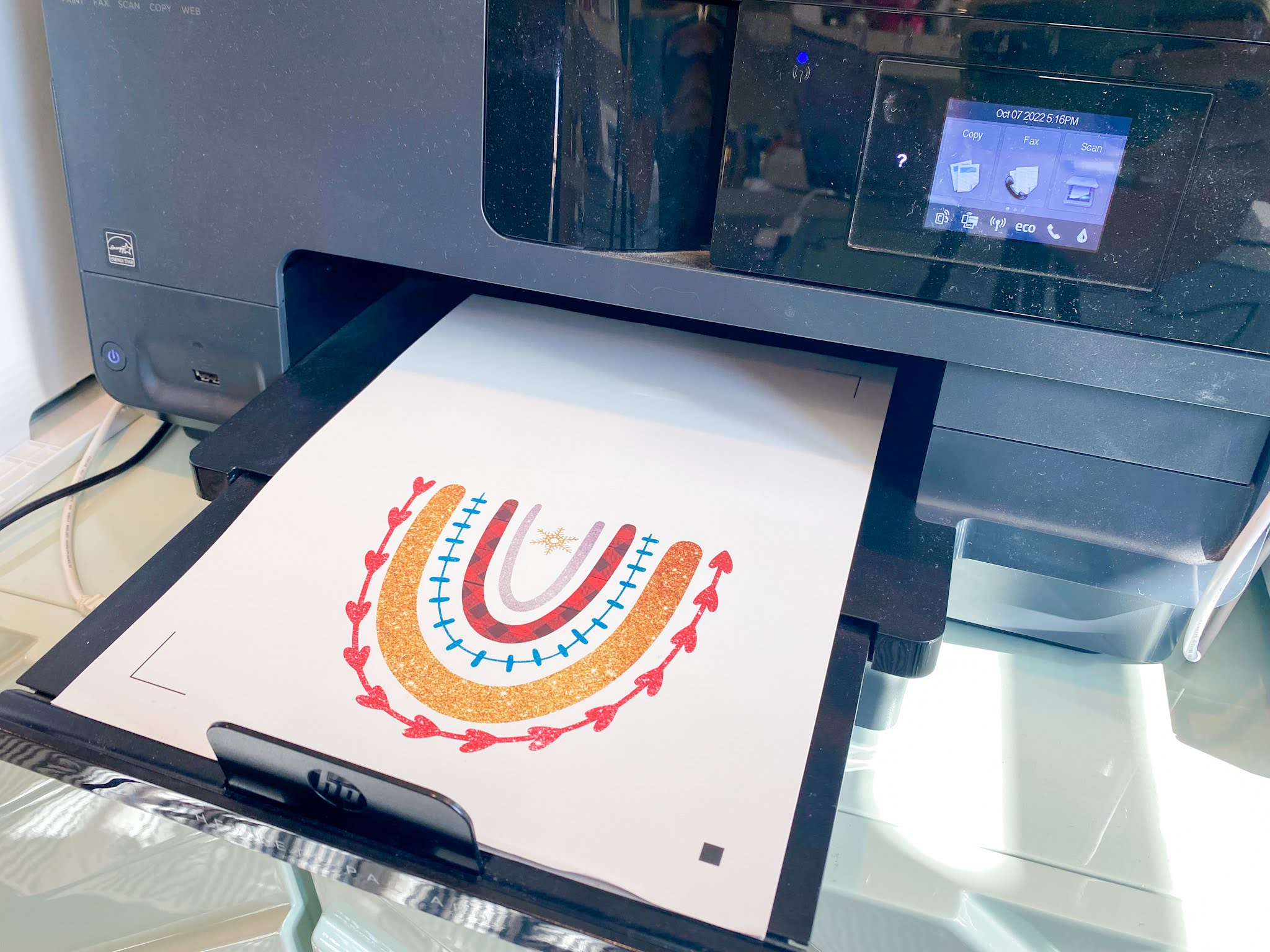
Place a sheet of EasyColor DTV in your printer so it will print on the rougher side of the material.
Best Silhouette Cut Settings for Siser EasyColor DTV
Once the sheet is printed place it on the Silhouette cutting mat and load into the CAMEO 4.
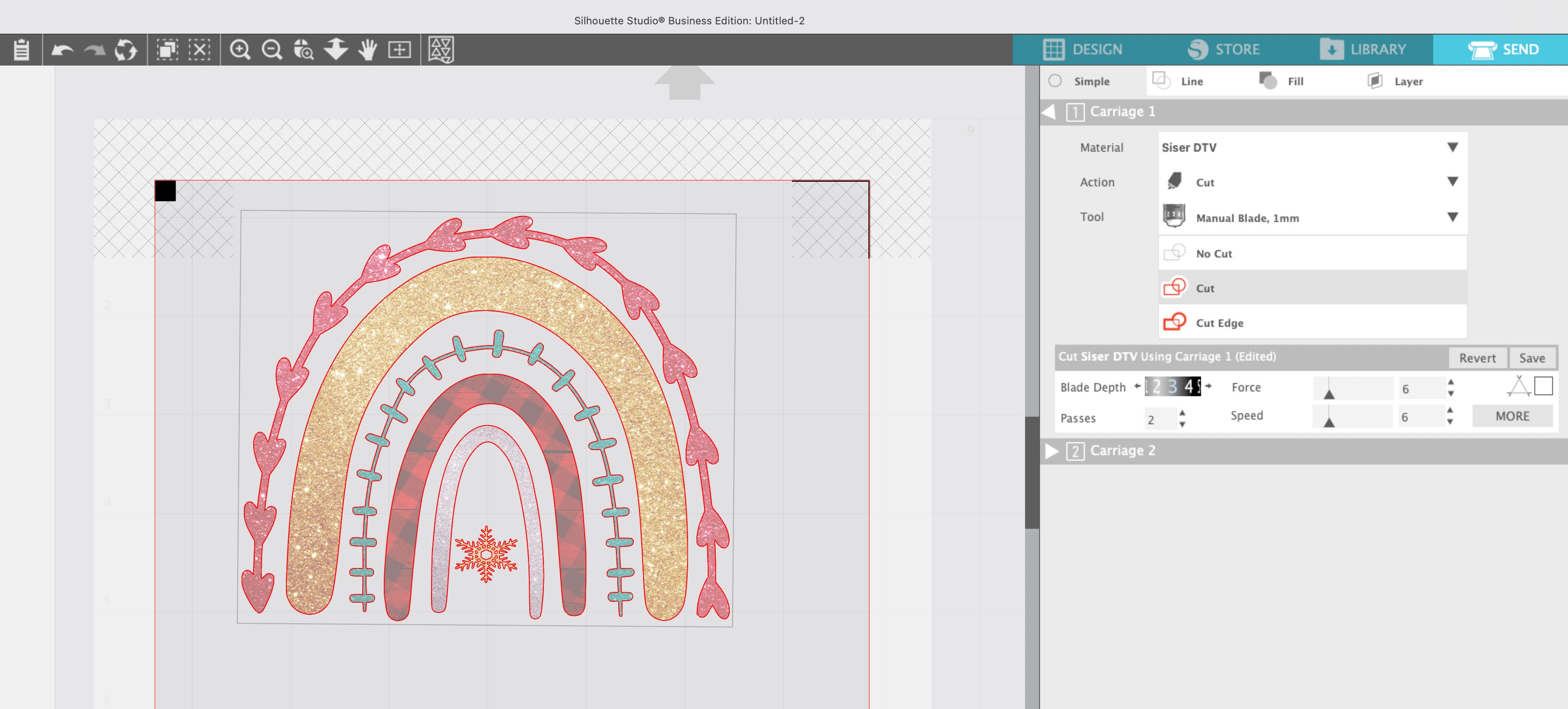
In Silhouette Studio, move to the Send panel and adjust the cut settings. I found the best Silhouette CAMEO cut settings for Siser EasyColor are Blade 3, Force 6, Speed 8, 2 Passes.
From the Send panel send the design to cut.
When the cutting is complete, do not unload the material. Do a test weed to make sure that the cut is complete. You want to make sure the EasyColor DTV has been fully cut through and it's easy to weed otherwise it will peel, stretch, and curl when weeding.
How to Transfer EasyWeed DTV Transfer to Garment
Weed away the excess material around the transfer. Be aware the backing is not sticky so thin areas of the design that are not fully cut through may stretch and come off the backing.
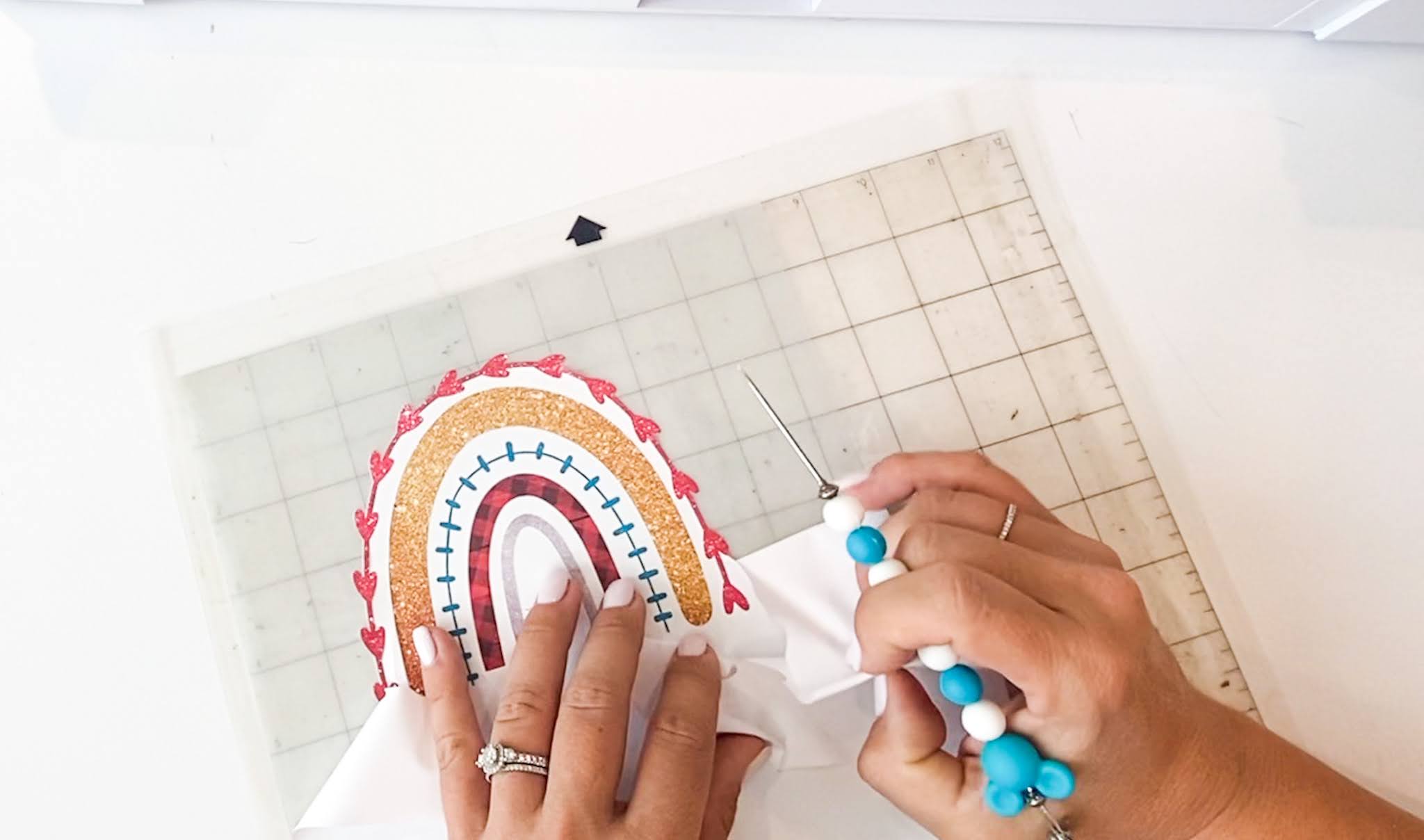
You'll want to use a piece of low tack mask over your transfer to pick it up off the backing and place on the garment.
After covering with the mask, use a scraper to burnish well so you can easily remove the backing sheet.
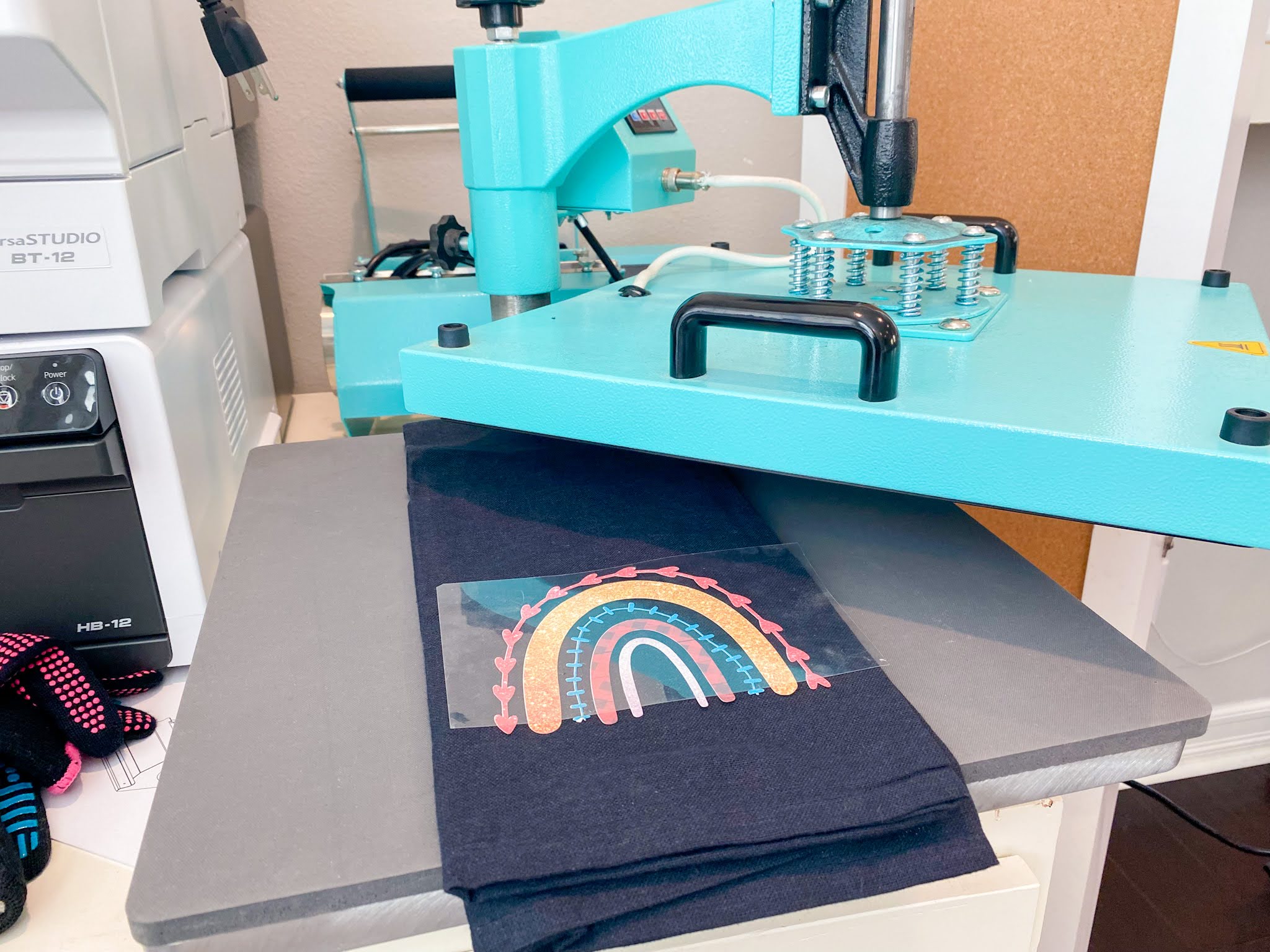
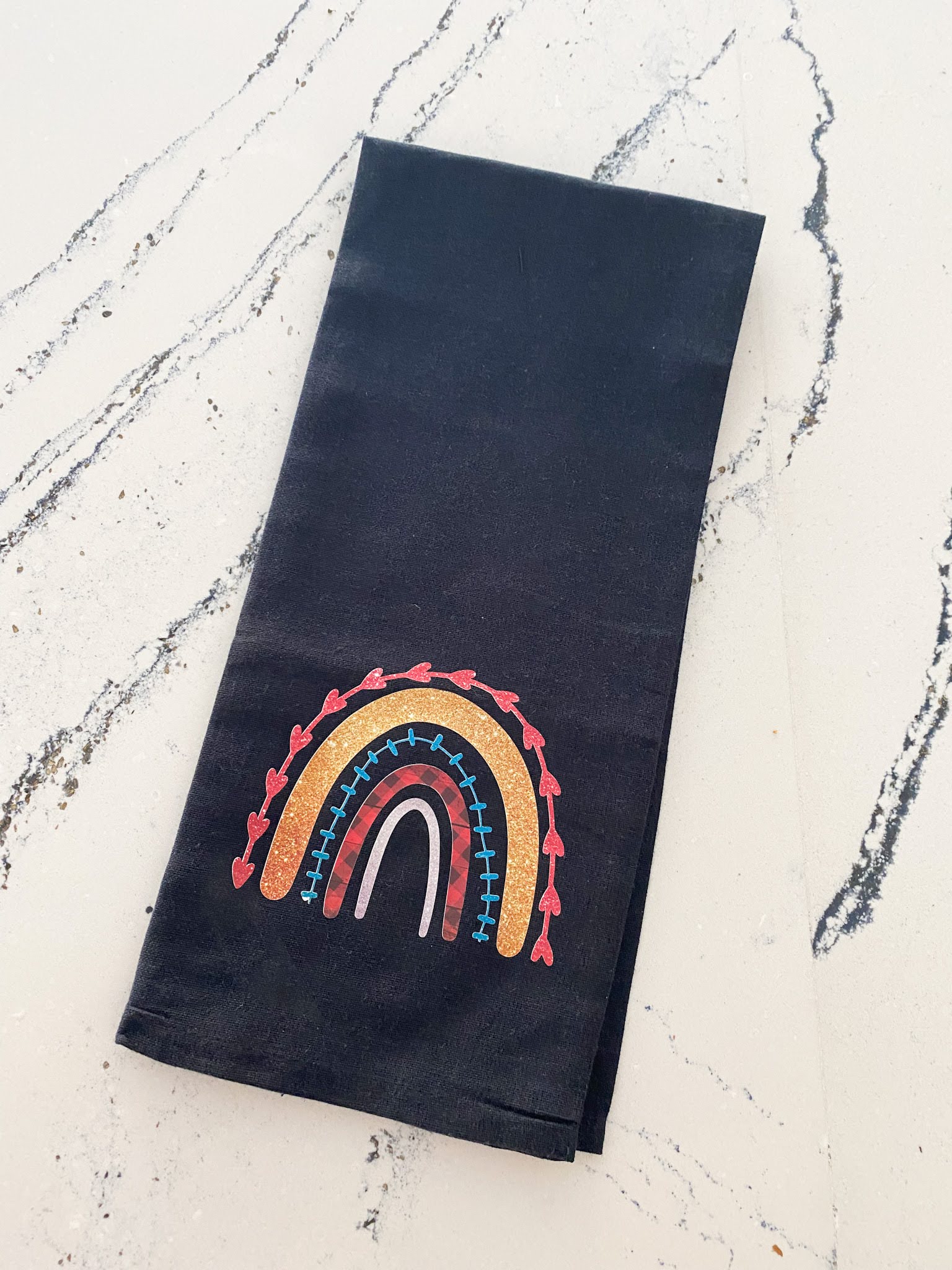
Place the design face up on your dark shirt or surface. I am putting this EasyColor DTV transfer on a black tea towel.
Have your heat press warmed up to 310 degrees and set to 15 seconds. Press the design with medium pressure and then remove the carrier sheet/mask.
Wait at least 24 hours to wash the garment to help keep the colors bright and bold!
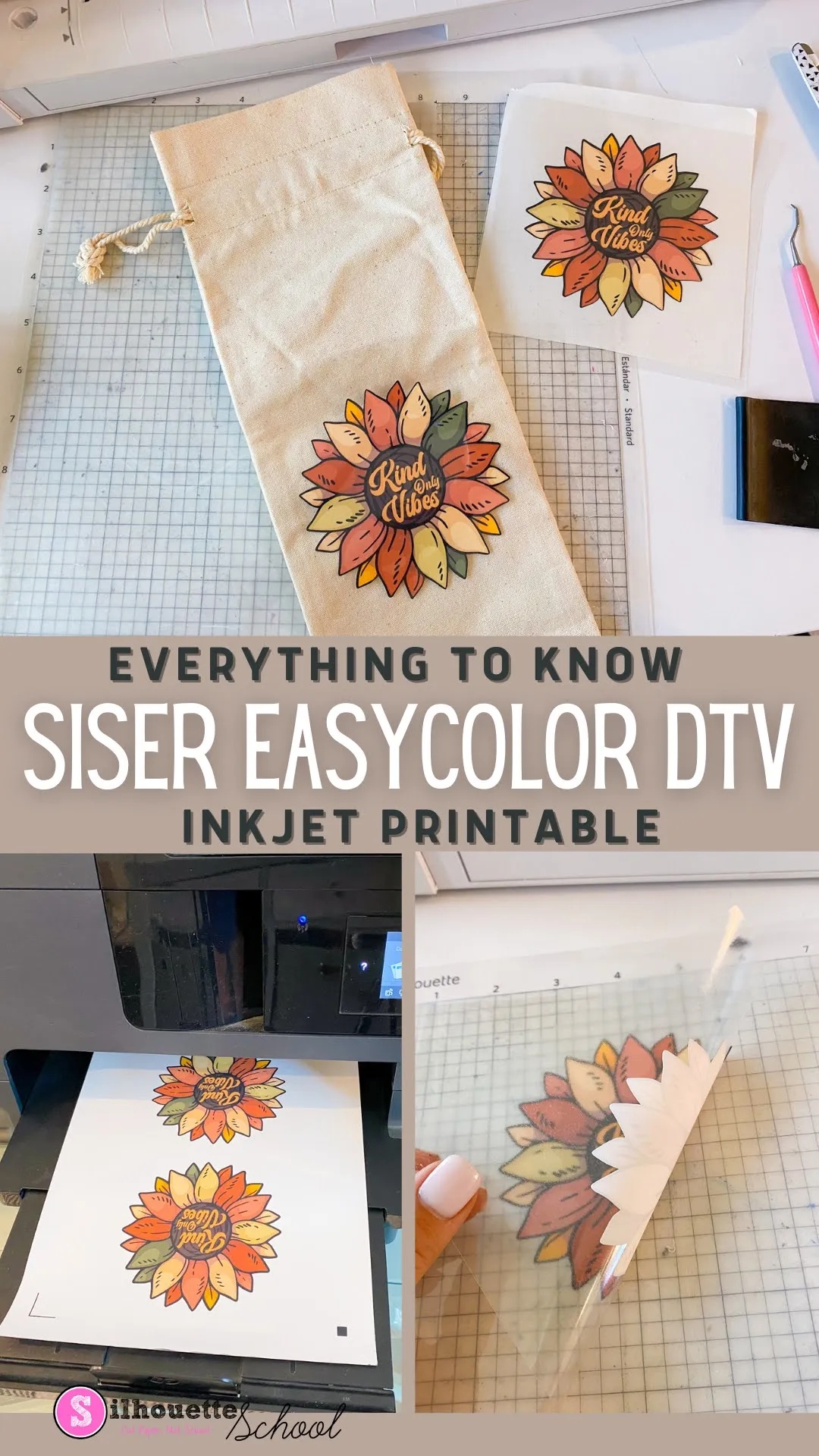
Want to learn more about EasyColor DTV and how to use it on lights and whites? Check out everything you'll want to know about Siser EasyColor DTV!
Note: This post may contain affiliate links. By clicking on them and purchasing products through my links, I receive a small commission. That's what helps fund Silhouette School so I can keep buying new Silhouette-related products to show you how to get the most out of your machine!
Get Silhouette School lessons delivered to your email inbox! Select Once Daily or Weekly.
Subscribe to:
Posts (Atom)


.png)