Copyright Silhouette School 2016. Powered by Blogger.


Showing posts with label Silhouette Studio V3. Show all posts

Silhouette Studio Running Slow? Check This!

If Silhouette Studio is running slow and you've already confirmed your computer meets the minimum requirements to run the software, it could be how you're designing or editing that's contributing to the slow processing. 

Silhouette Studio,Silhouette Studio Business Edition,Silhouette Studio V4,silhouette software,Designing,Silhouette Studio V3,Troubleshooting,silhouette studio designer edition,

There are various ways to try to speed up the Silhouette software, including making sure you're not overloading the software. Read on to learn how to increase the processing speed. 

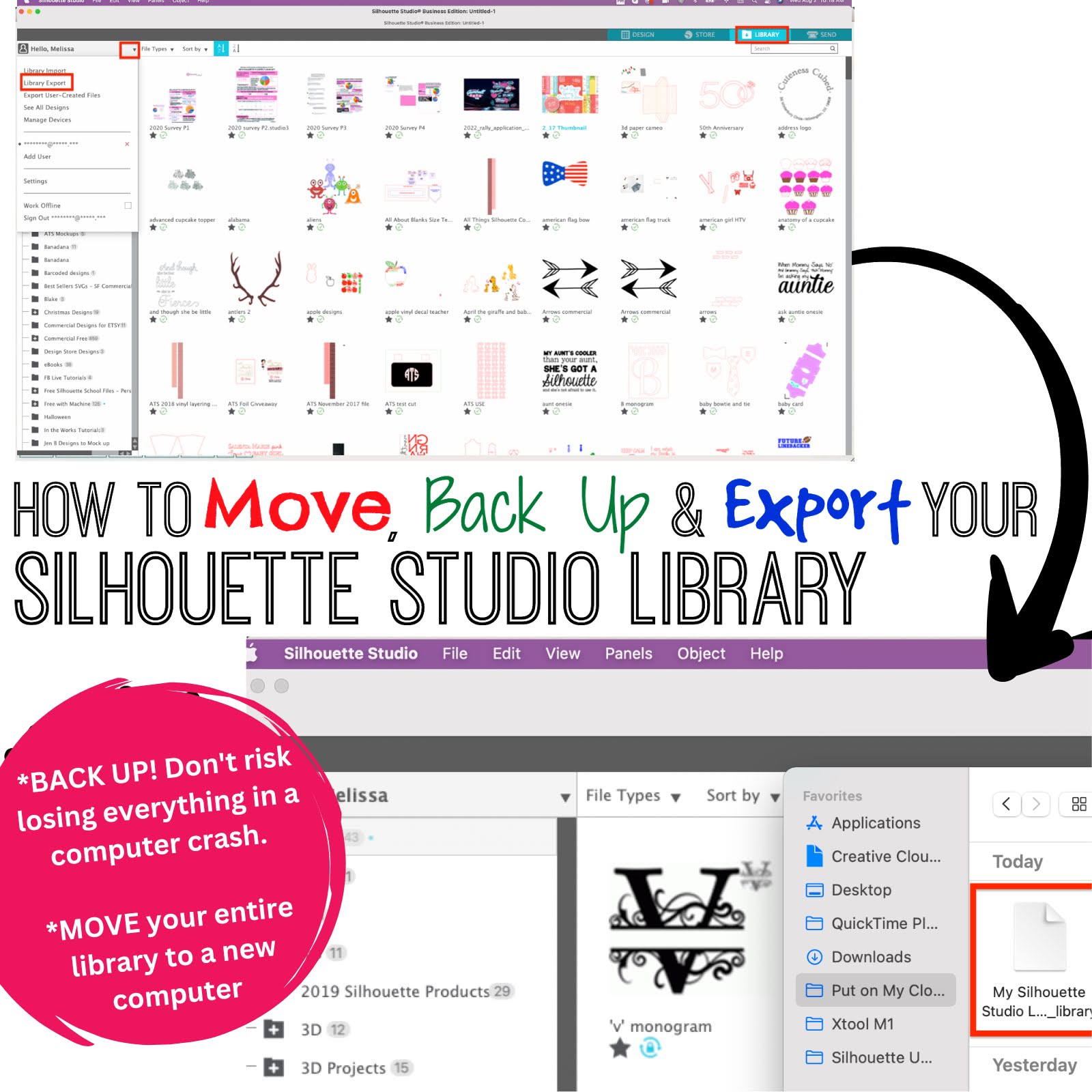
How to Back Up, Save, and Export Your Silhouette Studio Library Files

If you've ever been on the losing end of a computer crash you know how upsetting and frustrating it can be to lose photos, files, and months or years of work. 

Silhouette Studio, library, back up, export library, silhouette america blog, silhouette tutorial beginner, silhouette cameo 3, Silhouette cameo 4,

Or perhaps you are getting a new computer and don't want to have to manually move each and every file in your Silhouette Studio library.  Well lucky for you and me Silhouette America has created a really fast way to backup, save, move and/or export your entire Studio Library. 

And the best part is...you don't even have to be computer savvy to do it.  

Circle Split Anchor Silhouette Studio Tutorial (Works for Any Shape)

The split anchor with circle is so in right now. After I posted a recent tutorial on getting vinyl to stick to canvas, I was asked over and over again where I bought the design I put on my canvas.

Circle, split design, Silhouette Studio, Silhouette america blog, silhouette 101

So I figured it was worth a tutorial to show you how to make a split design with a welded circle.

How to Turn Off Crosshairs in Silhouette Studio

Many Silhouette Studio users at one point or another have been left wondering how to remove the crosshairs in Silhouette Studio.  

silhouette 101, silhouette america blog, crosshairs, silhouette studio v4, silhouette studio v3

This Silhouette Studio tutorial will show you how to quickly turn them off. 

Turn a 3D Layered SVG into a Lighted Shadow Box

3D layered cut files are gaining a lot of popularity with paper crafters. But if you've never used a layered 3D SVG design before it can be a little intimidating.

silhouette 101, silhouette america blog, paper projects, cameo 4, advanced silhouette studio tutorials

In this tutorial you'll learn how to convert a layered SVG into a design that really shines in these popular shadow box projects!

Silhouette Troubleshooting: Can't Move Design Around Studio Freely

Did you ever try to move a design around Silhouette Studio and it is jumpy? Like you can't move it freely to exactly where you want it?

Silhouette Studio, Silhouette troubleshooting, snap to grid, silhouette 101, silhouette america blog

This is a setting that sometimes seems to get itself turned on - but it's an easy and fast fix. 

Secret to Revealing Grid Box Numbers in Silhouette Studio

Well, my days of counting grid boxes in Silhouette Studio are over!!

Silhouette Studio Software tutorials, Silhouette Design Studio tutorials, silhouette tutorial, silhouette america blog, silhouette 101

The grid boxes on the virtual mat are super helpful so you can correctly place material on the cutting mat in the same boxes where your design is in Silhouette Studio.

Trick for Sizing and Placing Vinyl and HTV Decals on Blanks

If you own a Silhouette cutting machine, it's pretty likely that you've bought a 'blank' in your crafting day.

silhouette cameo blanks, acryclic blanks, htv blanks, vinyl blanks
This is a sponsored post, but all opinions are my own
Blanks are items that are ready to be customized usually with vinyl or heat transfer vinyl. Sometimes the biggest struggle is appropriately sizing the decal to fit on the blank. So today I thought I'd shared my secret for making sure you not only cut the perfect size vinyl or HTV decals for your blanks - but also that you hit a homerun on placement!

Silhouette Studio Library Missing: How to Get It Back

I have been getting more and more frantic emails recently from Silhouette School readers who have lost their Silhouette Studio library.  First - don't panic. Unless your computer crashed and you never backed up your library, it's likely you can recover the majority - if not all - of your designs.

recover silhouette studio library, find missing files, silhouette studio crash, silhouette studio designs missing, silhouette cameo tutorial

No matter how you lost your library, you can get your Silhouette America designs back - as they are linked to your account. Silhouette America can re-sync your library and you will get those designs back - no worries.

Finding and Installing Previous Versions of Silhouette Studio

Did you know that it's possible to revert back to older versions of Silhouette Studio? This may be necessary for any number of reasons.  One of the big reasons Silhouette users need to go back to an older version of Silhouette Studio is to restore their library. Sometimes when you upgrade to a new versions of Silhouette Studio, your whole library doesn't transfer over.  Most times, reverting back to an older version of Silhouette Studio will bring back the complete library.

silhouette studio, silhouette studio v2, silhouette studio legacy, silhouette studio v3, silhouette studio library, silhouette cameo tutorials

Not only does Silhouette America offer the current version of the Silhouette Studio for download, they also older versions - and a lot of them.  First you should find out what version of Silhouette Studio you are running.

Silhouette Studio Mat Revealing Grid Lines: How and Why

Everyone has their own favorite way to design in Silhouette Studio. I prefer to design on a white background without any grid lines.  Grid lines tend to distract me while designing, but are definitely useful later in the design process right before I cut.  Fortunately, you can have both - and it's easy to switch between a white background and gray grid lines.

silhouette cameo tutorials beginners silhouette studio grid lines white sheet

How to Export Library in Silhouette Studio V3 Cloud

The Silhouette Studio V3 Cloud version of the software has been the most significant change to the software since the upgrade from V2 to V3 in 2014. I am hearing a lot of grumblings about changes and features that were taken away - namely the ability to export, backup or save the Silhouette Studio Library.

Silhouette Studio, Silhouette CAMEO tutorial, back up, export library V3,, Silhouette Studio library, Silhouette Studio V3, Cloud

While it's true, there was a change to the way you export the Silhouette Studio library, it's not true users no longer have the ability to do so.  In earlier versions of Silhouette Studio V3, users would go to the File menu and click Export Library to backup their library files.  (A full tutorial on how to move the Silhouette Studio library can be found here).

Silhouette Studio, Silhouette tutorial, back up, export, move, Silhouette Studio library, Silhouette Studio V3, Cloud

In the Silhouette Studio Cloud version, however, that option is no longer found under the File menu....but it hasn't disappeared completely!  

If you right click on the Local User folder of your library you will find the Export Option.  When you do so you are given the same pop up box to name your library and save it to your computer or a hard drive. This will save all of your designs that are NOT on the cloud.

Silhouette Studio, Silhouette tutorial, back up library, move silhouette studio library, silhouette cameo beginners, export library, V3, Silhouette studio cloud,, Silhouette Studio library, Silhouette Studio V3, Cloud, export local user

If you want to export, move or backup the Silhouette Studio files that are on the Cloud, you'd need to repeat the process by right clicking on the Cloud folder and click "Export (email address)" and save the library to your hard drive.

Silhouette Studio, Silhouette tutorial, back up, export, move, Silhouette Studio library, Silhouette Studio V3, Cloud

To import or re-import files into your Silhouette Studio library, you'd go to File > Library > Import Library (careful not to pick Import TO Library.)


Silhouette Studio, Silhouette tutorial, back up, import, move, Silhouette Studio library, Silhouette Studio V3, Cloud


Note: This post may contain affiliate links. By clicking on them and purchasing products through my links, I receive a small commission. That's what helps fund Silhouette School so I can keep buying new Silhouette-related products to show you how to get the most out of your machine!

Thanks for coming to class today at Silhouette School.  If you like what you see, I'd love for you to pin it!

Pin It!

 photo 2b820f06-c93b-4b24-929c-96287390140f_zpsf3cd3a23.jpguse twiter photo Twitter_48x48_zps4e06061c.pnguse twiter photo Twitter_48x48_zps4e06061c.pngUse Feed photo Feed_48x48_zps63f27a4f.png photo 2b820f06-c93b-4b24-929c-96287390140f_zpsf3cd3a23.jpgUse Feed photo Feed_48x48_zps63f27a4f.png

Get Silhouette School lessons delivered to your email inbox! Select Once Daily or Weekly.

www.silhouetteschoolebook.com

How to Save Designs in New Silhouette Studio Cloud Update

When Silhouette America released the new version of Silhouette Studio to include the Silhouette Cloud in late April, the Save and Save As options changed slightly.  I heard some grumblings that you could no longer save as V2 and confusion over saving to library vs Silhouette Cloud.

Silhouette Tutorial, Silhouette Studio, save v2, save v3, cloud update

All of the options to Save as V2, Save as V3 and Save to the Library are still available - but so is the option to Save to the Cloud.  The options, however, do look a little bit different which has caused some confusion over whether it is still possible to save in all these different versions and places.  I assure you it is. Let's walk through the Silhouette Studio Save options together.

Silhouette Studio Cloud: Important Information Regarding Latest Studio Update

4/29 Update: Silhouette School has obtained a statement from Silhouette America's Customer Support regarding the Silhouette Studio Cloud Update. (See below to read the full statement)

Silhouette America quietly released a new version of Silhouette Studio on April 26, 2016 which includes a major change: The Silhouette Cloud.  The Cloud will open up additional options for saving your Silhouette designs...however, I would not update just yet for the simple fact that we don't know enough.
Silhouette Studio cloud
Silhouette announced the Cloud almost a year ago, so we knew it was coming, we just didn't know when. Apparently it's here, but with very limited information.  When I say limited, I mean like 5 words....the release notes for V3.7.206 simply state: "Silhouette Cloud implemented into Library."

How to Create a Perfect Shape Template (without PixScan)

We all know how versatile our Silhouette machines can be, but one of the more difficult tasks is to create files for custom objects.  This is what I found out when we attempted to work on one of these amazing tile Christmas ornaments that have been floating around the crafting world lately. Although a few different templates are being passed between friends, what do you do when a template isn't available? Create your own, of course!

Silhouette Pixscan, Pixscan, create shape template, shape template

Silhouette School contributors Becky and Glenna from My Paper Craze are back today to show us how - and they're sharing a method everyone can do - even if you don't have Pixscan.

New Silhouette Studio V3 'Shader Effects' Tool Tutorial

If you haven't updated to the most recent version of Silhouette Studio V3 yet, you're missing out on an awesome new tool - the Shader Effects tool.  I had noticed it there a week or so ago and finally decided I needed to investigate. OHHHH emmm gee, people, the Silhouette Studio Effects tool opens up a whole new world in Studio for editing photos, optimizing photos being traced and changing pattern colors!

Silhouette Studio, shader effect, Silhouette tutorial

Now I have Silhouette Studio Version 3 with Designer Edition. However, it's not a Designer Edition feature - but you must have the most recent version of Silhouette Studio Version 3 (even the latest version of V2 - 2.9.67 - does not have this feature) to get this new feature and I think you'll see it's definitely beneficial to have!

The first thing that came to mind was how great it was to use for editing photos in Silhouette Studio (Photos are great to use with print and cut, peek a boo cards (not sure if that's a real thing, but that's what I call them), stickers, etc.). 

Update to Silhouette Studio V3 Now or Lose Access to the Design Store!

Silhouette America has just announced that starting June 22 users who are still using Silhouette Studio v2 will NO LONGER BE ABLE TO ACCESS THE SILHOUETTE DESIGN STORE. 

Silhouette Studio V3, update, design store


Silhouette Troubleshooting: Fix for Jagged Cut Lines in Silhouette Studio

Silhouette Studio, fix, jagged cut lines, Silhouette troubleshooting
I'm answering a reader question the blog today on an issue that I've experienced myself. The question comes from Jenny who writes:
"I updated to v3 and now my lines are not showing up clean in studio on my fonts. When I cut they are jagged. Any ideas on what is causing this?"
 I should start by saying I'm not convinced this is a V3 bug. I updated from V2 to V3 almost a year ago and only just recently experienced this issue and only on one file.  

Regardless, the fix is actually pretty easy, but first let's look at the problem. 

What Jenny is referring to are cut lines in Silhouette Studio that are not smooth.  If you look closely at this 'Welcome' file that I created, you can see the same thing is happening here.  That 'e' for example should be smooth, not rigid the way it is. 

Silhouette Studio, fix, jagged cut lines, Silhouette troubleshooting

I actually didn't notice the issue until after I cut and you can see the design cut that way too.  What a waste of 14" of vinyl. 

Silhouette Studio, fix, jagged cut lines, Silhouette troubleshooting

PS: I have no idea why the blue backing looks dirty...it's not really so I'm blaming it on the sheen.

I have cut this file many times and never had an issue...but all of the sudden the lines were rigid.  I closed the file and reopened in another work area and still the result was the same. Clearly the original text file was curropt. 

In a new work area, I re-typed the word using the same font, Samantha, and the text was fine. The line were smooth in Silhouette Studio and they were also just as they should be when I cut the design. 

Silhouette Studio, fix, jagged cut lines, Silhouette troubleshooting, Samantha font

I suggested Jenny do the same and when she closed out her file, retyped the text in a new Studio work area and cut again...her text lines were smooth, too. 

In this case I don't know what causes the issue, I just know how to fix it and in some cases that's good enough. 

Note: This post may contain affiliate links. By clicking on them and purchasing products through my links, I receive a small commission. That's what helps fund Silhouette School so I can keep buying new Silhouette-related products to show you how to get the most out of your machine! 

Thanks for coming to class today at Silhouette School.  If you like what you see, I'd love for you to pin it!
Pin It!

 photo 2b820f06-c93b-4b24-929c-96287390140f_zpsf3cd3a23.jpguse twiter photo Twitter_48x48_zps4e06061c.pnguse twiter photo Twitter_48x48_zps4e06061c.pngUse Feed photo Feed_48x48_zps63f27a4f.png photo 2b820f06-c93b-4b24-929c-96287390140f_zpsf3cd3a23.jpgUse Feed photo Feed_48x48_zps63f27a4f.pngUse Feed photo Feed_48x48_zps63f27a4f.png

Get Silhouette School Tutorials
Delivered to Your Email:

Increasing the Silhouette Studio Tool Icon Size

Silhouette Studio, increase tool icon size, Silhouette tutorial
Did you know there's a way to increase the size of the tool bar icons in Silhouette Studio? There totally is and it's really simple to do. There are so many icons it can sometimes by tough to see, especially if you're working on a smaller monitor.  Increasing the size of the icons, therefore, can be really helpful. 

How to Recover Missing Silhouette Studio Files (and an eBook update)

Silhouette Studio, Silhouette Studio files, Studio files, recover missing filesIf you've ever been working on designing a Silhouette Studio file and then suddenly - in the blink of an eye or a crash of the software - it's GONE? (Hand raised here!) If yours is too, today's you're lucky day. My favorite mom and daughter crafty duo are back today to share details on how to recover missing Silhouette Studio files.