Copyright Silhouette School 2016. Powered by Blogger.


Showing posts with label Silhouette Studio Design tools. Show all posts

The Silhouette Studio Modify Panel: What Every Tool Actually Does

If you've ever opened the Modify panel in Silhouette Studio and stared at a row of buttons with no idea what half of them do, you're not alone.  

Modify,crop,subtract,CAMEO 4 tools,CAMEO 5 tools,Silhouette Studio Design tools,

Most people figure out weld pretty quickly...but the rest tend to be try it and undo. 

The Modify panel is one of the most powerful parts of Silhouette Studio. Every tool in it does something specific, and once you know what each one is for, you'll dramatically expand your design abilities and options. 

Modify,crop,subtract,CAMEO 4 tools,CAMEO 5 tools,Silhouette Studio Design tools,

How to Open the Modify panel

The Modify panel is found on the right side tool bar.  In both V4 and V5 you can open it by clicking the icon that looks like two overlapping shapes, or by going to the top menu:  Object > Modify Panel. The tools inside look slightly different between versions but they all work the same way.

Modify,crop,subtract,CAMEO 4 tools,CAMEO 5 tools,Silhouette Studio Design tools,

For the purposes of demonstrating each of the Modify Tools I will use the same starting shape throughout the tutorial as much as possible. 

Modify,crop,subtract,CAMEO 4 tools,CAMEO 5 tools,Silhouette Studio Design tools,

What is Weld?

Weld combines two or more overlapping shapes into one single shape, removing any interior lines where they overlap. One of the most common uses is welding script text so the letters connect into one clean cut line instead of cutting each letter individually. 

Modify,crop,subtract,CAMEO 4 tools,CAMEO 5 tools,Silhouette Studio Design tools,

Once you weld, the shapes become one permanent path - and unwelding can only be done with an "undo". 

What is Subtract? 

The Subtract tool is deeply dependent on the order of layers.  Subtract cuts the shape "in front" or on top out of the shape that's on the bottom and then removes the rest of the top shape (in this case the blue circle). 

Pro Tip: For Subtract and all of the remaining tools - fill your shapes with color so it's easier to identify which shape is "in front". It's much easier to identify the order of layers when they are filled vs simply looking at red lines around transparent shapes in Silhouette Studio.

Modify,crop,subtract,CAMEO 4 tools,CAMEO 5 tools,Silhouette Studio Design tools,

If you have a circle as the foremost layer in front of a square, with both selected, when you click Subtract, you get a square with a circular hole punched through it. The top shape disappears and the bottom shape gets the cutout. 

With subtract just keep in mind: layer order matters - the shape on top is always what gets subtracted.

What is Subtract All?

This works the same as Subtract but, instead of removing the remaining piece of the top layer /subtracted item, the top layer (blue circle here) remains completely intact. 

Modify,crop,subtract,CAMEO 4 tools,CAMEO 5 tools,Silhouette Studio Design tools,

This also works with more than one shape. Any areas of a shape that are obscured by another shape are removed. 

Modify,crop,subtract,CAMEO 4 tools,CAMEO 5 tools,Silhouette Studio Design tools,

What Does the Divide Tool Do?

Divide splits all selected overlapping shapes at every intersection point and separates them into individual pieces. Where Subtract removes the overlap, Divide keeps all the pieces — it just cuts them apart at every edge. It's less commonly used but handy when you want to work with each section of an overlapping design independently.

Modify,crop,subtract,CAMEO 4 tools,CAMEO 5 tools,Silhouette Studio Design tools,                                        

                                        What is Intersect? 

Intersect keeps only the area where ALL selected shapes overlap at the same time. 

Modify,crop,subtract,CAMEO 4 tools,CAMEO 5 tools,Silhouette Studio Design tools,

Think of a venn diagram with two circles, that's just that small football-shaped area in the middle where both layers overlap.  

Modify,crop,subtract,CAMEO 4 tools,CAMEO 5 tools,Silhouette Studio Design tools,

With two shapes it looks the same as Crop, but with three or more the difference is clear.

Modify,crop,subtract,CAMEO 4 tools,CAMEO 5 tools,Silhouette Studio Design tools,


Modify,crop,subtract,CAMEO 4 tools,CAMEO 5 tools,Silhouette Studio Design tools,

What is the Crop Tool? 

Crop trims one image or shape down using another shape as the boundary. There are actually two different ways to use the crop function in Silhouette Studio - you can crop an image down to a smaller size using point editing and arrow keys, or you can crop an image or pattern into any shape using the Modify panel Crop tool. Both work in V4 and V5.

The Modify panel Crop is specifically for cropping one thing into the shape of another.  It keeps any area shared by at least two shapes. 

Modify,crop,subtract,CAMEO 4 tools,CAMEO 5 tools,Silhouette Studio Design tools,

With three circles, that gives you all three overlapping sections as one new shape that shares a cut line. It's a much larger result than Intersect because it only needs two shapes to agree, not all three.

Modify,crop,subtract,CAMEO 4 tools,CAMEO 5 tools,Silhouette Studio Design tools,

More practical ways to use it would be filling a heart with a photo, or cropping a digital pattern into a circle. You select both shapes, click Crop, and the image gets trimmed to fit inside the shape on top. Layer order matters: the shape you want to crop into needs to be in front.

Modify,crop,subtract,CAMEO 4 tools,CAMEO 5 tools,Silhouette Studio Design tools,


Reading about these tools is one thing — watching them in context is another. If you want to see both crop methods demonstrated step by step, including how to crop an image down using point editing AND how to crop into a shape using the Modify panel, that's exactly what this month's new Silhouette U video covers.

It's a beginner-level video that works in both V4 and V5, and it's part of the full video library available to Silhouette U members — along with 700+ other tutorials, same-day support with me (Melissa), and tools like the HTV pricing calculator.

Learn more about Silhouette U here →

Note: This post may contain affiliate links. By clicking on them and purchasing products through my links, I receive a small commission. That's what helps fund Silhouette School so I can keep buying new Silhouette-related products to show you how to get the most out of your machine!


How to Join Two Lines in Silhouette Studio

I get the question of how to join two lines in Silhouette Studio quite a bit.

join two lines silhouette studio, silhouette studio, how to join lines in silhouette studio, silhouette 101, silhouette america blog

There are a couple of different approaches to this depending on what exactly you're trying to accomplish. This tutorial will go through three ways to join lines in Silhouette Studio.

Are You Grouping in Silhouette Studio All Wrong?!

Are you grouping all wrong in Silhouette Studio?  

Group,Silhouette Studio,tricks,Silhouette Studio Design tools,HTV,Heat Transfer Vinyl,


If you are clicking and selecting and clicking more and then grouping..you're doing it the hard way.  Read on for this Silhouette Studio trick to group same color design elements faster than you thought possible. 

How to Use the Knife Tool in Silhouette Studio to Separate a Design

When you've found the perfect SVG design, and want to cut different parts of it into different colors of HTV or vinyl - you may need to separate the design to do so. 

silhouette 101, silhouette america blog, knife tool, silhouette studio v4, silhouette studio design tools

If the design is connected, the Silhouette Studio knife tool will help you separate it.

How to Change Size in Silhouette Studio

Not sure how to change size in Silhouette Studio? You came to the right spot. 

silhouette america blog, silhouette 101, silhouette studio, silhouette studio v4, size designs

You can increase or decrease the size of your design in Silhouette Studio so it's exactly the size you want in just a few quick clicks. Read on for this fast and easy step by step tutorial. 

Silhouette Studio Tool: Pre-Created Flexishapes (V4.2 Release)

In Silhouette Studio versions 4.2 and higher comes a long requested feature for more drawing shapes -  beyond circle, rectangle, and polygon!

Silhouette Studio Software tutorials, Silhouette Design Studio tutorials, silhouette tutorial, silhouette 101, silhouette america blog

The FlexiShapes tool has finally been unveiled in Designer Edition Plus and Business Edition. The tool gives users access to more than 60 new pre-created shapes called FlexiShapes.

Trick for Weeding Vinyl: Use the Silhouette Studio Fill Tool

Have you ever cut a piece of vinyl or heat transfer vinyl and then weeded out the wrong area?

vinyl decals, vinyl decal, vinyl window decals , custom vinyl decals, vinyl stickers, car decals, Silhouette Studio V4, Silhouette CAMEO 3

There's pretty much no way to fix it other than to re-cut. BUT there is a way to avoid weeding the wrong area.

How to Know What Font You Used After Welding Text in Silhouette Studio

After welding a font in Silhouette Studio - or ungrouping or releasing the compound path - the software will no longer tell you the name of the font you used.

silhouette 101, silhouette america blog, script fonts, silhouette studio design tools, speciality fonts, silhouette studio v4

But here's a little trick for how to remember the font you used even after you weld a font in Silhouette Studio. 

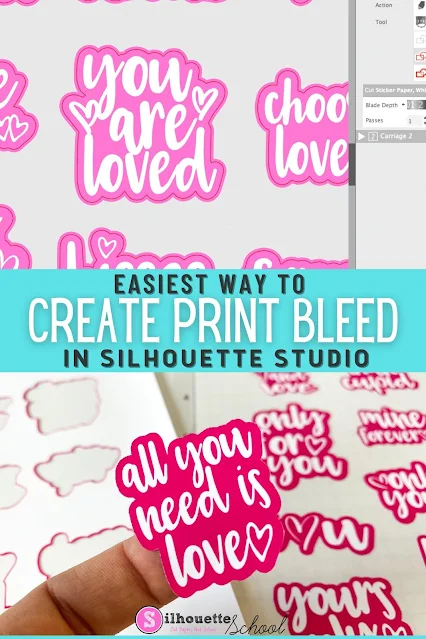
Easiest Way to Add Bleed Around Silhouette Print and Cut Designs

You can add a bleed around images in Silhouette Studio to avoid getting a white edge around print and cut designs. 

silhouette 101, silhouette america blog, silhouette print and cut, print and cut, silhouette studio v4

This tutorial will walk you through how to quickly add a bleed in Silhouette Studio so you get perfect print and cuts on things like planner stickers and vinyl stickers.

How to Use the Select by Color Tool in Silhouette Studio to Quickly Group

Ever have a design come into Silhouette Studio completely ungrouped? 

silhouette 101, silhouette america blog, silhouette studio, silhouette studio v4, fill color tool, design tools

You can quickly and easily group designs by color or line color using the Select by Color tool! It's a real time saver.  In this tutorial, we'll show you how to use this Silhouette Studio tool. 

How to Design Rosette or Medallion Cut Files in Silhouette Studio

I recently shared a trick on how to use the foil quill to score lines in paper using a Silhouette CAMEO or Portrait. It's a perfect hack when creating paper rosettes or medallions for banners or other paper projects. 

silhouette america blog, silhouette 101, paper crafts, paper medallions, cameo 4

Today I thought I'd go one stop further to show you how to design the paper medallion cut files in Silhouette Studio...and a few tips on how to assemble them! 

How to Create Dot Mandala Patterns with Silhouette Studio's Rhinestone Tool

Mind = Blown! The Rhinestone Tool in Silhouette Studio isn’t just for rhinestones!

silhouette 101, silhouette america blog, rhinestones, mandalas, silhouette studio design tools

We've used it for string art and faux rhinestones cut on HTV..but did you know you can also turn your SVG designs into dot mandala painting patterns?! This Silhouette rhinestone tutorial will walk you through!

How to Scale a Design in Silhouette Studio (Various Mask Sizes)

To scale a design in Silhouette Studio by a certain percentage is easy - IF you know where to find the Scale tool.
silhouette 101, silhouette school blog, silhouette studio, scale tool, silhouette studio design tools
It's hidden away in a couple of menus, but once you find it it's just a few clicks to scale your design! The scale tool has become super popular in the last few weeks with so many crafters making DIY fabric masks in various sizes.

This tutorial will show you exactly how to scale a design in Silhouette Studio.

Silhouette Studio Fix: How to Get Designs Perfectly Straight After Being Rotated

Did you ever rotate a design in Silhouette Studio only to struggle to get it so it's exactly straight?

silhouette 101, silhouette america blog, rotate designs, silhouette studio, design tools

There's easy way to fix this if you can a find the tool that's hidden in the menus.

Calling All Opiniated Silhouette Crafters!!!

Usually on Fridays we give away a free Silhouette design cut file, but this week we're taking a break from that to ask for your opinion.


In a couple of weeks I'll be headed to Salt Lake City to meet with the executive Silhouette America team.  Over the last six years since launching Silhouette School Blog I have been able to remain 100% independent which has always been soooo important to me. It allows me to really just call it like I see it.

Sometimes you're not happy with me for it ("Melissa we wanted you to push for a 24" Silhouette CAMEO Pro, not a 20" Pro!!).  Sometimes Silhouette's not happy with me ("Why did you say you don't like the 14.6" cutting mat for the 15" CAMEO Plus?"). And sometimes the retailers aren't too happy with me ("Fine. We'll risk not being first to ship and hold the 3mm Kraft Blade in the warehouse for several more days until you can figure it out and write up a tutorial to at least help people use it").

For the record, I am fine with not being Nutella and therefore not being able to make everyone happy.

Learn to Design in Silhouette Studio: Design Guide + Video Course Now Update for V4

You guys I'm so excited to announce that the Second Edition of the Ultimate Silhouette Guide to Designing in Silhouette Studio is now available!! If you want to make your own designs in Silhouette Studio V4 - you've hit the motherlode!

silhouetet studio v4 videos, silhouette studio tutorials, silhouette studio v4, design own designs silhouette


The e-course is a combination of a 114 page ebook of Silhouette tutorials and 18 Silhouette Studio video lessons for a total of more than 4.5 hours of video instruction.  The second edition is completely updated from the original and now includes sections on Silhouette Studio V4 tools and features plus an added hours worth of video instruction!  You can check out the official sales page for full details on everything that's included.
https://www.e-junkie.com/ecom/gb.php?c=cart&ejc=2&cl=52110&i=1528612
www.ultimatesilhouetteguide.com


Word Art Was Never Easier: Silhouette Studio Warp Template Tutorial (V4.2 Series)

Among the new features that have rolled out with Silhouette Studio V4.2 is the long-requested Warp Templates tool.

Silhouette Studio designer edition tutorials, Silhouette Studio Software tutorials, Silhouette Design Studio tutorials, silhouette tutorial, silhouette cameo tutorial for beginners

The Warp templates tool allows for word art in Silhouette Studio.  But, you can also use the warp templates on designs, as well as text.

Silhouette Studio Selection Lasso Tool Tutorial (V4.2 Series)

Among the new features in Silhouette Studio V4.2 is the ability to make a custom selection area.

Silhouette Studio designer edition tutorials, Silhouette Studio Software tutorials, Silhouette Design Studio tutorials, silhouette tutorial, silhouette cameo tutorial for beginners

The Selection Lasso is available in Silhouette Studio Designer Edition and higher and gives you the ability to select very specific areas in the work area by basically drawing around the areas you want to select.

How to Use Cut by Fill Color in Silhouette Studio V4 for Layering Vinyl Decals

If you haven't taken advantage of the Silhouette Studio Cut By Fill Color option, you're missing out. This is especially true when cutting layered designs.

silhouette designer edition, layer vinyl, how to layer vinyl, Silhouette Studio designer edition tutorials, Silhouette Studio Software tutorials, Silhouette Design Studio tutorials, silhouette tutorial, silhouette cameo tutorial for beginners

Silhouette School contributor Elly Mae from Silhouette Secrets+ is here today with a Silhouette tutorial on how to use the Silhouette Studio V4 Cut by Fill Color option so your layered designs are perfectly aligned.

Little Hipster Free Silhouette Design File

It's Freebie Friday and this week I'm sharing a cool hipster Silhouette Studio design!

free silhouette studio, free silhouette designs, free silhouette cameo designs, hipster cut file, hipster designs, little boy cut files

I love this design so much...I would wear it myself.