Copyright Silhouette School 2016. Powered by Blogger.


19 Silhouette Tutorials, Tips and More You Don't Want to Miss! (February 2022 Wrap Up)

February flew by, which means it's time for another monthly wrap up where we look at the Silhouette School tutorials shared over the last month! 


silhouette 101, silhouette america blog, silhouette studio v4, silhouette beginner tutorials, silhouette cameo tutorials


In February not only did we share 19 new tutorials to Silhouette School blog, but we shared about Epson sublimation printers, several free Silhouette designs and introduced you to some new tips and tricks to help you along your Silhouette journey! 

Free Silhouette Design: Currently Avoiding Housework (Commercial Use Available)

Freebie time again here at Silhouette School! 

freebie friday, free silhouette studio file, free studio design, free silhouette design, free silhouette studio design

And well, anyone else avoiding housework? This week's freebie allows you to let everyone know. 

Silhouette Studio Larger Grid Numbers Hack

I can't be the only one who's left straining my eyes to see grid numbers on the cutting mat in Silhouette Studio.

silhouette studio, silhouette design studio, silhouette studio tutorials, how to use silhouette, Silhouette Studio Software tutorials

There's a way to make the numbers darker, but there's no way to make them significantly larger. There is a hack though and it's along the same lines as the Silhouette Studio trick I showed previously on changing the mat color in Silhouette Studio.

How to Apply a Vinyl Decal to Wood...So It Sticks!

Making a wood sign with your Silhouette is one of the most popular projects you can do with your machine. But applying vinyl to wood can sometimes be a little tricky. 

silhouette 101, silhouette america blog, wood signs, transfer tape, adhesive vinyl

In this tutorial, we'll share some tips on how to apply vinyl to wood, so you can start making your own vinyl wood signs with ease! 

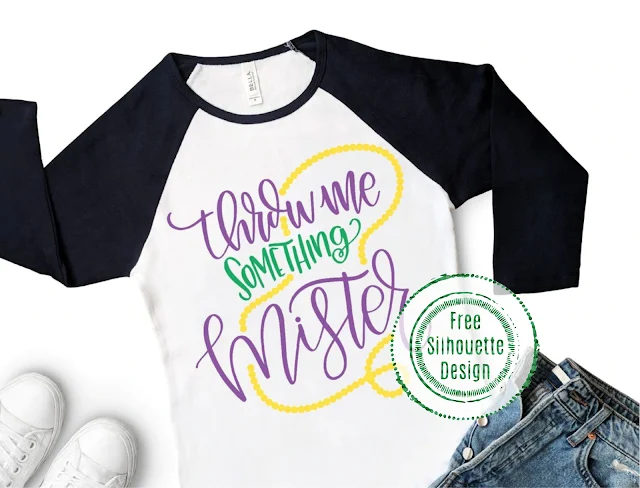
Free Silhouette Design: Throw Me Something Mister (Commercial Use Available)

It's that time of the week here at Silhouette School - freebie time! 
freebie friday, free silhouette studio file, free studio design, free silhouette design, free silhouette studio design

And it's also Carnival season so we need to celebrate! This is the perfect design for heading out to a parade route. 

How to Make Silhouette Rhinestone Sprays (Cut on Vinyl, HTV, & Stencils, too!)

Today I'm answering a reader question on the blog.  The reader asked how to create a rhinestone spray design in Silhouette Studio. It's actually something I've contemplated myself, but it wasn't until this reader inquired that I really felt the challenge to sit down and figure it out. OOHHMMMGGGG you guys - this is so stinking easy - and fast. She literally emailed me back, "How did you do that so fast?"

Silhouette Studio, rhinestone sprays, HTV, vinyl, silhouette 101, silhouette america blog

Well, my friends it's far easier than it looks - if you have Designer Edition. As we've discussed here in the past, you need Silhouette Studio Designer Edition to make custom rhinestone templates and that's what is needed for this tutorial.  But the best news is just because you're using the rhinestone tool, doesn't mean you have to use rhinestones when you cut...as you can see, I cut my spray design on HTV!


How to Know What Font You Used After Welding Text in Silhouette Studio

After welding a font in Silhouette Studio - or ungrouping or releasing the compound path - the software will no longer tell you the name of the font you used.

silhouette 101, silhouette america blog, script fonts, silhouette studio design tools, speciality fonts, silhouette studio v4

But here's a little trick for how to remember the font you used even after you weld a font in Silhouette Studio. 

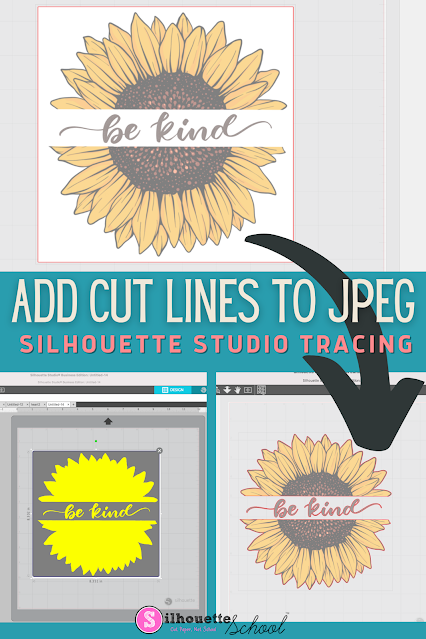
How to Add Cut Lines to JPEG in Silhouette Studio

You can add cut lines to a JPEG in Silhouette Studio by using the trace tool. 

silhouette america blog, silhouette 101, silhouette studio v4, JPEG files, beginner tutorial

The free version of Silhouette Studio allows you to import JPEG files making it a popular file type choice for some.  This tutorial will show you how to add a cut line to a JPEG image in the Silhouette software. 

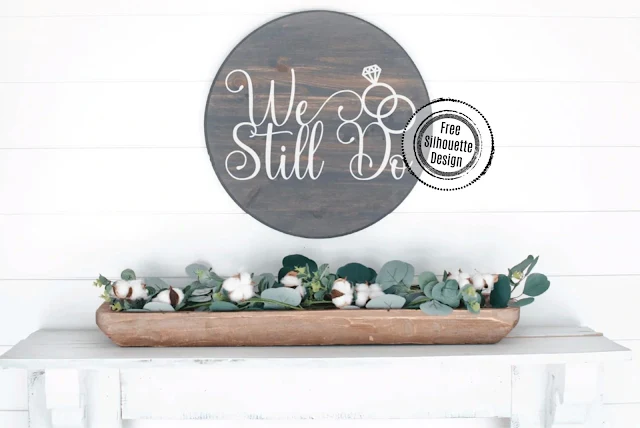
Free Silhouette Design: We Still Do (Commercial Use Available)

It's Freebie Friday and you guys know what that means - time for a freebie! 

freebie friday, free silhouette studio file, free studio design, free silhouette design, free silhouette studio design

And since love is in the air, I wanted to share this We Still Do Studio design with all of you. 

10 Silhouette Terms Every Silhouette CAMEO Beginner Needs to Know

When you're new to Silhouette it can be challenging to even search for free Silhouette tutorials because you don't know the correct terms to search.

silhouette cameo tutorial for beginners, silhouette cameo for beginners, silhouette cameo tutorials for beginners, studio, silhouette 101, silhouette america blog

I thought it would be helpful to share and define 10 of the most common (and confusing) Silhouette terms so you can get a head start as a Silhouette CAMEO beginner.

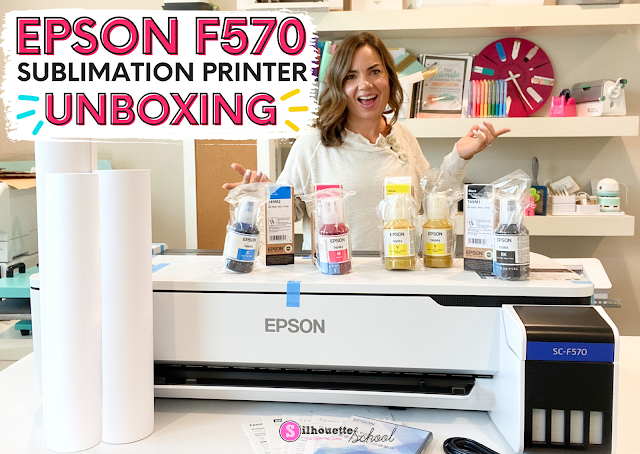
24" Epson F570 Sublimation Printer Unboxing! (Video)

The Epson 570 sublimation printer has made its way into my craft room..and OMG you guys I'm so excited about this 24" wide format sublimation printer!

silhouette 101, silhouette america blog, silhouette and sublimation, epson, unboxing

Wondering what's in the Epson F570 box? Well today's your lucky day because I have a F570 sublimation printer unboxing video for you. 

Trick for Using Vinyl Scraps for a Vinyl Decal

Are you a vinyl scrap saver? Then, this project using vinyl scraps is for you! 

silhouette america blog, silhouette 101, oracal 651, cameo 4, vinyl scraps

Using even the smallest strips of your adhesive vinyl scraps, you can make a strikingly beautiful, and colorful, vinyl decal. This tutorial will explain how to go about using vinyl scraps to make a new vinyl decal with your Silhouette CAMEO. 

How to Print and Cut with Silhouette CAMEO 4 for Beginners (2022)

Silhouette CAMEO 4 print and cut is probably one of the most intimidating things for beginners. But it shouldn't be! While I would not suggest print and cut be your first  Silhouette CAMEO 4 project, you should learn how to print and cut with CAMEO 4 as soon as you can as it opens up a lot of possibilities! 

silhouette 101, silhouette america blog, cameo 4, print and cut, stickers

To help you worth through this first print and cut project, I am not only including a free Silhouette design download for you, I am going step by step so you can follow right along! 

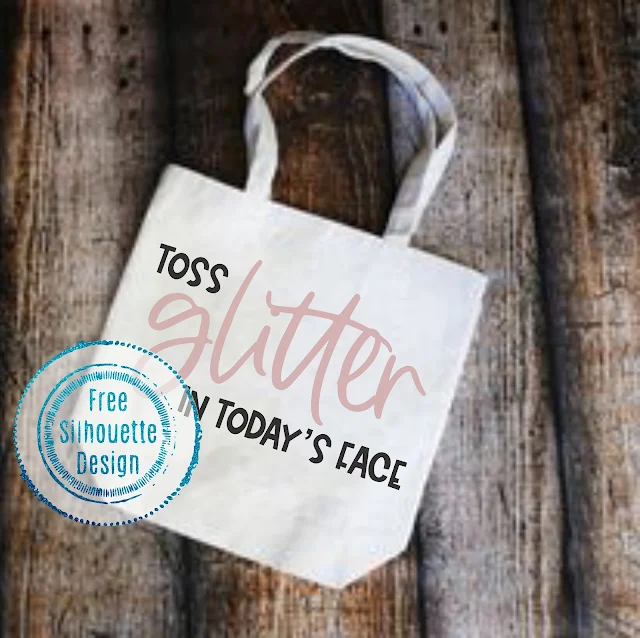
Free Silhouette Design: Toss Glitter in Today's Face (Commercial Use Available)

You guys it's Friday! And you know what that means here at Silhouette School! 

freebie friday, free silhouette studio file, free studio design, free silhouette design, free silhouette studio design

I don't know about you, but some days you just need to toss glitter in the face of the day and be done! 

How to Make Glitter Tumblers with Epoxy for Beginners

If you're into crafts that require patience, making a DIY glitter tumbler will be right up your alley.  I have to admit I just recently made my first stainless steel tumbler with vinyl and glitter and I learned a thing or two.

silhouette 101, silhouette america blog, glitter tumbler, how to, beginner tutorial

Considering that it can be an intimidating project, I thought I'd pass along what I learned making my first glitter tumbler in this beginner tutorial.

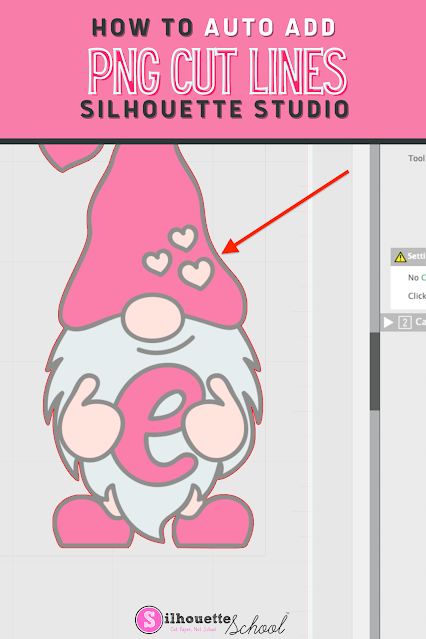
How to Automatically Add Cut Lines to a PNG Image in Silhouette Studio

You can cut PNG images with the Silhouette cutting machines, but first you need to make sure they have cut lines. 

silhouette america, silhouette school blog, silhouette studio v4, print and cut, PNG

Cut lines can be automatically added to transparent PNG images import into Silhouette Studio - and this tutorial will explain how!

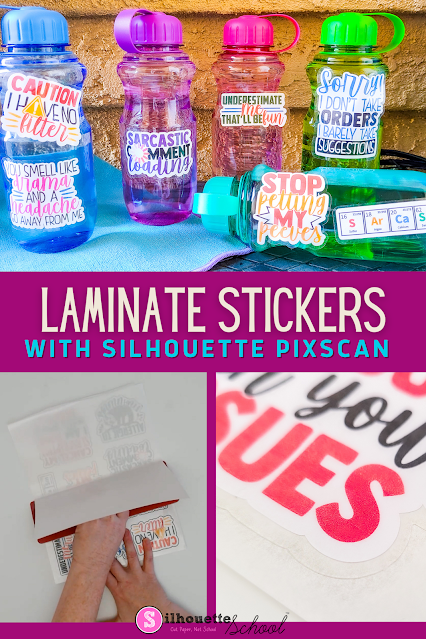
How to Make Waterproof Stickers with Laminate and Silhouette CAMEO

Looking to protect your printable stickers? In this post, we'll show you how to laminate your printable stickers so they'll look great for even longer! 

silhouette 101, silhouette america blog, stickers, print and cut, pixscan


The method explained in this tutorial uses the PixScan Mat. For a beginning PixScan mat tutorial, check out this blog post here.