



Showing posts with label Questions. Show all posts
Silhouette Circle Monogram Tutorial (Your Font Choice!)
Thursday, January 8, 2026
Vinyl Nail Decal Tips and Sizing Guidelines: Silhouette Tutorial
Tuesday, May 14, 2024
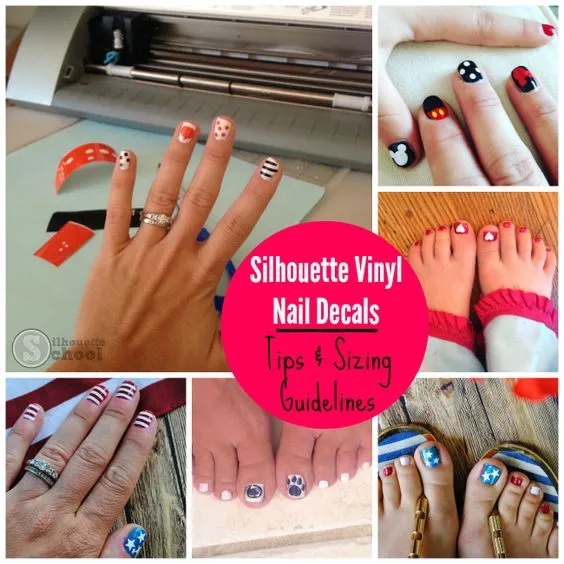
If you've joined the vinyl nail art club - welcome! I've been using vinyl to decorate my own, as well as my daughter's finger and toenails, for almost as long as I've owned a Silhouette. Whenever I share a photo of our vinyl nail art I get questions - most about cutting such small designs and sizing the decals. Today I am going to answer the three biggest questions I get about Silhouette vinyl nail designs so you can get decorating your nails, too!

Silhouette Knockout Technique Tutorial: Updated for V4
Tuesday, April 23, 2024
Today's tutorial is brought to you by the words: Popular Demand! That's right I heard you loud and clear - you want a tutorial on the Silhouette 'Knockout' technique.

It's actually a pretty easy to do once you get the two main steps down..so here goes!
Trick to Cutting Thin Fonts on Silhouette (Without Tearing)
Thursday, June 9, 2022
It's not uncommon for Silhouette beginners, especially, to have trouble cutting thin fonts on vinyl.

When a font is very thin the Silhouette CAMEO blade passes by the same area twice and can cause the vinyl to pull up or tear while cutting. But, with just a small tweak in Silhouette Studio you can pretty much cut any font no matter how small, intricate or thin - and even script fonts!
How to Make Silhouette Rhinestone Sprays (Cut on Vinyl, HTV, & Stencils, too!)
Thursday, February 17, 2022
Today I'm answering a reader question on the blog. The reader asked how to create a rhinestone spray design in Silhouette Studio. It's actually something I've contemplated myself, but it wasn't until this reader inquired that I really felt the challenge to sit down and figure it out. OOHHMMMGGGG you guys - this is so stinking easy - and fast. She literally emailed me back, "How did you do that so fast?"

Well, my friends it's far easier than it looks - if you have Designer Edition. As we've discussed here in the past, you need Silhouette Studio Designer Edition to make custom rhinestone templates and that's what is needed for this tutorial. But the best news is just because you're using the rhinestone tool, doesn't mean you have to use rhinestones when you cut...as you can see, I cut my spray design on HTV!

Well, my friends it's far easier than it looks - if you have Designer Edition. As we've discussed here in the past, you need Silhouette Studio Designer Edition to make custom rhinestone templates and that's what is needed for this tutorial. But the best news is just because you're using the rhinestone tool, doesn't mean you have to use rhinestones when you cut...as you can see, I cut my spray design on HTV!
Circle Split Anchor Silhouette Studio Tutorial (Works for Any Shape)
Thursday, July 22, 2021
The split anchor with circle is so in right now. After I posted a recent tutorial on getting vinyl to stick to canvas, I was asked over and over again where I bought the design I put on my canvas.
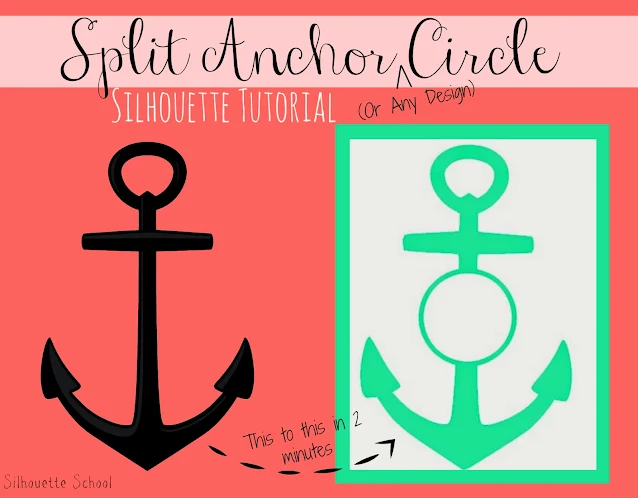
So I figured it was worth a tutorial to show you how to make a split design with a welded circle.

So I figured it was worth a tutorial to show you how to make a split design with a welded circle.
How to Turn Off Crosshairs in Silhouette Studio
Thursday, January 14, 2021
Many Silhouette Studio users at one point or another have been left wondering how to remove the crosshairs in Silhouette Studio.

This Silhouette Studio tutorial will show you how to quickly turn them off.
How to (Perfectly) Decorate Charger Plates with Silhouette
Monday, November 11, 2019
It's that time of the year ago when Santa Cookie plates are a popular craft! But how do you get the design and text to perfectly fit around the rim of the plate?

The easiest way to decorate charger plates is to first have the charger plate in hand. I got four of these gold charger plates at Dollar Tree last year.

The easiest way to decorate charger plates is to first have the charger plate in hand. I got four of these gold charger plates at Dollar Tree last year.
11 Reasons Your Silhouette Is Not Cutting (or Not Cutting Completely)
Thursday, August 8, 2019
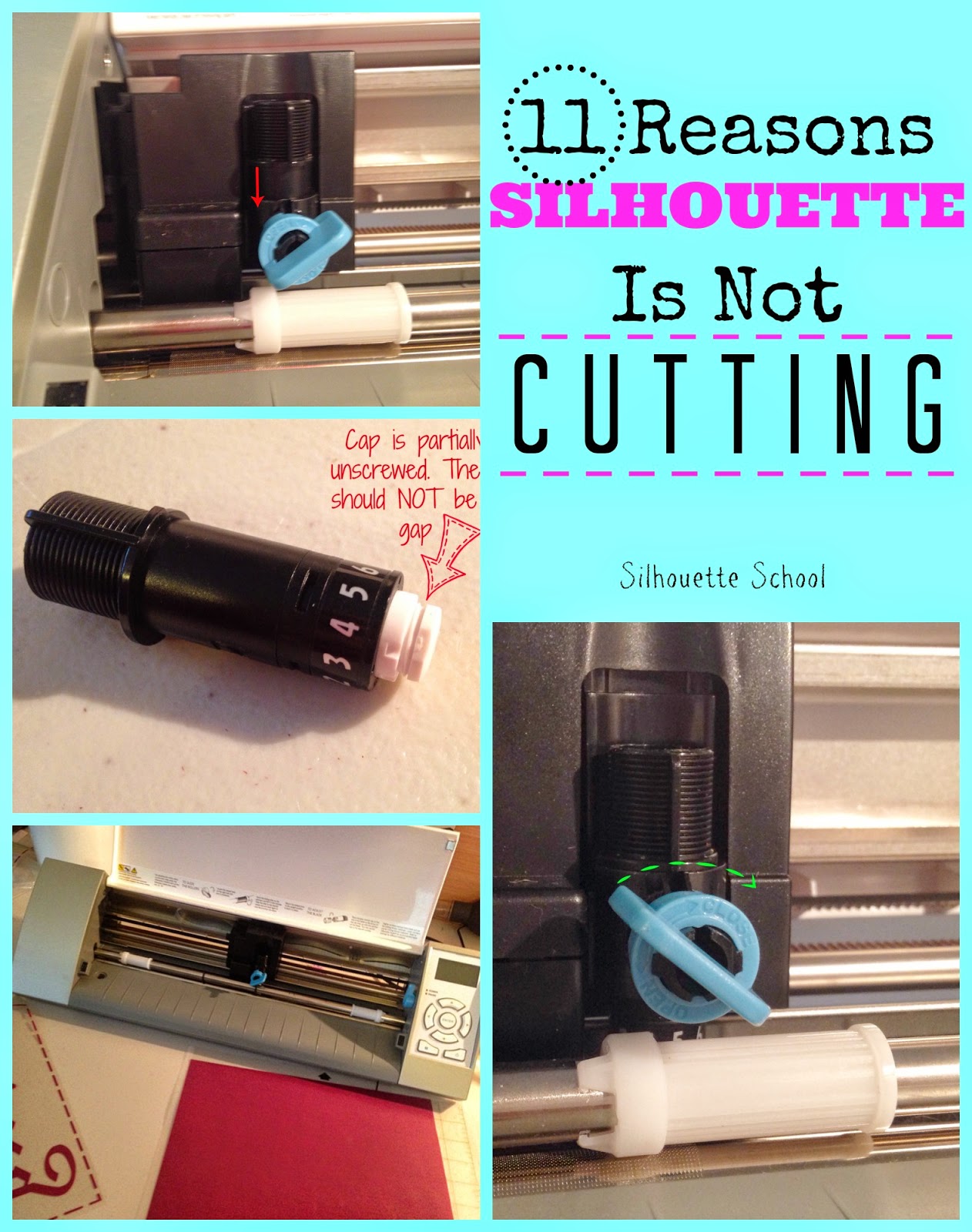
I get questions almost daily from Silhouette users who are having issues with their Silhouette not cutting. There are at least 11 reasons why your Silhouette may not be cutting and most of them are really easy to fix.

Some of the issues have to do with the Silhouette CAMEO blade not cutting, while others stem from settings in Silhouette Studio and still others are user error. No worries, just go through this checklist to figure out why your Silhouette isn't cutting!
Update: If you're having trouble with a Silhouette CAMEO 3 not cutting, go through the below list and if none of these easy fixes remedy the problem, it could be a problem with the how the Autoblade is sitting in the tool carriage or Bluetooth. If that's the case, check out this additional information on why the Silhouette CAMEO 3 isn't cutting.

Some of the issues have to do with the Silhouette CAMEO blade not cutting, while others stem from settings in Silhouette Studio and still others are user error. No worries, just go through this checklist to figure out why your Silhouette isn't cutting!
Update: If you're having trouble with a Silhouette CAMEO 3 not cutting, go through the below list and if none of these easy fixes remedy the problem, it could be a problem with the how the Autoblade is sitting in the tool carriage or Bluetooth. If that's the case, check out this additional information on why the Silhouette CAMEO 3 isn't cutting.
Silhouette Tutorial: Modifying Fonts to Eliminate the Annoying 'Middles' (ie A, B, D)
Monday, August 5, 2019
I cannot be the only one who is driven bonkers by the annoying middle
part of certain letters..not naming any names A a B b D d e g O o P p Q
q R. Actually, I know I'm not the only one who is often
frustrated by the tedious task of weeding these letters - I have gotten
several emails about how to work around them or fix them or avoid them
totally.

The middle part of the letters is called the counter.
While that little part may be small, it's necessary on most all Silhouette projects (stencils, cards, signs, apparel) that aren't print and cut. If you're making a stencil they're definitely essential because without the counters letters look oddly shaped.
I have come up with a little work around to make your life a whole lot easier.

The middle part of the letters is called the counter.
While that little part may be small, it's necessary on most all Silhouette projects (stencils, cards, signs, apparel) that aren't print and cut. If you're making a stencil they're definitely essential because without the counters letters look oddly shaped.
I have come up with a little work around to make your life a whole lot easier.
Silhouette Fonts Download: A Step-by-Step Tutorial
Tuesday, July 30, 2019
One of my favorite things about Silhouette is that you can use any font downloaded on your computer in Silhouette Studio. It seems like there should be more to it to add new fonts to Silhouette Studio...but nope it's very fast and easy!

There are literally thousands of downloadable text and dingbat fonts available - many of them for free. I have written several tutorials on using fonts and dingbat fonts as free designs in Silhouette - but they all refer to fonts already installed in Silhouette Studio.

There are literally thousands of downloadable text and dingbat fonts available - many of them for free. I have written several tutorials on using fonts and dingbat fonts as free designs in Silhouette - but they all refer to fonts already installed in Silhouette Studio.
Silhouette Troubleshooting: Can't Move Design Around Studio Freely
Wednesday, July 17, 2019
Did you ever try to move a design around Silhouette Studio and it is jumpy? Like you can't move it freely to exactly where you want it?
This is a setting that sometimes seems to get itself turned on - but it's an easy and fast fix.

This is a setting that sometimes seems to get itself turned on - but it's an easy and fast fix.
Fabric and (Glitter) HTV: Silhouette Tutorial
Thursday, April 4, 2019
If you haven't tried combining fabric and glitter HTV into one design yet, you're in for a treat!

If you're not a glitter girl then you can use regular smooth HTV...either way the tutorial works exactly the same.

If you're not a glitter girl then you can use regular smooth HTV...either way the tutorial works exactly the same.
Problems Detecting Registration Marks on Silhouette...and How to Fix It!
Thursday, March 21, 2019
And the number one question to Silhouette School is: Why won't my Silhouette detect the registration marks for a print and cut?

Well, my friends there are a few different reasons and a few different ways to fix this problem. Some of them are honestly just silly and others are more time consuming than anything else.

Well, my friends there are a few different reasons and a few different ways to fix this problem. Some of them are honestly just silly and others are more time consuming than anything else.
Adding Patterns to Silhouette Studio in 3 Easy Steps (V4 Tutorial)
Tuesday, March 5, 2019
Did you know you can bring your own digital patterns into Silhouette Studio to use to fill designs?
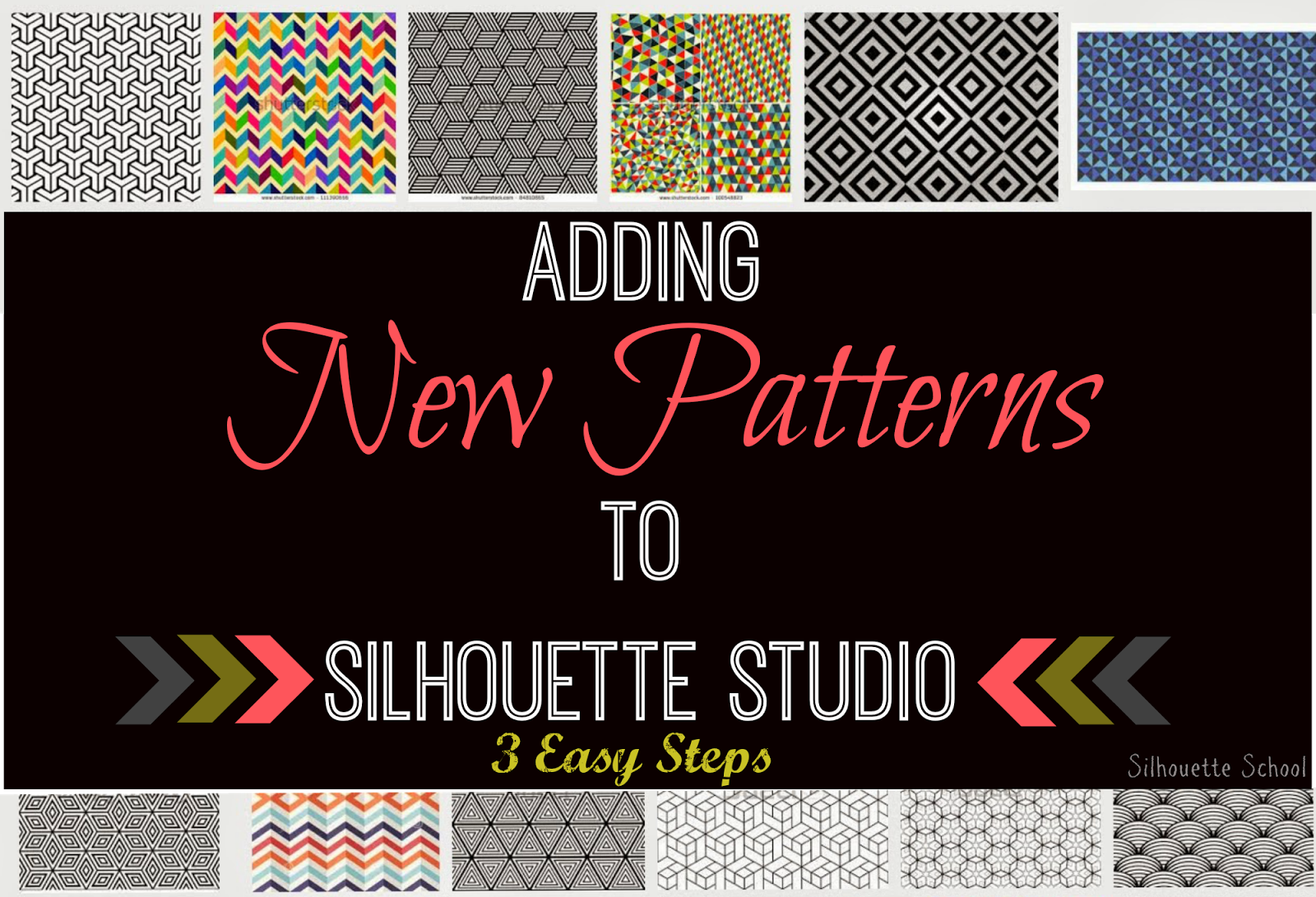 If you do Silhouette Print and Cut projects, especially, you'll find this three step process really useful!
 If you do Silhouette Print and Cut projects, especially, you'll find this three step process really useful!
 Silhouette Vinyl on Canvas: 6 Tips to Success!
Monday, March 4, 2019
It's not uncommon to have to fight with vinyl to get it to stick to canvas. For whatever reason - and I believe there are several - it's just plain tough to get vinyl to stick to stretched canvas that's why I typically recommend heat transfer vinyl on canvas.
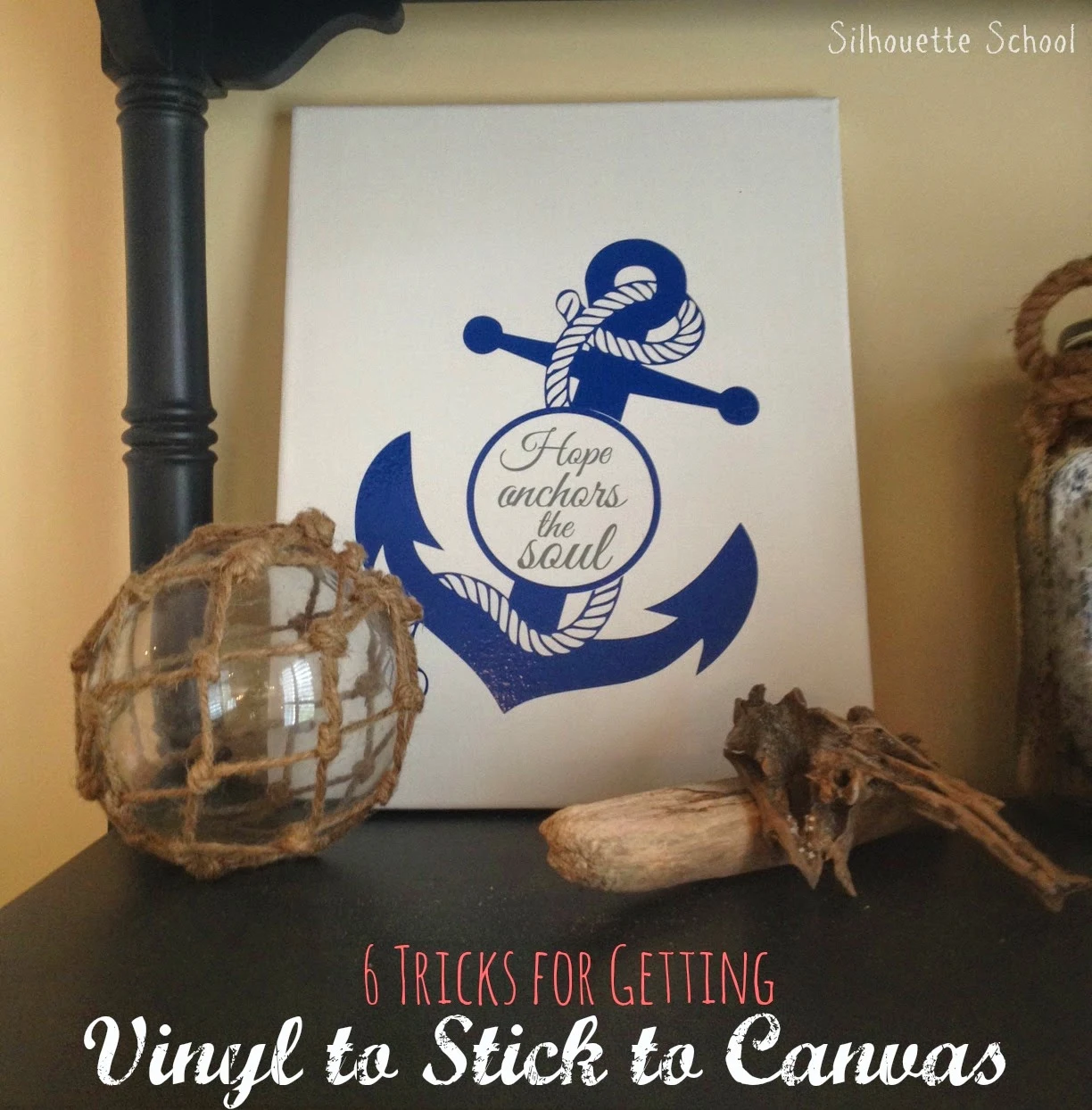 However, sometimes - for one reason or another - adhesive vinyl is the only option. So for those times, I have six tips to help you successfully get adhesive vinyl to stick to canvas without the headache.
 However, sometimes - for one reason or another - adhesive vinyl is the only option. So for those times, I have six tips to help you successfully get adhesive vinyl to stick to canvas without the headache.
Vinyl Wet Application Method Tutorial
Sunday, July 8, 2018
The wet method of applying vinyl is a popular one with Silhouette users who will pretty much do anything to avoid bubbles.
I am one of them!

The vinyl wet application works on non-porous surfaces where there are no 'pores' in the surface that can trap air or water.
I am one of them!

The vinyl wet application works on non-porous surfaces where there are no 'pores' in the surface that can trap air or water.
Silhouette Studio V4 File Type: Why it's Still .Studio3
Wednesday, October 11, 2017
Have you noticed that files saved in Silhouette Studio V4 are saving as .studio3 files?

As more and more users are getting brave enough to update to the newest version of Silhouette Studio, I’m getting more and more questions about the rather confusing file type.

As more and more users are getting brave enough to update to the newest version of Silhouette Studio, I’m getting more and more questions about the rather confusing file type.
Making a Scalloped Circle or Flower in Silhouette Studio (3 Step Tutorial)
Thursday, May 28, 2015

I was recently asked by a reader how to make a scalloped circle in Silhouette Studio. It's actually very simple to do by using the replicate tool.
Connecting Edit Points/Closing a Shape in Silhouette Studio
Wednesday, April 15, 2015

Subscribe to:
Posts (Atom)


.png)


