



Showing posts with label Advanced Silhouette Tutorials. Show all posts
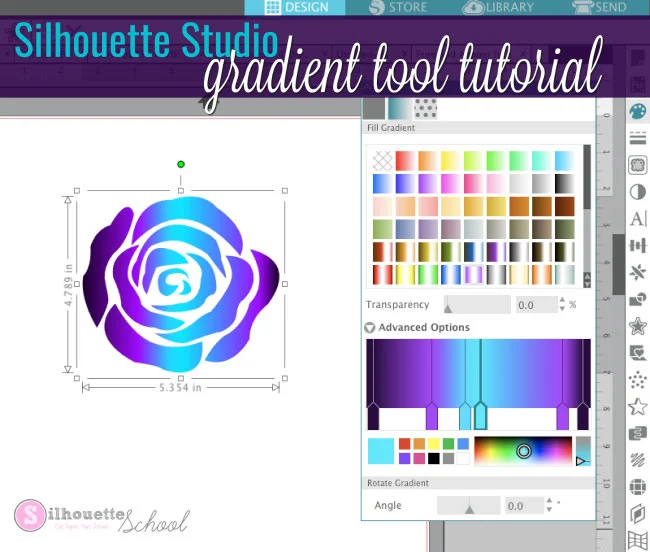
Silhouette Studio Gradient Fill Tool Tutorial
Thursday, May 9, 2024
Did you know you can fill designs with a gradient fill in Silhouette Studio?
Silhouette Knockout Technique Tutorial: Updated for V4
Tuesday, April 23, 2024
Today's tutorial is brought to you by the words: Popular Demand! That's right I heard you loud and clear - you want a tutorial on the Silhouette 'Knockout' technique.

It's actually a pretty easy to do once you get the two main steps down..so here goes!
Double Sided Print and Cut Silhouette CAMEO Designs
Thursday, March 14, 2024
Did you know it's possible to make double-sided print and cut designs with your Silhouette CAMEO?! Yes!!!

It's a more advanced technique - but one that I suggest you master because it comes in really handy. I've used it to make everything from greeting cards to little printables for my kids with this front/back print and cut technique.

It's a more advanced technique - but one that I suggest you master because it comes in really handy. I've used it to make everything from greeting cards to little printables for my kids with this front/back print and cut technique.
23 Silhouette Tutorials, Tips and More! (January 2023 Wrap Up)
Wednesday, February 1, 2023
I can't believe that we are already a month into 2023...AND it's time to look back at all the free Silhouette tutorials we shared last month!

Putting Shapes on a Path in Silhouette Studio
Thursday, May 12, 2022
So we've talked - rather extensively about how to make words curve and flip and go on the inside and outside of a shape in Silhouette Studio. The official terminology is putting 'text on a path' (the circle or larger shape being the 'path'. Apparently though you all are wanting more because I've been asked more than once about how to put shapes or designs on a path so I thought it was worth a quick tutorial.

The good news is it is possible to more than just letters and numbers on a path, the bad news is not every shape or design is going to work. The key is using dingbat fonts. Dingbat fonts are fonts made up of shapes rather than characters. There are thousands of dingbat fonts available for free download so you likely won't have much trouble finding what you're looking for, but you can also find tons on So Fontsy that come with free commercial use licenses!
How to (Perfectly) Trace a Photo in Silhouette Studio (Updated 2022)
Thursday, March 17, 2022
One of the first tutorials I ever shared on Silhouette School was on how to trace a photo to get a silhouette. The point editing method results in a silhouette and it's perfect if that's what you're looking for. But what if you want more depth and character and really want to keep the essence of the photo? The trace function is about to become your new BFF.

The first thing you want to do is find a photo. It's best to pick a photo that doesn't have a ton of background. I went with this picture of me and my daughter paddle boarding. It's obviously a color photo and while you can trace a color photo I find it easier to trace a black and white image since the trace feature works on finding contrast. Never did I think I'd share a picture of me in a bathing suit on this blog....but...

The first thing you want to do is find a photo. It's best to pick a photo that doesn't have a ton of background. I went with this picture of me and my daughter paddle boarding. It's obviously a color photo and while you can trace a color photo I find it easier to trace a black and white image since the trace feature works on finding contrast. Never did I think I'd share a picture of me in a bathing suit on this blog....but...
How to Make Ready to Press Heat Transfers with HTV and Silhouette CAMEO
Wednesday, September 15, 2021
If you've ever tried to make a ready to print HTV transfer you probably very quickly realized it's not the easiest thing to do.

When layering multiple colors of heat transfer vinyl each layer needs to be pressed separately making ready to ready to print transfers challenging. Sometimes though - whether it's to ship a HTV transfer to an uncrafty friend or prepare your shop before the busy holiday rush - making ready to heat press transfers is necessary. In this advanced Silhouette tutorial I'll show you how to make ready to print heat transfers for shipping or storing!
Silhouette CAMEO Hack: Self Weeding HTV Designs!
Wednesday, January 27, 2021
Cutting distressed fonts and designs on HTV can be a real challenge to weed.

I recently had this epiphany moment realizing I could actually force the distressed areas to self weed when cutting with my Silhouette machine. And the best part is this works on Mandala designs as well!

I recently had this epiphany moment realizing I could actually force the distressed areas to self weed when cutting with my Silhouette machine. And the best part is this works on Mandala designs as well!
Turn a 3D Layered SVG into a Lighted Shadow Box
Tuesday, August 4, 2020
3D layered cut files are gaining a lot of popularity with paper crafters. But if you've never used a layered 3D SVG design before it can be a little intimidating.

In this tutorial you'll learn how to convert a layered SVG into a design that really shines in these popular shadow box projects!

How to Use Layered Fonts in Silhouette Studio
Tuesday, June 16, 2020
The perfect font can add a whole new level of style to your
craft projects, and if it's a layered font, it’ll make them even more special!


In
this post, learn what a layered font is, how to use it, and how to create a fun
birthday banner with it.
How to Design for Wood Signs with Slats in Silhouette Studio
Tuesday, November 12, 2019
I love a good Silhouette hack and this one is perfect for wood sign vinyl projects.

A lot of wood signs have wood slats which means there's a space between each board where the vinyl basically bridges between the boards. BUT did you know you can design a break in your vinyl design so the vinyl isn't stretched across. It's actually pretty easy.

A lot of wood signs have wood slats which means there's a space between each board where the vinyl basically bridges between the boards. BUT did you know you can design a break in your vinyl design so the vinyl isn't stretched across. It's actually pretty easy.
Cutting Silhouette Stickers Without Registration Marks (Free Sticker Set)
Tuesday, August 27, 2019
If you want to get more stickers out of each sticker sheet, you can print and cut stickers with Silhouette CAMEO without registration marks.
Registration marks take up space on the printed sheet and limit the max size of the area printed with stickers. But the Silhouette Pixscan mat actually lets you use the entire sticker sheet for stickers!
 |
| This is a sponsored post but all opinions are my own |
How to Get a Solid Foil Fill with Foil Quill and Silhouette
Thursday, March 28, 2019
Ever since we first showed you the Foil Quill with Silhouette, I've been getting questions about how to get a solid foil fill.
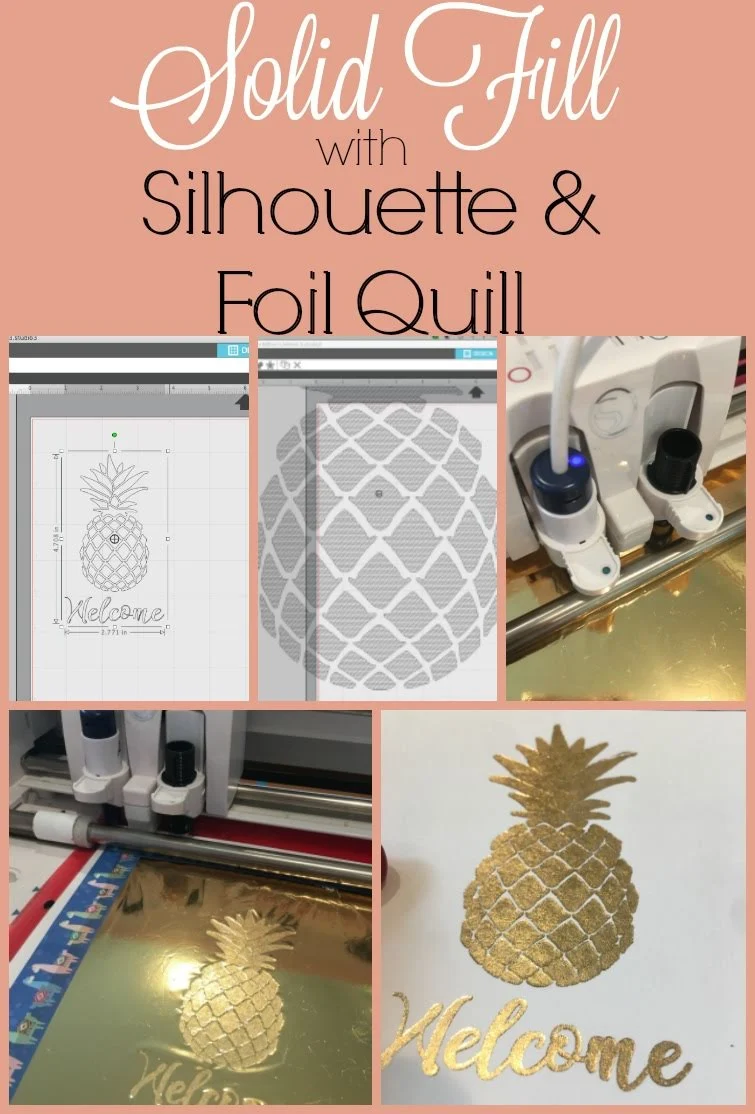
Because the Foil Quill works the same way as a Silhouette blade or sketch pen it will only leave a foil outline. However, using the sketch fill options in Silhouette Studio, you can create a solid foil fill with the Foil Quill.

Because the Foil Quill works the same way as a Silhouette blade or sketch pen it will only leave a foil outline. However, using the sketch fill options in Silhouette Studio, you can create a solid foil fill with the Foil Quill.
How to Set Up a Foil and Cut in Silhouette Studio with Foil Quill (Free Practice Design)
Monday, March 11, 2019
Did you know you can add foil accents to your vinyl decals?!

The Foil Quill - which started shipping from certain retailers, including Swing Design, last week makes adding foil to adhesive vinyl - like Oracal 651 and 631 - very easy with the Silhouette. While this foil and cut tutorial is geared toward vinyl, the foil and cut process works the same for other materials as well.

The Foil Quill - which started shipping from certain retailers, including Swing Design, last week makes adding foil to adhesive vinyl - like Oracal 651 and 631 - very easy with the Silhouette. While this foil and cut tutorial is geared toward vinyl, the foil and cut process works the same for other materials as well.
The Secret to Making Realistic Mockups in Silhouette Studio: The Warp Tool
Thursday, March 22, 2018
If you want to sell your handmade products to order, but don't necessarily want to create one of every single design offered, you can use mockups to showcase all the designs in an amazing photo.
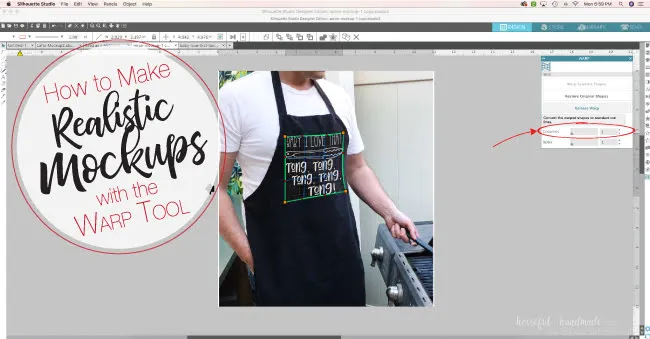
However, if your photo is not perfectly straight towards the camera, it can be hard to get a realistic looking mockup, unless you know the right tool to use in Silhouette Studio.
Silhouette School contributor Kati from Houseful of Handmade is here to share how to use the warp tool to make realistic mockups in Silhouette Studio.

However, if your photo is not perfectly straight towards the camera, it can be hard to get a realistic looking mockup, unless you know the right tool to use in Silhouette Studio.
Silhouette School contributor Kati from Houseful of Handmade is here to share how to use the warp tool to make realistic mockups in Silhouette Studio.
DIY Cookie Stencils with Silhouette CAMEO (And a Free Cut File)
Monday, November 20, 2017
Making cookie stencils with Silhouette CAMEO is becoming more and more popular!
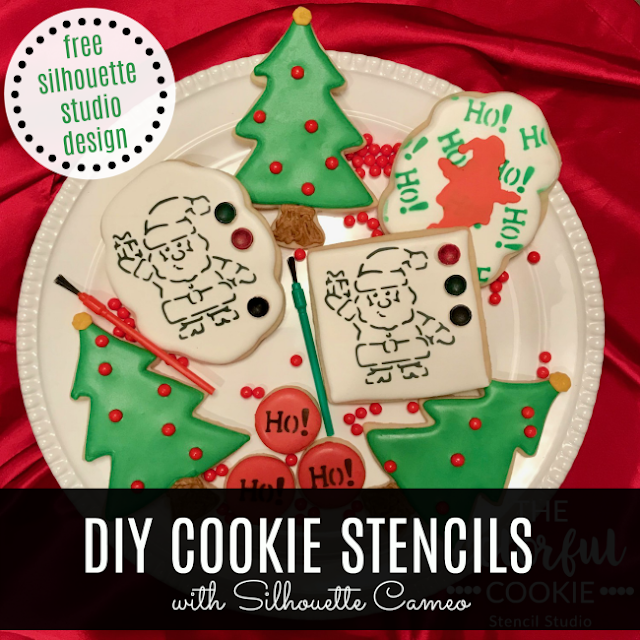
I've shared several Silhouette cookie stencil tutorials on the blog and today I have another one for you. Since the craft room and not the kitchen is more my thing, I'm happy to have Nancy from The Colorful Cookie on Silhouette School blog to share this one with you!

Make Realistic Rhinstone Mock Ups in Silhouette Studio
Wednesday, October 4, 2017
So we all know the biggest and most talked about advantage of Designer Edition Plus is that it allows you to import embroidery files. But did you know the Designer Edition Plus also has huge advantages to those who work with rhinestones?!

The Advanced Rhinestone options in Silhouette Studio turn your rhinestone designs from a flat and relatively unimpressive circles into realistic looking rhinestones. This is huge for making rhinestone mock ups or if you just want to print a faux rhinestone design!

The Advanced Rhinestone options in Silhouette Studio turn your rhinestone designs from a flat and relatively unimpressive circles into realistic looking rhinestones. This is huge for making rhinestone mock ups or if you just want to print a faux rhinestone design!
9 Ways to Make Word Art in Silhouette Studio
Tuesday, August 29, 2017
Silhouette Studio is a pretty powerful design software....and while it may not seem obvious at first glance, there are quite a few ways to create word art in Silhouette Studio.

I've shared several Silhouette Studio Word Art tutorials over the years, but today I'm pulling them all together so you can see just how many different options there are.
Custom Printed Vinyl Decals: Silhouette Pixscan Tutorial Hack
Wednesday, August 16, 2017
You guys this might be my best idea yet...and for those of you who sell, make lots of the color vinyl decals or layered htv design, or just don't care to layer lots and lots of vinyl and HTV decals - this Silhouette tutorial hack is going to leave you speechless.

I've figured out a way to print any design multiple times on a single sheet of Oracal 651 vinyl and then cut out each of the designs to create individual decals. Whether you run a Silhouette business or not, this is a huge time, material, and money saver for anyone who needs to create multiple copies of the same custom vinyl decals.
Think about if you had a large order of tumblers, mugs, or shirts that all had the same decal design which required a lot of layering. Or perhaps you have a popular seller that slows you down because it's time consuming to cut and layer each one. With this hack you could have several custom vinyl decals printed on the same sheet of vinyl and then you could just cut them all at the same time and apply the personalization quickly.
Combining the power of Sparkle Berry Ink's Custom Design Upload tool to create custom printed vinyl, Pixscan, and Silhouette CAMEO or Portrait I think we can all agree this is a real game changer.

I've figured out a way to print any design multiple times on a single sheet of Oracal 651 vinyl and then cut out each of the designs to create individual decals. Whether you run a Silhouette business or not, this is a huge time, material, and money saver for anyone who needs to create multiple copies of the same custom vinyl decals.
Think about if you had a large order of tumblers, mugs, or shirts that all had the same decal design which required a lot of layering. Or perhaps you have a popular seller that slows you down because it's time consuming to cut and layer each one. With this hack you could have several custom vinyl decals printed on the same sheet of vinyl and then you could just cut them all at the same time and apply the personalization quickly.
Combining the power of Sparkle Berry Ink's Custom Design Upload tool to create custom printed vinyl, Pixscan, and Silhouette CAMEO or Portrait I think we can all agree this is a real game changer.
Saving Adobe Illustrator Files for Silhouette Studio (SVG and DXF)
Thursday, May 25, 2017
While I have always stressed that I think Silhouette Studio is a powerful software program and one that really can do pretty much anything I need design-wise - there are things that it just can't do. For example, you can't export as an SVG in Silhouette Studio (until V4.1 is released when the option is offered to Business Edition users.)

Because of that many designers - and those who were working in graphic software before Silhouette Studio - work in Adobe Illustrator to create SVG and DXF files which can be opened in Silhouette Studio.
Silhouette School contributor Kati is here today to show us exactly how you can export as an SVG or DXF from Illustrator for use in Silhouette Studio and other software programs!

Because of that many designers - and those who were working in graphic software before Silhouette Studio - work in Adobe Illustrator to create SVG and DXF files which can be opened in Silhouette Studio.
Silhouette School contributor Kati is here today to show us exactly how you can export as an SVG or DXF from Illustrator for use in Silhouette Studio and other software programs!
Subscribe to:
Comments (Atom)


.png)


