Copyright Silhouette School 2016. Powered by Blogger.


Showing posts sorted by relevance for query print and cut. Sort by date Show all posts

19 Amazing Silhouette CAMEO Print and Cut Project Ideas

In the three and a half years I've been blogging I don't think there's been any single feature of the Silhouette CAMEO (or Portrait) that I've used more diversely than Print and Cut! Ironically - it's the one feature that scares or intimidates more beginners than anything else.  I have to tell you - it's worth getting over that fear (grab The Ultimate Silhouette Guide to Print and Cut to help you along) because Silhouette print and cut is truly amazing.

silhouette cameo print and cut project ideas tutorials troubleshooting

I've literally shared dozens of different Silhouette CAMEO Print and Cut projects and tutorials on the blog...but here are my favorites!

Tips for Mastering Print and Cut with the Silhouette Cameo

The Silhouette Print & Cut feature is one of my favorites! Sadly, too many times I hear people say they have never used it or had issues trying to figure it out.

silhouette print and cut, print and cut silhouette, silhouette cameo print and cut, print and cut silhouette cameo, print and cut files for SilhouetteIf you've been avoiding print & cut, this is the Silhouette tutorial to get you ready to learn a new skill and take your Silhouette crafts to the next level!  

Silhouette Print and Cut Tutorial for Beginners

The Print and Cut feature on the Silhouette is perhaps one of the most intimating on the cutting machine.  It's also one of the most amazing and powerful.  While it's understandable to be a little nervous about your first Silhouette Print and Cut project, there's no reason to avoid it since it literally will make your crafting and scrapping life easier!

silhouette print and cut, print and cut silhouette, silhouette cameo print and cut, print and cut silhouette cameo, print and cut files for Silhouette

I promise you once you do one Silhouette cut and print project, you'll feel more comfortable and confident.  Because Printing and Cutting can be intimidating, I'm going to walk you through the Silhouette Cut and Print tutorial one step at a time and break this into four parts. 

1) Setting up your Print and Cut file in Silhouette Studio
2) Registration Marks
3) Printing Your File
4) Cutting & Registration Marks

3D Print and Cut Magnets (And Tons More Silhouette Print and Cut Ideas)

Silhouette, print and cut, 3D print and cut, magnets, print and cut ideas
It's Challenge Time and this month my friends and I from the Silhouette Challenge group are sharing some print and cut projects...and as an extra challenge: HEART print and cuts.  I was in need of a quick Valentine's Day classmate gift for my son's pre-school friends. I know my little guy brings home lots of art work and such that I like to display so I figured the kids - and the parents - might appreciate a magnet.

So today I am sharing a tutorial on how to make Print and Cut conversation-heart inspired magnets and I'm taking it up a notch by making them 3D! Oh just you wait for this magic!

For this project you'll need: 
Wax Paper
Cookie Sheet

Alright so let's start off in Silhouette Studio by designing.

Beginner Silhouette Print and Cut Tutorial for V4 (Free Silhouette Design File)

Silhouette Print and Cut is one of the most popular - but intimidating - ways to use the Silhouette cutting machines. With the May 2017 release of Silhouette Studio V4 it's become even more confusing because most of the print and cut tutorials are in old versions of the software.


For that reason I thought it was worth sharing an updated version of the Print and Cut with Silhouette CAMEO tutorial for beginners for those just starting out with Silhouette Studio V4 or those transitioning over! If you're learning to print and cut in Silhouette Studio V3 (aka your software looks different than what you see here) check out this beginner CAMEO tutorial.

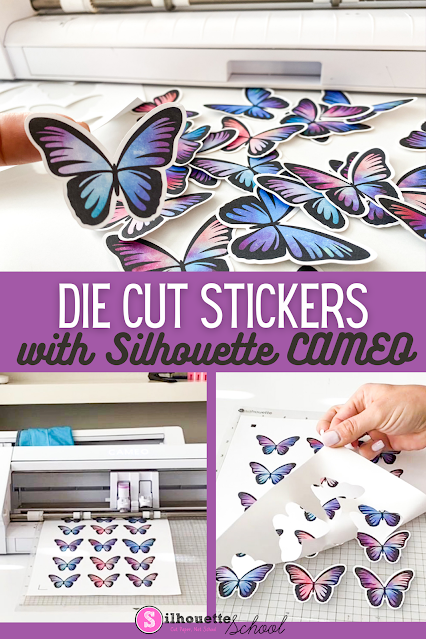
Die Cut Stickers with Silhouette CAMEO: Step by Step Tutorial

You can easily make die cut stickers with Silhouette CAMEO. 

silhouette 101, silhouette america blog, die cut stickers, print and cut, online labels

Die cut stickers are stickers that cut completely through the front of the sticker paper and the back liner leaving the sticker completely cut out around the shape of the image. 

This Silhouette sticker tutorial will explain exactly how to make die cut stickers with Silhouette CAMEO 4 (or any Silhouette machine) and my favorite sticker paper from Online Labels! 

How to Kiss Cut and Die Cut Stickers on Same Sticker Sheet

You can cut your own sticker sheets when you combine the Silhouette CAMEO's ability to do a full die cut and kiss cut on the same sticker sheet!  

silhouette 101, silhouette america blog, silhouette stickers, sticker paper, die cut

In this tutorial, we’ll show you how to make custom sticker sheets this way! 

The 11 Best Silhouette Print and Cut Tutorials

If you haven't mastered - or even tried - Silhouette print and cut yet, you're missing out.

silhouette print and cut, print and cut silhouette, silhouette cameo print and cut, silhouette america blog, silhouette 101

Print and cut is one of the most awesome features of the Silhouette machines and it can be used on almost any material from paper and vinyl to heat transfer vinyl, tattoo paper, sticker sheets and more!

Best Printable Clear Sticker Paper for Silhouette Stickers

You can make custom printable clear stickers with Silhouette if you have the basics of print and cut down and the right printable clear sticker paper...plus a few tricks up your sleeve.

silhouette 101, silhouette america blog, silhouette print and cut, print and cut, sticker paper

My favorite clear sticker paper for inkjet printers is from Online Labels because it's high quality, doesn't smear, and cuts easily. 

Print and Cut Sticker Printer: Introducing the iColor 250 Sticker Machine (MAC and PC)

If you run a sticker shop or custom sticker business, I just found what hopefully will end up being one of the best printers to print stickers!!

silhouette 101, silhouette america blog, stickers, print and cut, sticker printer

The Uninet iColor 250 is a super compact, super fast print and cut sticker machine that can print on 5" wide sticker and label material as well as speciality materials like magnet, BOPP (a polypropylene material with permanent adhesive), and metallics. 

There is a lot to like about the iColor 250 including that this print and cut sticker printer works on both a PC and a MAC as well as its small size and fast, high resolution printing. Did I mention the small learning curve?

Yes, the price tag is high, but so are the margins on stickers especially for a machine that both prints and cuts leaving you hands off rather than fussing with registration marks and multiple machines. 

Read on to learn if the iColor 250 print and cut sticker machine is right for your small business. 

Silhouette Studio Hack for Turning Cut Designs into Print and Cut Stickers

Pretty much any design can be turned into a print and cut design in Silhouette Studio.

silhouette print and cut, print and cut silhouette, silhouette cameo print and cut, print and cut silhouette cameo, print and cut files for Silhouette, print cut machine
This is a sponsored post, but all opinions are my own.

Depending on how the original designer created the design it can be quite a few steps to convert a cut file into a print and cut...unless you know this Silhouette Studio hack.

Silhouette Print and Cut CAMEO 4 Page Setup: Beginners Start Here!

Having a successful Silhouette print and cut with a CAMEO 4 (or any Silhouette machine) starts with having the page set up correctly. 

silhouette 101, silhouette america blog, cameo 4, print and cut, silhouette print and cut

This beginner Silhouette print and cut tutorial is stripped down to focus on exactly how your page should be set up for a successful Silhouette CAMEO 4 print and cut.  If you are having print and cut issues I would suggest you open a new design area in Silhouette Studio and start with this step by step Silhouette print and cut setup tutorial. 

How to Print and Cut with CAMEO 4 Like a Pro When You're a Newbie!

Silhouette Print and Cut is one of the most popular - but intimidating - ways to use the Silhouette cutting machines. 

silhouette 101, silhouette america blog, cameo 4, print and cut, cameo 4 pro

It's possible to print and cut on all Silhouette machines, including the Silhouette CAMEO 4, CAMEO 4 Plus, and CAMEO 4 Pro. This beginner Silhouette print and cut tutorial will walk you through all the steps.

Silhouette CAMEO 4 Print and Cut Max Size

I get questions all the time about the Silhouette CAMEO 4 max Print and Cut size. 

silhouette 101, silhouette america blog, print and cut, silhouette print and cut, stickers, printable materials
This is a sponsored post, but all opinions are my own

The answer really depends on your printer! In this tutorial I'll show you how to get the max print and cut area when using your Silhouette CAMEO 4 whether you have a standard 8.5" x 11" printer or a wide format printer. 

Why the Trace Tool in Silhouette Studio Isn't Working (And How to Fix It)

I hear it all the time: "the trace tool isn't working."  

how to trace,Print and Cut,Silhouette CAMEO print and cut,Silhouette Print and Cut,sticker,sticker printer,trace and detach,Trace by Color,Tracing,

You found a graphic you want to cut. Maybe it's a sticker sheet, maybe it's a design someone sent you, maybe it's something you pulled off Pinterest or made in Canva. You bring it into Silhouette Studio, click Select Trace Area, adjust the threshold, and either nothing is yellow or everything is yellow and it looks like a mess. 

read on for tips on how to trace to get clean cut lines on hard to trace images. 

How to Remove White Border From Stickers (To Use them for Sublimation or Transfers!)

Want to get more out of your sticker designs so you can them for heat transfers and sublimation, too? 

Stickers,sticker,transfer printer,print and cut sticker machine,Print and Cut,Silhouette Print and Cut,


Even though many sticker designs come with white borders that look great for stickers - they're not ideal for transfers or sublimation.  In this quick tutorial, I'm going to show you exactly how to remove those white borders using Silhouette Studio's trace by color tool. 

How to Print and Cut A4: Silhouette CAMEO Tutorial

Let's talk about how to print and cut A4 size with Silhouette CAMEO. 

silhouette america blog, silhouette 101, silhouette print and cut, print and cut, A4 print and cut

A4 size paper or material is slightly more narrow and longer than the standard US 8.5" x 11" which you may be used to using in your printer.  However...most 8.5 x 11" printers can take A4 size by a slight adjustment to the tray. That means you can also print and cut A4 with Silhouette CAMEO. Follow along for the steps on how to set up Silhouette Studio print and cut for A4.

Silhouette Studio Pop Up Tool with Print and Cut Tutorial


You can make some pretty cool pop up cards with your Silhouette cutting machine when you combine the power of print and cut with the new pop up tool!

silhouette print and cut, print and cut silhouette, silhouette cameo print and cut, print and cut silhouette cameo, print and cut files for Silhouette, print cut machine

The Silhouette Studio Pop Up tool is a feature that can be found in Silhouette Studio V4.1 and higher.  

First Print and Cut in Silhouette Studio V5 (Important Changes)

If you're using Silhouette Studio V5 for print and cut, there are some important changes you'll want to be aware of. 

Stickers,registration marks,Silhouette Studio,Print and Cut,silhouette studio tutorial,print and cut sticker machine,V5,

Even if you're not a beginner, I would highly suggest going through this step by step tutorial the first time you are printing and cutting in V5. 

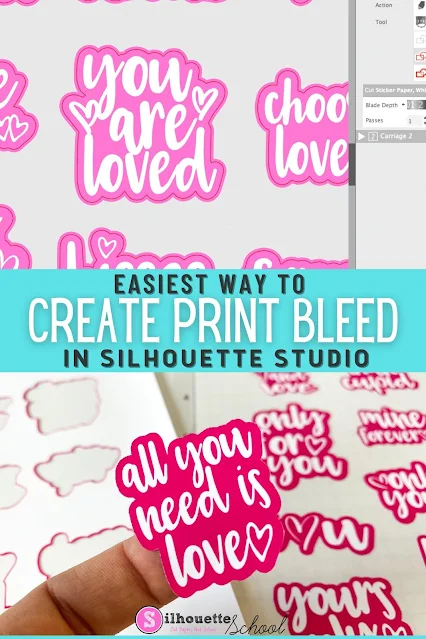
Easiest Way to Add Bleed Around Silhouette Print and Cut Designs

You can add a bleed around images in Silhouette Studio to avoid getting a white edge around print and cut designs. 

silhouette 101, silhouette america blog, silhouette print and cut, print and cut, silhouette studio v4

This tutorial will walk you through how to quickly add a bleed in Silhouette Studio so you get perfect print and cuts on things like planner stickers and vinyl stickers.