
Copyright Silhouette School 2016. Powered by Blogger.


Showing posts with label Vector Graphics. Show all posts

How to Use Silhouette Studio Business Edition (ONLY!) to Create Roland Contour Cut Lines (Video, Too)

If you are a Silhouette Studio Business Edition user and have a Roland BN-20A or BN-20...this is a game changer. 


By combining the power of the one-time paid Silhouette Studio upgrade to Business Edition and the free Roland Versaworks you can create Roland Contour Cut lines without any other software programs including Adobe Illustrator, Affinity Designer, Corel Draw, or Flexi.  

This is hands down the cheapest way to create Roland Versaworks Contour Cut Lines and will significantly cut down the learning curve for those already comfortable in Silhouette Studio...and even if you're not a Silhouette user - listen up because you don't even need a Silhouette machine to use the Silhouette Studio software!
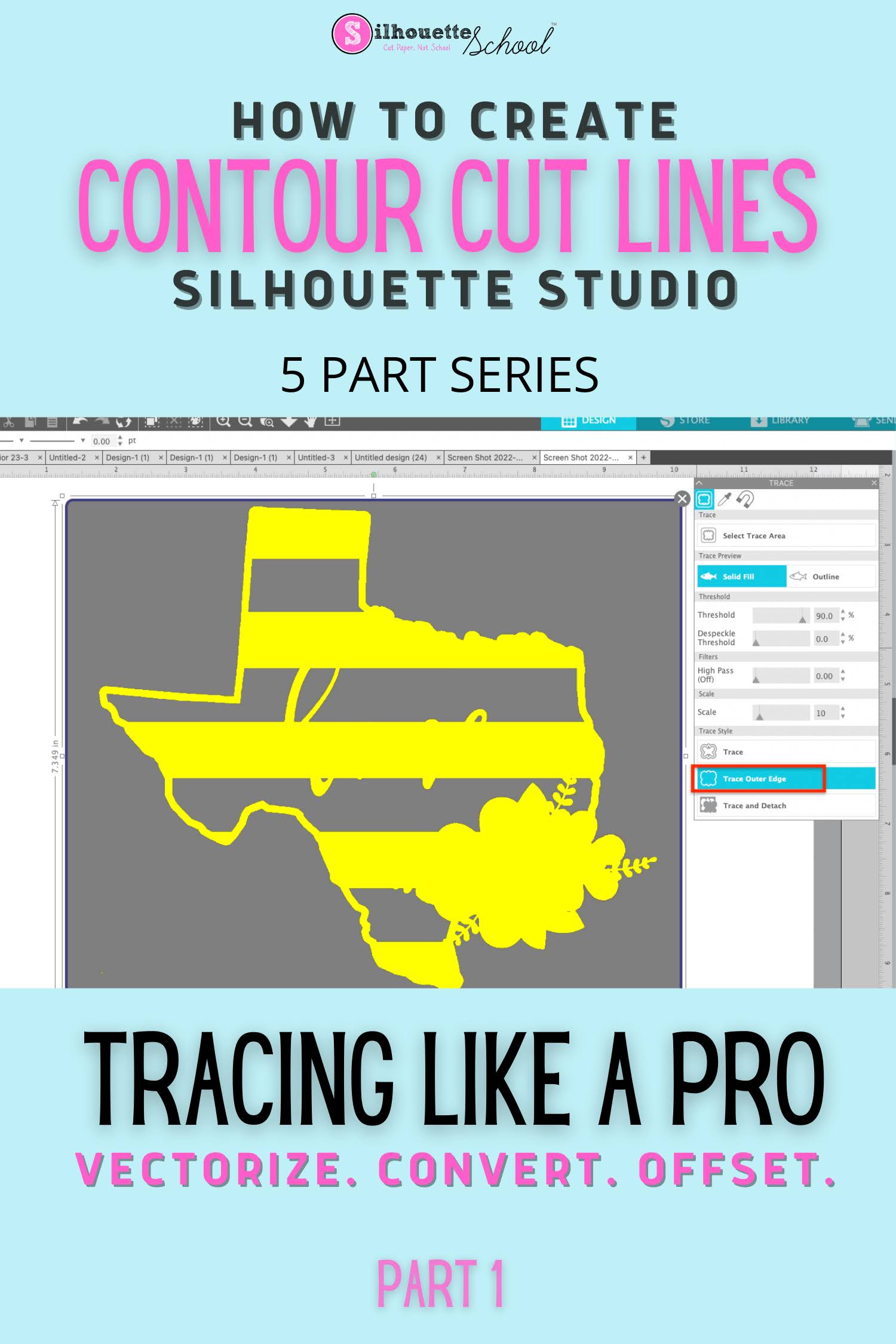
How to Create a Contour Cut Line in Silhouette Studio by Tracing (and Convert JPEG or PNG to SVG)

The Silhouette Studio trace tool is one of the best features of the software and definitely a step above the tracing tools in even some of the more "elite" (and expensive) graphic design software programs.  

Silhouette studio tracing lines, make contour cut lines silhouette, make contour cut lines for roland bn20,how to trace in silhouette studio, tracing in silhouette studio


You can use Silhouette Studio to create contour cut lines around images quickly and easily.  This is also how you can vectorize JPEG and PNG files before exporting as SVG from Silhouette Studio. 

Learning to trace to create cut lines in Silhouette Studio is hugely important because it is a fundamental skill that is necessary for other design functions including adding a bleed, an offset, a border and vectorizing or converting PNG and JPEG.  It's also hugely helpful for creating cut lines that other programs - including Adobe Illustrator and Affinity Designer - can also recognize. If you have added a Roland BN-20 print and cut machine, for example, creating the contour cut lines in Silhouette Studio is a breeze.

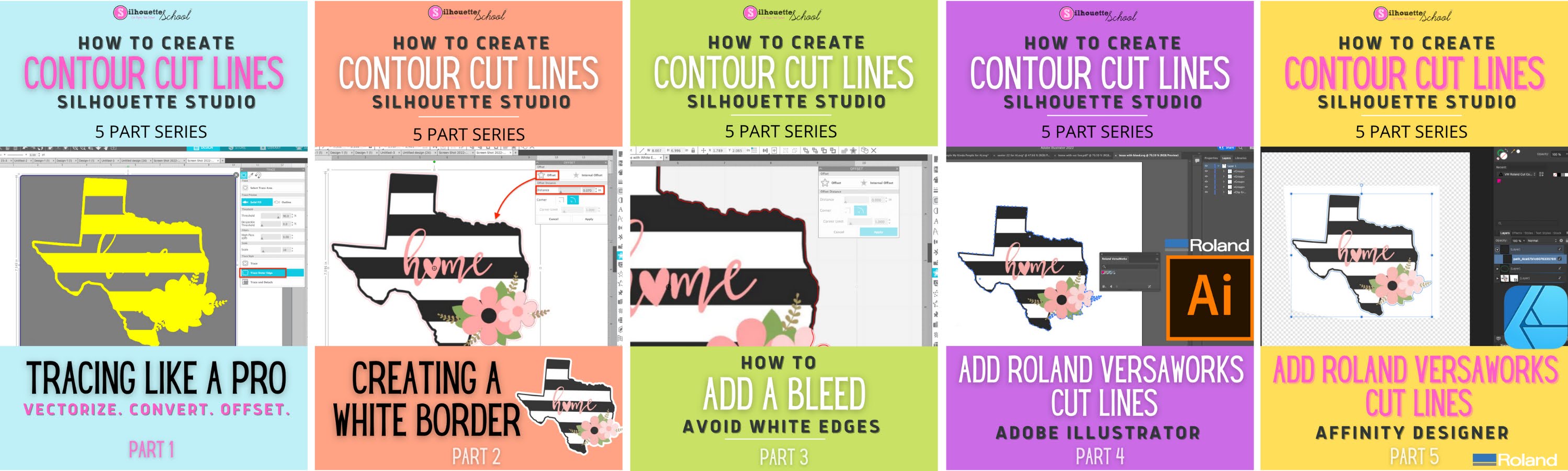
I have designed this Silhouette Studio beginner tracing tutorial as just the first in a five part series on creating contour cut lines in Silhouette Studio. Each part builds on the previous tutorials in the series so I highly suggest you go through them in order.  

convert png to svg, convert jpeg to svg, cutting a jpeg silhouette cameo

Even if you don't have a Silhouette cutting machine or aren't using it for your current job, the trace tool is extremely helpful. It's one of the many reason why I suggest that even if you don't have a Silhouette cutting machine, you consider using Silhouette Studio

Creating Contour Cut Lines in Silhouette Studio: Five Part Series 

Graphic and Font Commercial License Game Changer

You guys know I love The Hungry JPEG...for their fantastic commercial use fonts and graphics! But I bet you didn't know what I'm about to tell you...
This is a sponsored post, but all opinions are my own.
We all know one of the best things about The Hungry JPEG is that their designs and fonts are ALL available for commercial use. BUT...as I was looking closer at their licensing agreement, I almost did a double take in what is a total game changer!

How to Use Silhouette Studio V4 Trace by Color

The new Trace by Color feature in Silhouette Studio V4 is perhaps one of the biggest attractions to the new version of the software. It certainly makes tracing multi-color images much, much easier and it's likely to push many to upgrade to Designer Edition.

Silhouette Studio V4 trace by color tool tutorial
This is a sponsored post but all opinions are my own.
For example let's say you buy one of those fabulous commercial use graphic and font bundles from Craft Bundles. If you import the PNGs for these designs - tracing can take quite a bit of time and manipulation. But with Trace by Color it's as simple as click-click-click.

How to Open Zip Files In Silhouette Studio

One thing I hear time and time again from people is that they've purchased a graphics bundle but they can't get the files to open in Silhouette Studio.


A lot of times when you get graphics bundles like this they come as a zip file...with all the individual files inside. Those inside files can be opened in Silhouette Studio - but the zip file can't. That's where the error usually comes in.

15 Commercial Use Silhouette Easter Design Files

It's never too early to start planning for the next busy holiday season when you make and/or sell custom and personalized items!
easter designs, easter graphics, easter svg, commercial use svg files easter spring silhouette cameo
This is a sponsored post, but all opinions are my own
That's why today I thought I'd share 15 Easter designs that are not only Silhouette-friendly, but also available for commercial use.  And the best part is they all come as part of the March Craft Bundle from Craft Bundles.

The Hungry JPEG Brings Back 10 Retired Graphic and Font Bundles (Limited Time)

If you ever had font restraint regret (it's a thing!), now's your second chance!! The Hungry JPEG is doing something totally awesome and totally different this month.


Rather than introducing a new font bundle in February, they're bringing back 10 retired commercial font bundles each for a limited time.  

How to Create and Print Patterned Paper: Silhouette Studio Tutorial

Did you know it's possible to create and print patterned paper from Silhouette Studio in just a few quick steps?  Once you've printed patterned paper at home, the possibilities of what you can do with it on your Silhouette CAMEO or Portrait are endless!

This is a sponsored post but all opinions are my own.
I used a coordinating set of digital patterns to create some cute paper medallions with my Silhouette CAMEO...which I'll show you how to do in another tutorial.

Secret to the Best Emboss with Silhouette Curio

Many Silhouette owners purchase the Curio to use to cut and emboss paper for scrapbooking and card making. To get the most defined emboss on cardstock, the trick is to score first, then emboss...twice. The Silhouette Curio's dual carriage make this two-step processes one.

Silhouette Curio, Silhouette tutorial, emboss

19 Commercial-Use Sports Designs for Silhouette Crafters (and much more)

Making custom sports and fan gear is one of the most popular projects for Silhouette crafters.  If you have a soccer, basketball, football, or baseball player or a gymnast, dancer or cheerleader in your life - today is your lucky today.  
Silhouette Cameo, commercial-use, sports designs, Silhouette Studio

Simple Silhouette Studio Fix for the Dreaded Cut Box Around Transparent Images

I think I spent more time trying to title this post than actually writing the tutorial - because honestly what do you call this annoying cut box that happens on transparent images you import into Silhouette Studio to print and cut?   I don't even know....what I do know is there's a quick fix to get rid of it.

Silhouette Studio, Silhouette tutorial, removing cut box, transparent graphics
This is a sponsored post, but as always, all opinions are my own

A Commercial Font Deal with Something for Everyone! (Plus: How to Open .EPS files in Silhouette Studio)

Another month and another font deal that is just too good to pass up - the thing I like about this one is there's something for everyone whether you like handwritten fonts, stencil fonts or graphics! The Huge Font Deal from The Hungry JPEG includes 49 fonts with commercial license, plus lots of bonus graphics, dingbats and ornaments - all for just $29. As always the deal is only good for one month - so jump on it!


This is a sponsored post, but as always all opinions are my own.

Using Graphic Design Packs with Silhouette

I am so excited to share this month's graphics and font bundle with you guys The Hungry JPEG's $29 deals pack this month not only includes 28 amazing fonts, but also 19 HUGE graphics packages with over 1000 designs all available to use commercially! You won't believe how easy they are to use and how many different ways you can use them!

Silhouette Cameo, graphic design pack
This is a sponsored post, but all opinions are my own.
I'll give you a preview of some of the the fonts that are in The Summer Bundle this month in a minute, but what I really what to show you is how you can use the designs that come in the summer bundle with your Silhouette.

They're really simple to use and they are amazing for print and cuts, printable vinyl projects, stickers and much more. So let's jump right in....

Silhouette Studio Trace and Detach Tool to Make Print and Cuts

Vector graphics are amazing for print and cuts IF you know this little trick known as the Silhouette Studio Trace and Detach tool.  What's even better is if you can find a huge set of vectors, like this one from Mighty Deals, where you get 500+ vectors, with the commercial license, for less than $20.

Silhouette Studio, Silhouette tutorial, trace and detach tool, print and cut

The first thing you need to do to turn your vector graphics into Print and Cuts is to import the vector image into Silhouette Studio.  I went over this process in great detail in this tutorial so I will breeze through it here, but if you need a refresher check this Silhouette School tutorial out.

How to Use Downloaded Vector Graphics in Silhouette Studio

Silhouette Studio, Silhouette tutorial, vector graphics, downloaded
Last week I shared an awesome deal from Mighty Deals that included something like 500 vector graphics (available for commercial use) which can be used with Silhouette Studio.

The 98% off deal is actually still going on so you can grab it..and I'm sure after I show you how easy it is to use all those designs in Silhouette Studio you'll see why I was so excited about this.  Here is just a small sample of the graphics in the set.

This set of vector graphics is actually great to use with Silhouette Studio because many of the designs are (in layman's terms) silhouette-style...making them super easy to trace!   AND the graphics can also be used in products that are sold...by YOU! 

To get started, first go to Mighty Deals and grab this deal.  Just put it in your cart, check out, and then you'll get the link to download.

Now there are SO many images in this pack that you are given about five or six download files.   What I like to do is download them all onto my computer initially and then move them (eventually) onto an external hard drive. More on that in a minute.
