Copyright Silhouette School 2016. Powered by Blogger.


Showing posts with label adobe illustrator. Show all posts

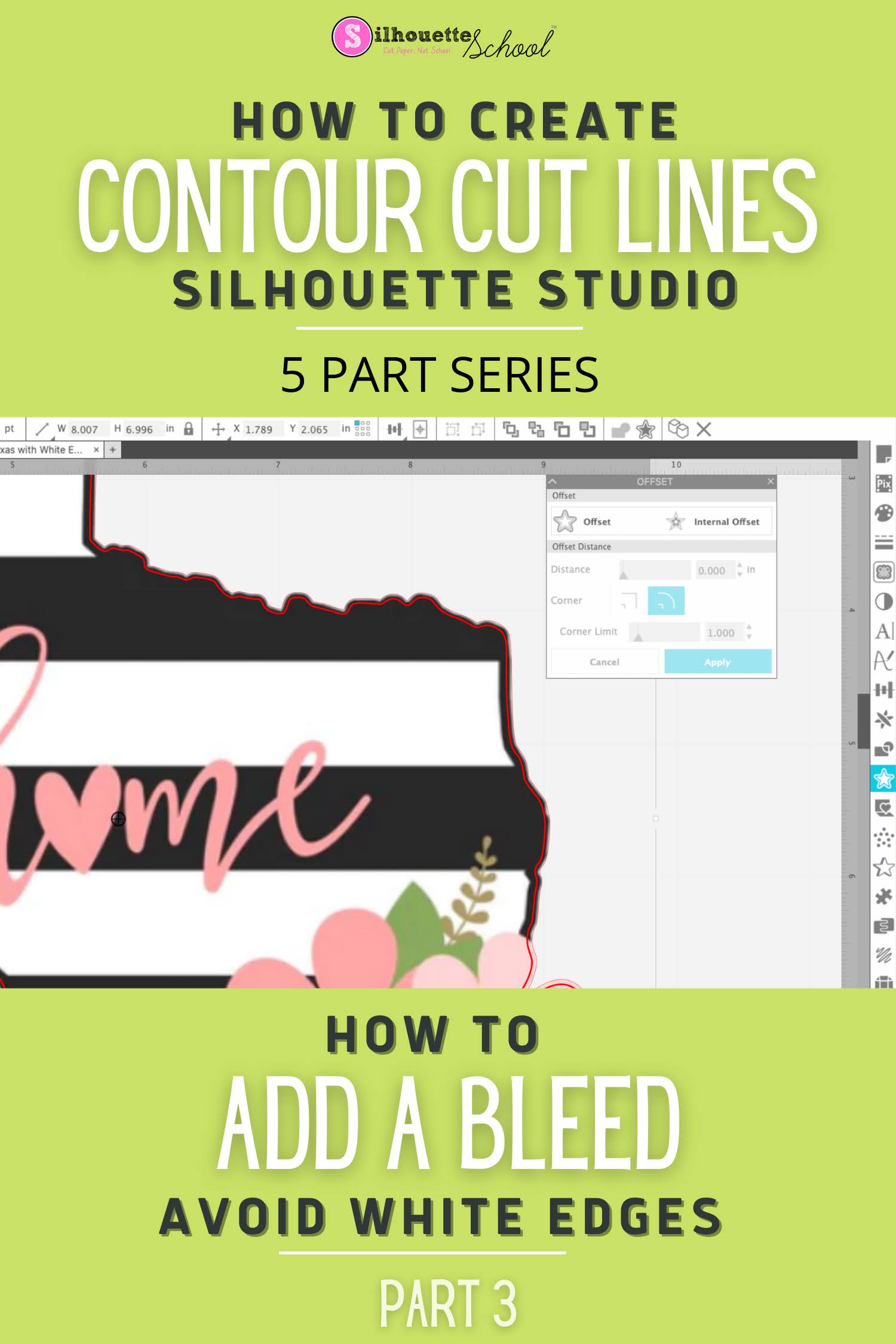
How to Create a Full Bleed Contour Cut Line in Silhouette Studio

If you are printing and cutting - either with a Silhouette machine or another cutter - it's easy to create a full color bleed area in Silhouette Studio. 
silhouette 101, silhouette america blog, print and cut, contour cut lines, full bleed

This post is part 3 of my Five Part series on Creating and Working with Contour Cut Lines in Silhouette Studio. If you haven't already followed Part 1 on creating cut lines around your JPEG or PNG by tracing you'll want to do that first.  

print and cut, contour cut lines, full bleed, offset, affinity designer

If you'd rather have a white border around your entire design, instead of a bleed area, check out Part 2 in this series. And if you are here to create a bleed and contour cut lines for Roland VersaWorks keep reading! 
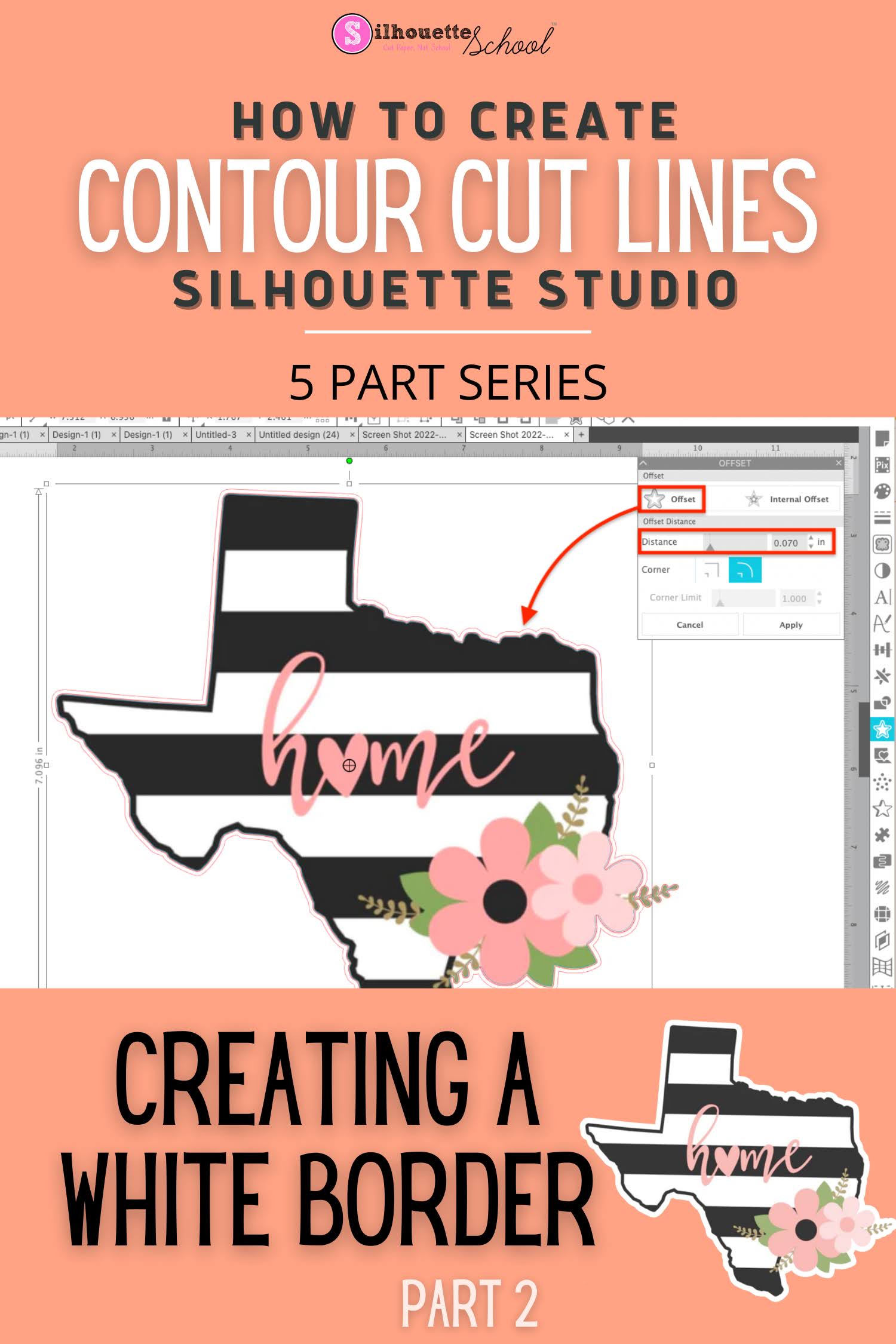
How to Create a Contour Cut with White Edge in Silhouette Studio

There are many reasons you may want to put a solid white edge around a design in Silhouette Studio. 

silhouette 101, silhouette america blog, contour cut, white edge, stickers

A white border on stickers gives a clean, polished, and professional look.  Adding a white edge around your design in Silhouette Studio is fast and easy using the offset tool.  

This post is part 2 of my Five Part Series on Creating and Working with Contour Cut Lines in Silhouette Studio. If you haven't followed Part 1: How to Create Cut Lines around your JPEG or PNG by Tracing you'll want to do that before you go any further.  

contour cut, white edge, stickers, PNG, roland bn20

If you'd rather NOT have a white edge on you design, but would instead like to create a full color bleed, check out Part 3 of this series

How to Use Silhouette Studio Without a Machine (And Why You'd Want To!)

If you're wondering "Can I Use Silhouette Studio without a Silhouette Machine"..the answer is YES! 

There are a lot of reasons why you might want to use the Silhouette software even if you don't have a machine..beginning with the inexpensive one-time price, large number of design features, ability to vectorize, option to print to any printer on the network, and file export options.   

Silhouette 101, silhouette america blog, silhouette studio, cricut, roland

Whether you use a Cricut, a sublimation printer, a wide format ecosolvent printer like a Roland BN-20 or even a white toner printer you should consider the PC and Mac-friendly Silhouette Studio! 

Read on for how to use Silhouette Studio without a machine including how to set up the software and unlock the extra features.

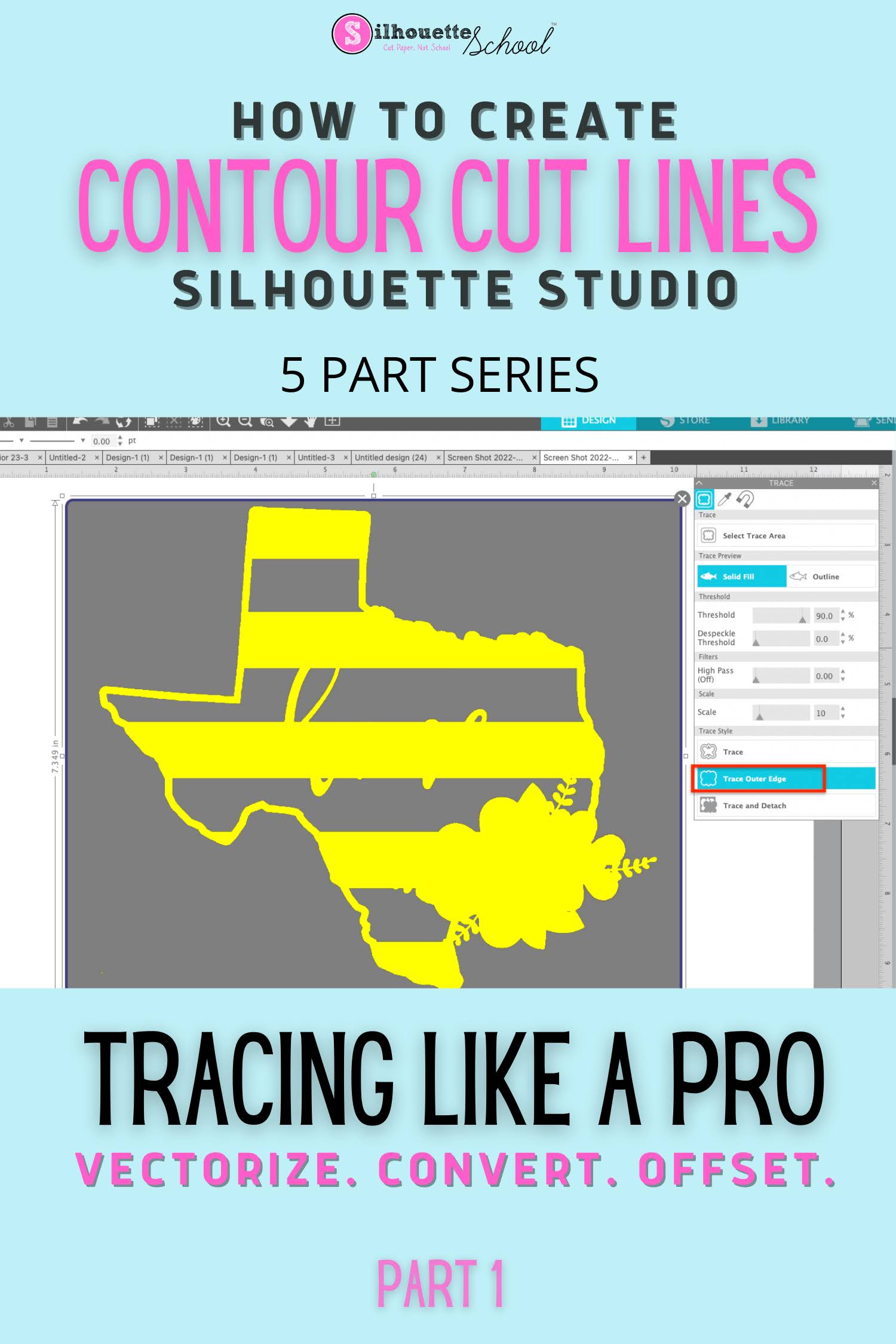
How to Create a Contour Cut Line in Silhouette Studio by Tracing (and Convert JPEG or PNG to SVG)

The Silhouette Studio trace tool is one of the best features of the software and definitely a step above the tracing tools in even some of the more "elite" (and expensive) graphic design software programs.  

Silhouette studio tracing lines, make contour cut lines silhouette, make contour cut lines for roland bn20,how to trace in silhouette studio, tracing in silhouette studio


You can use Silhouette Studio to create contour cut lines around images quickly and easily.  This is also how you can vectorize JPEG and PNG files before exporting as SVG from Silhouette Studio. 

Learning to trace to create cut lines in Silhouette Studio is hugely important because it is a fundamental skill that is necessary for other design functions including adding a bleed, an offset, a border and vectorizing or converting PNG and JPEG.  It's also hugely helpful for creating cut lines that other programs - including Adobe Illustrator and Affinity Designer - can also recognize. If you have added a Roland BN-20 print and cut machine, for example, creating the contour cut lines in Silhouette Studio is a breeze.

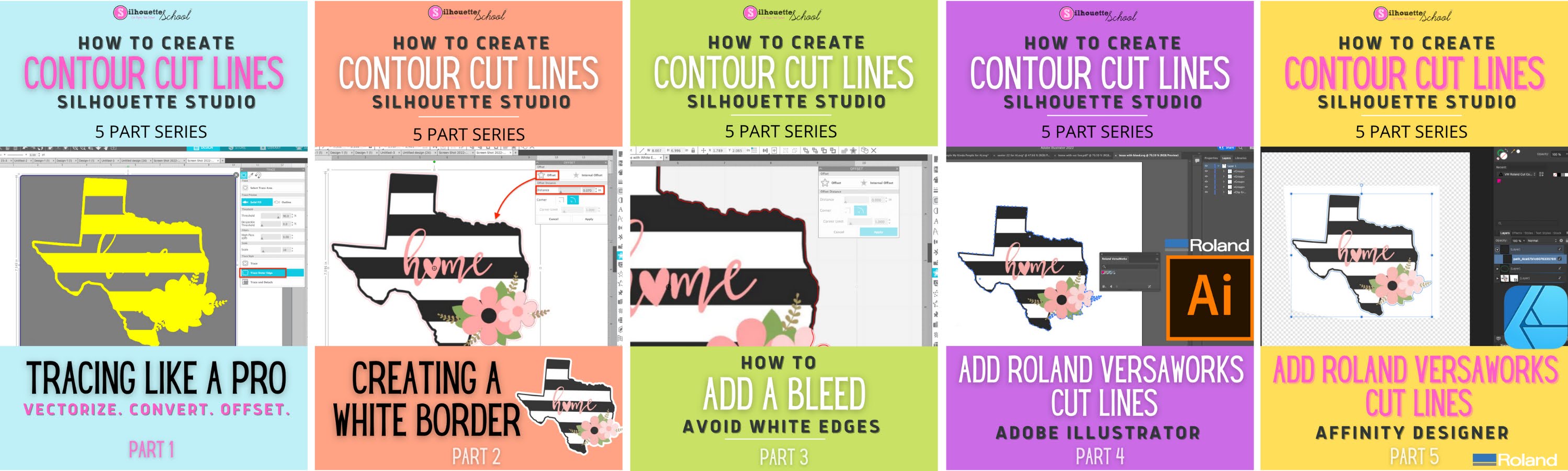
I have designed this Silhouette Studio beginner tracing tutorial as just the first in a five part series on creating contour cut lines in Silhouette Studio. Each part builds on the previous tutorials in the series so I highly suggest you go through them in order.  

convert png to svg, convert jpeg to svg, cutting a jpeg silhouette cameo

Even if you don't have a Silhouette cutting machine or aren't using it for your current job, the trace tool is extremely helpful. It's one of the many reason why I suggest that even if you don't have a Silhouette cutting machine, you consider using Silhouette Studio

Creating Contour Cut Lines in Silhouette Studio: Five Part Series