Copyright Silhouette School 2016. Powered by Blogger.


Showing posts with label Silhouette Studio Business Edition. Show all posts

Is Silhouette Studio Business Edition Worth It If You Don't Have a Business?

If you've been using Silhouette Studio for a while, you've probably seen the Business Edition upgrade mentioned and wondered whether it's actually worth the $50 especially if you don't have a business. 

Silhouette Business,Silhouette Studio Business Edition,Upgrades,Designer Edition,

The question I get from crafters is often: Do I really need Business Edition if I'm not selling at all? 

The honest answer is...I've never heard anyone regret unlocking the full suite of tools and features in Silhouette Studio Business Edition

How to Design for Tapered Tumblers in Silhouette Studio (Conical Warp Guide)

Did you ever design a tumbler wrap in Silhouette Studio where the text looks great - perfectly straight, nicely spaced, centered on your design - then you sublimation print and the text is slightly curved? Or if you printed some type of circle it's now somewhat oblong?

Silhouette and Sublimation,sublimation,sublimation tumbler,business,Silhouette Studio Business Edition,


You didn't do anything wrong.  A tapered tumbler isn't a cylinder - it's a cone. And when a flat design is wrapped around a cone it gets slightly warped so you need to compensate for that in the design program. That's what Silhouette Studio's conical warp tool fixes.

Is Silhouette Studio Business Edition Worth it Without a Silhouette Machine?

If you own a Roland, an xTool laser, DTF or UV DTF printer, a sublimation printer or any machine that isn't a Silhouette cutter, you may not have given Silhouette Studio a second thought. 

Silhouette Business,Silhouette Studio Business Edition,Silhouette Studio,Roland,export files,export silhouette studio library,

As someone who has used a lot of different printing, design and rip software for a lot of years - I can tell you with certainty - even the free version of Silhouette Studio is actually one of the most underrated design tools for non-Silhouette machine owners.

If you don't have a Silhouette machine - that makes Silhouette Studio Business Edition even more worth it for you specifically for the file formats it can export.

Silhouette Studio Running Slow? Check This!

If Silhouette Studio is running slow and you've already confirmed your computer meets the minimum requirements to run the software, it could be how you're designing or editing that's contributing to the slow processing. 

Silhouette Studio,Silhouette Studio Business Edition,Silhouette Studio V4,silhouette software,Designing,Silhouette Studio V3,Troubleshooting,silhouette studio designer edition,

There are various ways to try to speed up the Silhouette software, including making sure you're not overloading the software. Read on to learn how to increase the processing speed. 

How to Open and Use Alphabet Sets in Silhouette Studio

Alphabet sets look like fonts, but they act like PNG or SVG files in Silhouette Studio. 

Silhouette Studio,Silhouette Studio Business Edition,How to,SVG,Designing,Fonts,alphabet set,


They're easy and fun to use and give you a lot of flexibility, but can be time consuming to open in Silhouette Studio.  But..oh they're so worth it!  

Read on for my tips on opening and using Alphabet SVG sets in Silhouette Studio.

How to Save as SVG in Silhouette Studio (and JPEG and PDF too)

It's now possible to export as an SVG directly from Silhouette Studio.

Silhouette svg files, svg silhouette, silhouette cameo svg, silhouette studio svg, silhouette 101

In order to save as an SVG, JPEG, or PDF from Silhouette Studio, you must have both Silhouette Studio 4.1 or higher and Business Edition.

How to Design Custom Location Hoodies (And the Best Font)

You can easily design custom location graphics if you know a few little tricks including the best font..and how to curve text. 

Silhouette Studio,Silhouette Studio Business Edition,DTF transfers,Silhouette Studio 4,CAMEO 4,t shirt transfers,Text to Path,Text

The custom location hoodies are super popular right now and they're super easy to make. Read on for how to design in Silhouette Studio.

Silhouette Studio Designer Edition vs. Basic, Business Edition, Designer Edition Plus (Plus a Review)

If you're wondering what the differences are between Silhouette Studio Designer Edition vs. Silhouette Studio Basic vs. Business Edition vs. Designer Edition Plus - look no further.

Silhouette Studio, silhouette studio designer edition, silhouette cameo upgrade, silhouette 101, silhouette america blog

I get asked for an honest Silhouette Studio Designer Edition comparison vs. Studio Basic all the time, so I figured it was time we hash it all out.  A few things before I go into the differences between the basic Silhouette Studio and the upgraded versions.

Silhouette Studio File Types: Avoiding the Silhouette Studio File Not Supported Error

There are at least a dozen different file types you can import into Silhouette Studio - but not all files types are supported in all versions of Silhouette Studio.   If you've ever gotten the error "Silhouette Studio File Not Supported" it's because you are attempting to import a file that the version of Silhouette Studio you are using can't open. 

Silhouette Studio, Silhouette Studio file types, silhouette studio designer edition, silhouette studio tutorial, silhouette cameo beginner tutorial, silhouette 101, silhouette america blog

This Silhouette Studio tutorial provides an easy break down and list of file types Silhouette Studio supports...and therefore which can be cut with your Silhouette CAMEO, Portrait, and Curio.

Install Silhouette Studio Designer Edition (DE+ or Business) for the First Time or on Second Computer (2024)

If you purchased a Silhouette Studio Designer Edition license key (or a license key for Designer Edition Plus or Business Edition) you can install them on up to three computers.

silhouette america blog, silhouette 101, designer edition, business edition, silhouette studio upgrades

This comes in handy if you get a new computer or have more than one computer where you use Silhouette Studio. This tutorial will show you how to install Silhouette Studio license keys and also how to install on another computer.

How to Make Sublimation Blanks

You can make your own sublimation blanks giving you complete freedom and creativity when sublimating. 

custom sublimation blanks, xtool, xtool p2, sublimation printer, small business

Read on for the step by step on making custom sublimation blanks.

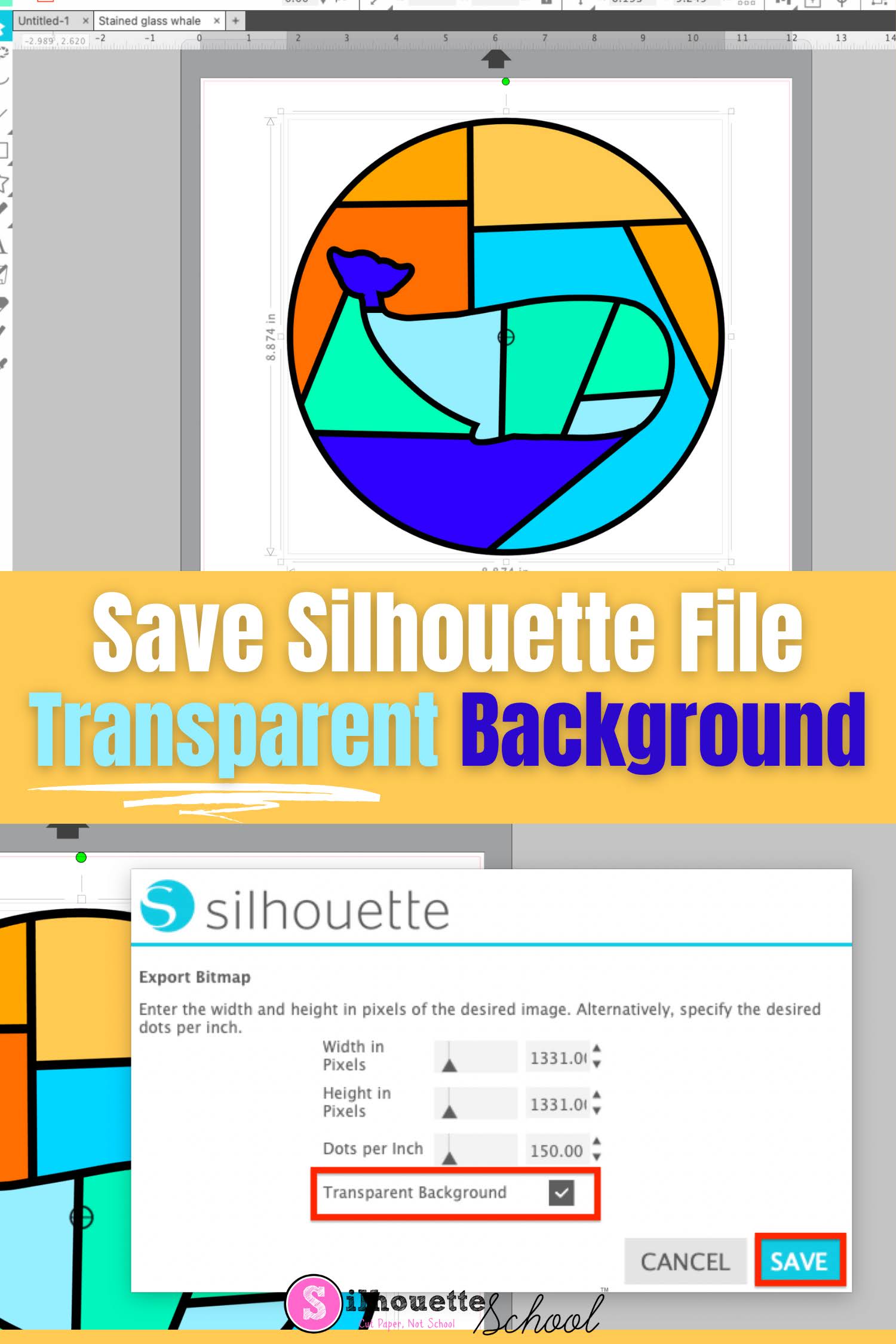
How to Save a Silhouette File with Transparent Background

It's easy to save a Silhouette file with a transparent background. 

silhouette 101, silhouette america blog, silhouette studio, silhouette studio v4, silhouette studio business edition

Silhouette Studio allows transparent PNG files to be exported which means you can design and create in Studio and export a Silhouette file with a transparent background.

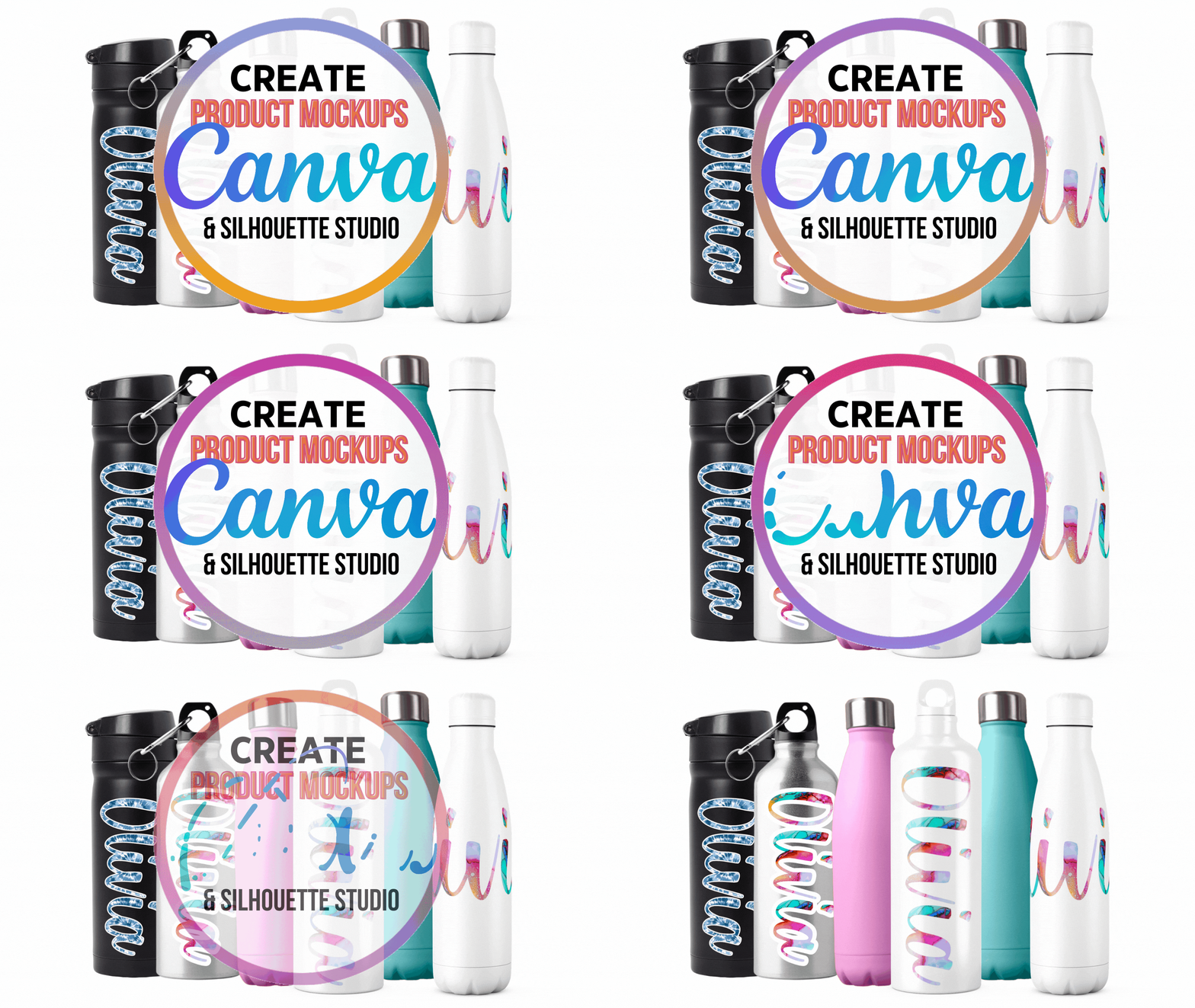
How to Create Product Mockups in Canva (Free) Using Your Own Designs

You can create product mockups in Canva for your Etsy shop or social media using designs you've created in Silhouette Studio or another design program. 

silhouette 101, silhouette america blog, silhouette studio business edition, mock ups, designing
For custom items like vinyl name stickers or items that are available in various color options, mockups can be easily customized very quickly and cheaply.  Using mockups will allow you to not only show off your products in a really visually appealing way but they prevent you from having to create a new physical item for each variation. 

In this tutorial I'm going to share the step by step on how to create a product mockups using your own designs in Canva...and I'll even share a little hack for animating tumbler mockups!

5 Tips for Creating Mock Ups in Silhouette Studio That Sell

If you sell digital cut files or buy commercial use designs to make products to sell with your Silhouette, you should make sure your mock up game is strong!

silhouette 101, silhouette america blog, mockup photo, mockup photos, silhouette studio

Mock Up photos help sell physical goods and digital designs by letting potential customers 'see' the finished product without you actually creating it first.  Put it to you this way...which of the above sets do you think sells more?

Craft mock ups are a huge help in selling digital products as well allowing designers to show examples of how their cut files can be used.  These five tips will help you take your mock up game to the next level so you can sell more - and at a higher price!

Silhouette Studio Updates vs. Software Upgrades

Silhouette Studio upgrades are not the same as Silhouette Studio updates so let's get to the bottom of it today.
 
Silhouette Studio designer edition tutorials, Silhouette Studio Software tutorials, Silhouette Design Studio tutorials, silhouette 101, silhouette america blog

There are some key differences when it comes to Silhouette Studio Updates vs Silhouette Studio Upgrades - the biggest is updates are free and upgrades are a one time fee.  But that's not the only difference... so read on for a better understanding.

Roland BN-20 Software: Why Silhouette Studio and Affinity Designer Are the Best (And Cheapest)

If you're considering investing in a Roland BN-20A you're probably also thinking about what the best graphic design software is to use with the 20" Ecosolvent Print and Cut machine.

Roland BN-20, Roland BN-20A, Roland Bn-20 software, Roland BN-20 Contour Cut Lines

The Roland BN-20 and BN-20A come with Roland VersaWorks software, but the free Roland software lacks in its ability to easily create contour cut lines.  Therefore another software program is used to prep art.  

There are three or four main options to create contour lines for the Roland BN-20A ... and here we'll explore why Silhouette Studio and Affinity Designer are the best...even if you don't have a Silhouette machine (and especially if you do!) 

How to Cut with Multiple Silhouette Machines at One Time

When you have a big project ahead of you you can save a lot of time by running multiple Silhouette cutting machines at the same time. 

silhouette 101, silhouette america blog, silhouette studio business edition, silhouette software, silhouette cameo 4

This tutorial will explain how to use multiple Silhouette cutting machines simultaneously to cut different cut files.

Silhouette Studio Upgrade Features List: Designer Edition, Designer Edition Plus, Business Edition (Updated 2022)

I get asked all the time - is Silhouette Studio Designer Edition worth the upgrade? What features are included with Silhouette Studio Business Edition?  Does the highest upgrade include the features of the others?  Finally, I decided to put together an easy to read list of features, tutorials, and FAQs about all of the Silhouette Studio upgrades.
silhouette 101, silhouette america blog, silhouette studio, silhouette designer edition, silhouette business edition
I can tell you - there's never been a better time or reason to upgrade straight to Silhouette Studio Business Edition.  With the release of Silhouette Studio V4.4 there are a lot of awesome features - many of them not available in the free basic Silhouette Studio version.

Do Silhouette Designs Work with Cricut? How to Use Silhouette Software with Cricut

If you're wondering can Silhouette designs be used on Cricut the answer is...YES! 

silhouette 101, silhouette america blog, cricut, silhouette studio business edition, silhouette software

There are several different ways you can use Silhouette Designs with Cricut and this tutorial will explain how...and why you may want to design in Silhouette Studio and cut with Cricut. 

Silhouette Studio Tiling Tool Tutorial: How to Use for Oversized Projects

When it comes to cutting cardstock with your Silhouette CAMEO, don't feel like you are limited to the size of cutting mat or even the size of the cardstock! 

silhouette 101, silhouette america blog, silhouette studio business, tiling feature, paper crafts

Using the Tiling feature in Silhouette Studio Business Edition, you can create impressive, larger-than-life cardstock projects. Here's how to do it!