Copyright Silhouette School 2016. Powered by Blogger.


Showing posts with label Designing. Show all posts

How to Make DTF Transfers: Step-by-Step for Print-Ready Files for Any DTF Printer

One of the most common questions I get is how to make DTF transfers that actually come out soft so they don't crack, peel, or feel stiff as a piece of cardboard. 

Designing,dtf,dtf print,dtf printer,dtf printing,DTF transfers,Software,

Most of the time, the problem started way before you ever hit print. It started with the file itself. That means the key to figuring out how to make DTF transfers that don't crack or peel happens at the design level.  

Almost everyone assumes it's about the printer or the press settings. But the truth is, the DTF file prep is the biggest factor in whether your transfer feels soft or stiff and plasticky - and whether it lasts wash after wash or starts cracking after a few wears.

In this tutorial I'm going to show you exactly how to make a clean, soft, print-ready DTF file - the kind that works on ANY DTF printer and any color garment. I'm going to show the secret to the part most people get wrong, which is the file prep itself.

How to Join Two Lines in Silhouette Studio

I get the question of how to join two lines in Silhouette Studio quite a bit.

join two lines silhouette studio, silhouette studio, how to join lines in silhouette studio, silhouette 101, silhouette america blog

There are a couple of different approaches to this depending on what exactly you're trying to accomplish. This tutorial will go through three ways to join lines in Silhouette Studio.

Silhouette Studio Running Slow? Check This!

If Silhouette Studio is running slow and you've already confirmed your computer meets the minimum requirements to run the software, it could be how you're designing or editing that's contributing to the slow processing. 

Silhouette Studio,Silhouette Studio Business Edition,Silhouette Studio V4,silhouette software,Designing,Silhouette Studio V3,Troubleshooting,silhouette studio designer edition,

There are various ways to try to speed up the Silhouette software, including making sure you're not overloading the software. Read on to learn how to increase the processing speed. 

How to Turn Any Image into a Sticker with White Border in Silhouette Studio

If you're a sticker maker, but exclusively looking for "sticker designs" you're really limiting yourself. 

Stickers,Designing,How to,Silhouette Studio 4,silhouette studio v5,print and cut sticker machine,sticker,

Any design or image can be turned into a sticker by adding a border in Silhouette Studio. So whether or not your design is "sticker ready" is really irrelevant - because you can make it sticker ready! 

Read on for the step by step on how to turn any image into a print and cut sticker. 

Remove the Shirt Color from Designs in Silhouette Studio

If you're making heat transfers - whether with HTV, DTF, printable heat transfer material, sublimation or white toner transfers - you should be knocking out the shirt color. 

Silhouette Studio,knockout,Designing,Sublimation Printing,dtf printer,white toner printer,


Save material or ink and make better transfers by letting the shirt do some of the work.  Let me show you exactly how to knockout the shirt color in Silhouette Studio.

The RIGHT Way to Curve Text in Silhouette Studio

Have you ever tried to curve text around a shape in Silhouette Studio, only to have it snap back to straight when you delete the guide line? 
curve text,Text to Path,text tool,Text,Fonts,Designing,

It's one of the most common mistakes people make with text to path aka curving text in Silhouette Studio.

Tips and Tricks for Designing with Sports Team Templates in Silhouette Studio

Have you ever downloaded one of those sports team templates that looks like this and thought, "How in the world do I change the place holder text? 

Designer Edition,Designing,Silhouette Studio,Fonts,So Fontsy,Customizing Designs,


It can get a little confusing, especially if this is your first time customizing a template. But I'm going to show you EXACTLY how to do this, step by step.

How to Turn a Design into a Stencil Template in Silhouette Studio

Creating stencils in Silhouette Studio is far easier than you think. And once you understand this one simple trick, you'll be able to turn literally any design in your library or that you create into a stencil

Sihouette Stencils,Silhouette Stencils,Silhouette Studio,Designing,How to,


Most people struggle with stencils because they can't visualize what they need to weed out and what needs to stay when working in Silhouette Studio. But in reality there's just one step you need to take to cut stencils with your Silhouette CAMEO or Portrait. 

Silhouette Studio Design Trick: Change Your Art Board Background Color

Did you ever create a design in Silhouette Studio only to realize it doesn't look good on the surface where you put it? 

Designing,Silhouette Studio,Silhouette Studio 4,Silhouette Studio V4,SVG,svg files,

There's a little known trick in the Silhouette software that will help you avoid this completely! 

How to Make a Sublimation Tumbler Template in Canva

Ensuring your sublimation tumbler template is the right size for your tumbler is important to avoid a a white seam and white at the top or bottom. 

tumbler press, sublimation tumbler, canva, sublimation, designing sublimation

Did you know you can make sublimation tumbler templates in Canva that you can re-use every time you print a sublimation wrap? Follow along for how to set up tumbler templates for any size tumblers! 

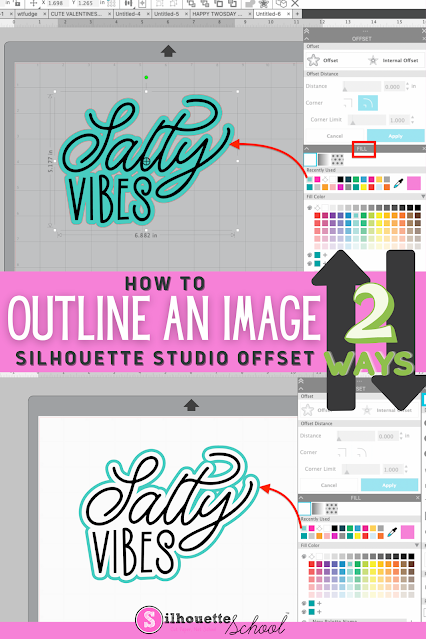
How to Outline an Image in Silhouette Studio

If you want to add an outline to an image in Silhouette Studio, it's easy to do with the Offset tool. 

silhouette 101, silhouette america blog, silhouette studio v4, offset, silhouette designing

Adding an outline in Silhouette Studio can help you create a base shape, thicken your design, or allow you to add layers to your design. Follow these simple steps for how to outline an image in Silhouette Studio.

How to Open and Use Alphabet Sets in Silhouette Studio

Alphabet sets look like fonts, but they act like PNG or SVG files in Silhouette Studio. 

Silhouette Studio,Silhouette Studio Business Edition,How to,SVG,Designing,Fonts,alphabet set,


They're easy and fun to use and give you a lot of flexibility, but can be time consuming to open in Silhouette Studio.  But..oh they're so worth it!  

Read on for my tips on opening and using Alphabet SVG sets in Silhouette Studio.

From SVG Design to Laser Cut Earrings: Design Tutorial

You can turn any SVG design you use for cutting into laser cut earrings with just a few slight modifications.  
earrings,Silhouette Studio,svg files,laser business,laser cutter,Designing,xtool,


Whether your designs are are "intended" for stickers or sublimation, you can use these tricks to design when laser cutting earrings.  (And psst..the exact same process works for keychains and ornaments too!) 

How to Save as SVG in Silhouette Studio (and JPEG and PDF too)

It's now possible to export as an SVG directly from Silhouette Studio.

Silhouette svg files, svg silhouette, silhouette cameo svg, silhouette studio svg, silhouette 101

In order to save as an SVG, JPEG, or PDF from Silhouette Studio, you must have both Silhouette Studio 4.1 or higher and Business Edition.

How to Use the Knife Tool in Silhouette Studio to Separate a Design

When you've found the perfect SVG design, and want to cut different parts of it into different colors of HTV or vinyl - you may need to separate the design to do so. 

silhouette 101, silhouette america blog, knife tool, silhouette studio v4, silhouette studio design tools

If the design is connected, the Silhouette Studio knife tool will help you separate it.

Fastest Way to Resize Large Images in Silhouette Studio

When it comes to designing in Silhouette Studio, we're all about speed and efficiency! 

silhouette 101, silhouette america blog, print and cut, silhouette studio, silhouette studio designing

So, here's another quick tip to resize and move designs or files (like JPEGs or PNGs) that open very, very large.

Transferring Photos to Wood with Silhouette Temporary Tattoo Paper

A few weeks ago I shared a cool trick on using Silhouette Temporary Tattoo paper on stone tiles to make coasters...and I got a lot of questions about whether the same method would work on wood.

transfer photos to wood, wood ornaments, tattoo paper, silhouette project ideas, temporary tattoo paper

So I'm back...and I'm happy to report you can in fact use Silhouette Temporary Tattoo paper to transfer photos to wood!

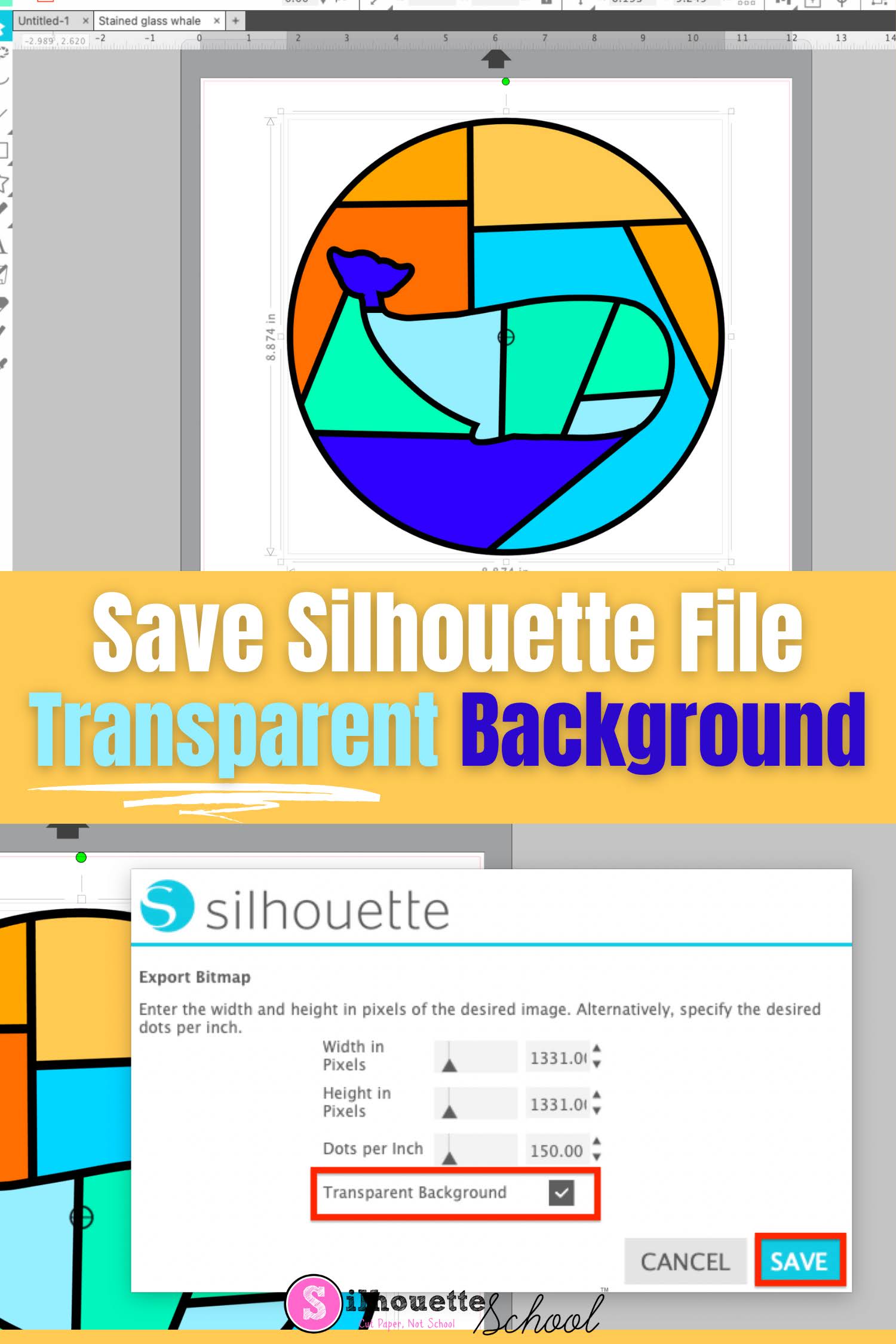
How to Save a Silhouette File with Transparent Background

It's easy to save a Silhouette file with a transparent background. 

silhouette 101, silhouette america blog, silhouette studio, silhouette studio v4, silhouette studio business edition

Silhouette Studio allows transparent PNG files to be exported which means you can design and create in Studio and export a Silhouette file with a transparent background.

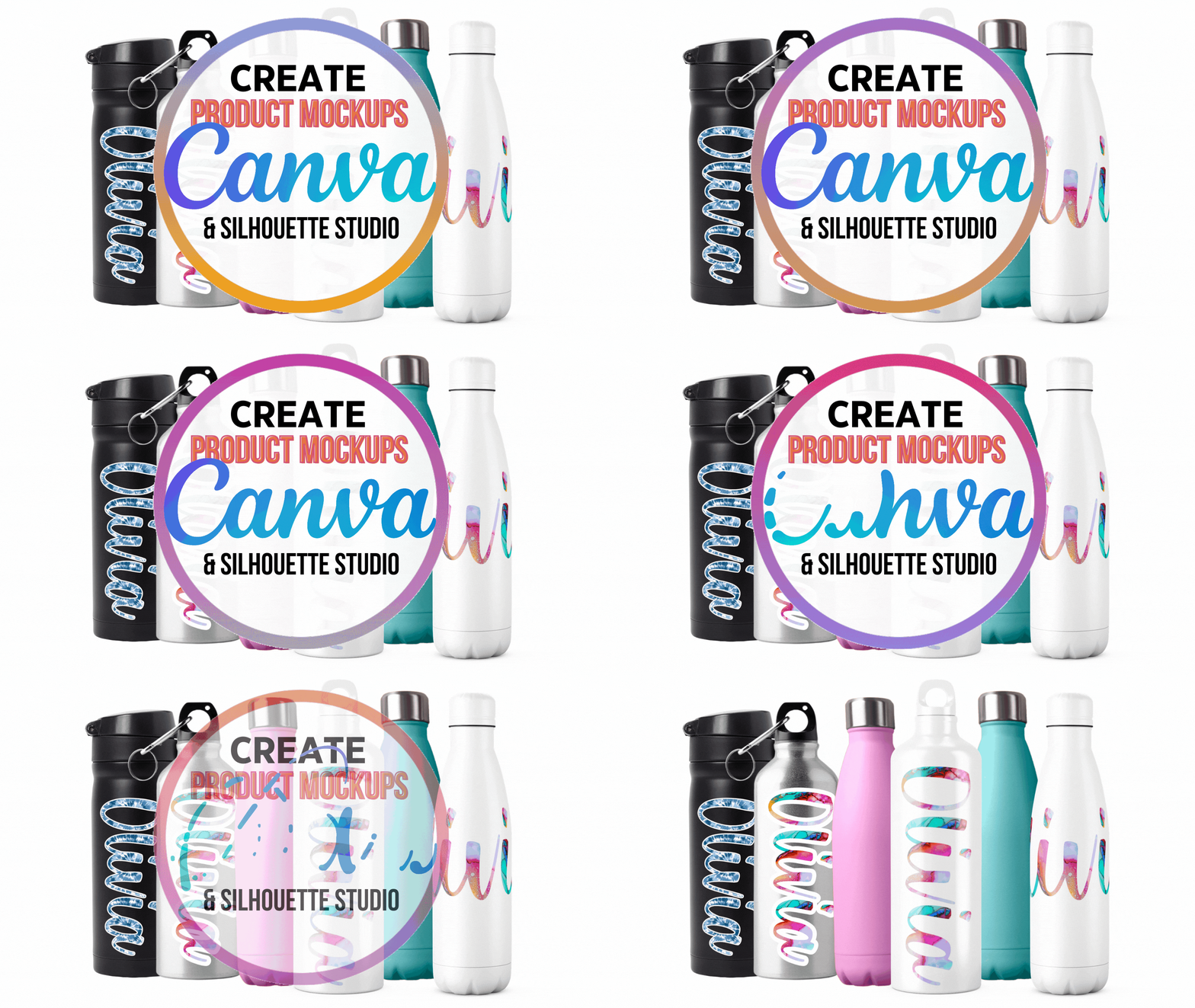
How to Create Product Mockups in Canva (Free) Using Your Own Designs

You can create product mockups in Canva for your Etsy shop or social media using designs you've created in Silhouette Studio or another design program. 

silhouette 101, silhouette america blog, silhouette studio business edition, mock ups, designing
For custom items like vinyl name stickers or items that are available in various color options, mockups can be easily customized very quickly and cheaply.  Using mockups will allow you to not only show off your products in a really visually appealing way but they prevent you from having to create a new physical item for each variation. 

In this tutorial I'm going to share the step by step on how to create a product mockups using your own designs in Canva...and I'll even share a little hack for animating tumbler mockups!

How to Remove a Photo Background in Silhouette Studio

A common question from Silhouette crafters is how do I remove a photo background in Silhouette Studio?

silhouette 101, silhouette america blog, Silhouette Studio v4, tracing, trace a photo

While there is no magic button in the Silhouette software to do this, it is pretty easy to do and you can do it in the free version of the software. This step by step Silhouette tutorial will explain exactly how to remove a photo background.