Copyright Silhouette School 2016. Powered by Blogger.


Showing posts with label Photos. Show all posts

How to Make DIY Big Head Cutouts at Home

DIY big head cutouts are all the rage right now. Graduation parties, sporting events, birthdays, senior nights...you'll always see a big head on a stick!   

UV printer,laser cutter,laser business,Co2 lasers,Photos,remove background,

The good news is you can make them at home and add them to your small business (even just seasonally).  What I love about this method is they come out super high quality - they're not blurry or pixelated, but are crisp, full-color, cut-to-shape big heads on corrugated plastic that look completely professional.

I made a set for my daughter's graduation party (can you believe Olivia is graduating?!) and I am SO excited about how they turned out. So let me show you exactly how to do this.

How to Remove a Background in Silhouette Studio (Two Methods)

One of the most common questions I get is how to remove a photo background in Silhouette Studio. And the good news is there are two ways to do it right inside the software - no Photoshop, no Canva, no extra apps needed.

Photos,silhouette software,images,remove background,Silhouette Studio V4.4,v4,

Here's the thing. The method you use depends on your photo. I'm going to show you both so you can pick the right one for whatever you're working on. 

I'm using these techniques to make DIY big head cutouts - but this works for any project where you need a cut-to-shape image, like photo booth props or custom stickers.

Transferring Photos to Wood with Silhouette Temporary Tattoo Paper

A few weeks ago I shared a cool trick on using Silhouette Temporary Tattoo paper on stone tiles to make coasters...and I got a lot of questions about whether the same method would work on wood.

transfer photos to wood, wood ornaments, tattoo paper, silhouette project ideas, temporary tattoo paper

So I'm back...and I'm happy to report you can in fact use Silhouette Temporary Tattoo paper to transfer photos to wood!

Make Photo Coasters with Silhouette Temporary Tattoo Paper

Grab yourself some Silhouette temporary tattoo paper and let's make DIY photo coasters on tile. 

silhouette cameo, photos coasters, tile coasters, temporary tattoo

Temporary tattoo paper is is amazingly versatile and can be used on wood and stone tiles!  I have always loved photo coasters and the Silhouette temporary tattoo paper is perfect for this application.

Trick for Tracing Hard to Trace Images in Silhouette Studio

The detailed tracing capabilities is one of my favorite things about Silhouette Studio. But it can be frustrating when you can't get a good trace on a photo, so I've learned to use a hidden little gem of a tool to make tracing easier.

trace in silhouette studio, silhouette studio trace, trace, silhouette 101, silhouette america blog


In this tutorial I'll show you how to invert an image using the Image Effects tool to make tracing hard to trace images a whole lot easier.

How to Remove a Photo Background in Silhouette Studio

A common question from Silhouette crafters is how do I remove a photo background in Silhouette Studio?

silhouette 101, silhouette america blog, Silhouette Studio v4, tracing, trace a photo

While there is no magic button in the Silhouette software to do this, it is pretty easy to do and you can do it in the free version of the software. This step by step Silhouette tutorial will explain exactly how to remove a photo background.

How to Remove Photo Backgrounds on iPhone and Open in Silhouette Studio

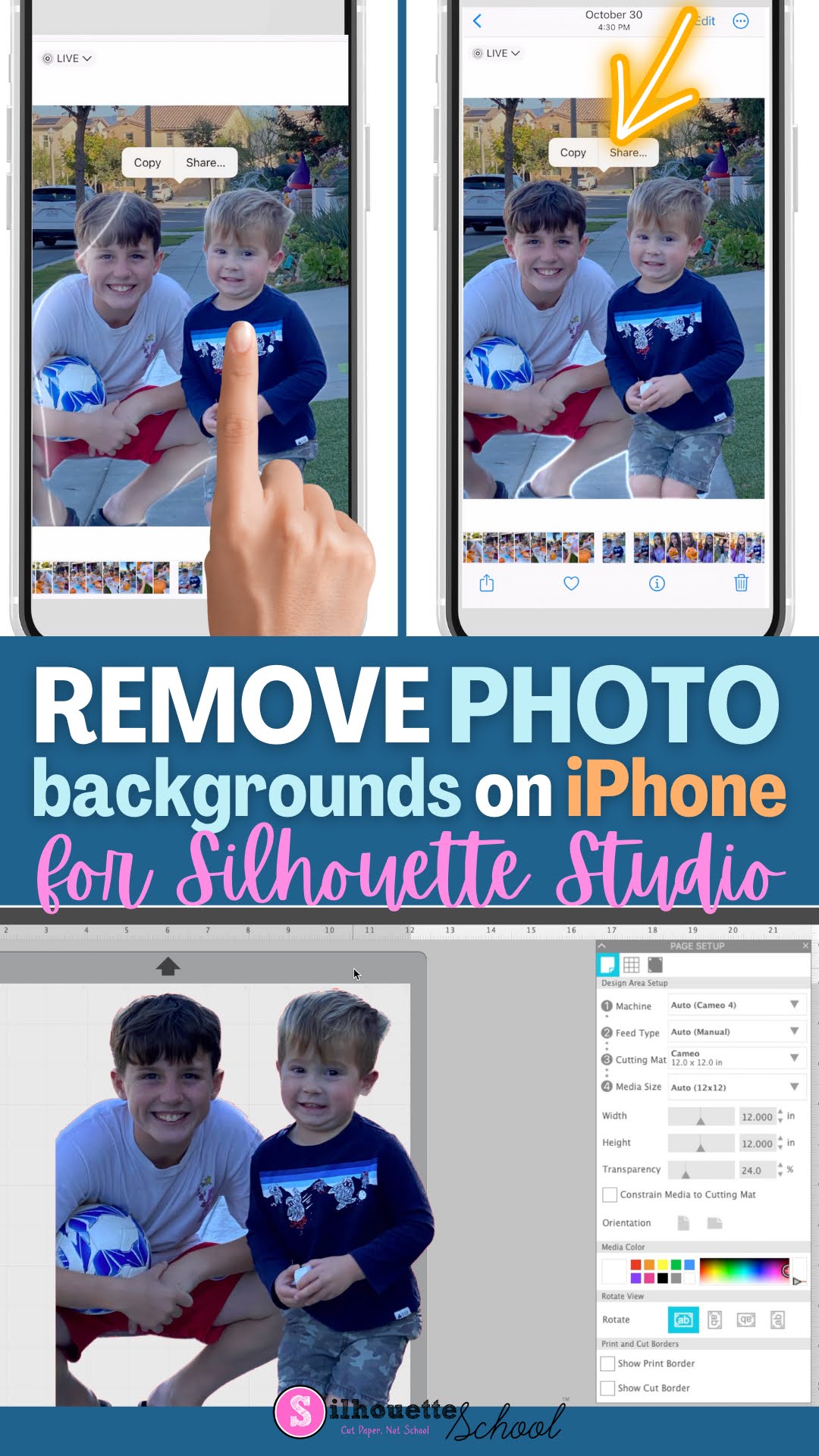
It's never been easier to remove photo backgrounds than now with the new iPhone iOS 16 update. 

silhouette 101, silhouette america blog, photos, remove background, silhouette studio v4

But once you remove the background, how do you get the image to your computer and Silhouette Studio? Keep reading to learn how easy it is! 

How to Trace a Silhouette of a Person in Silhouette Studio

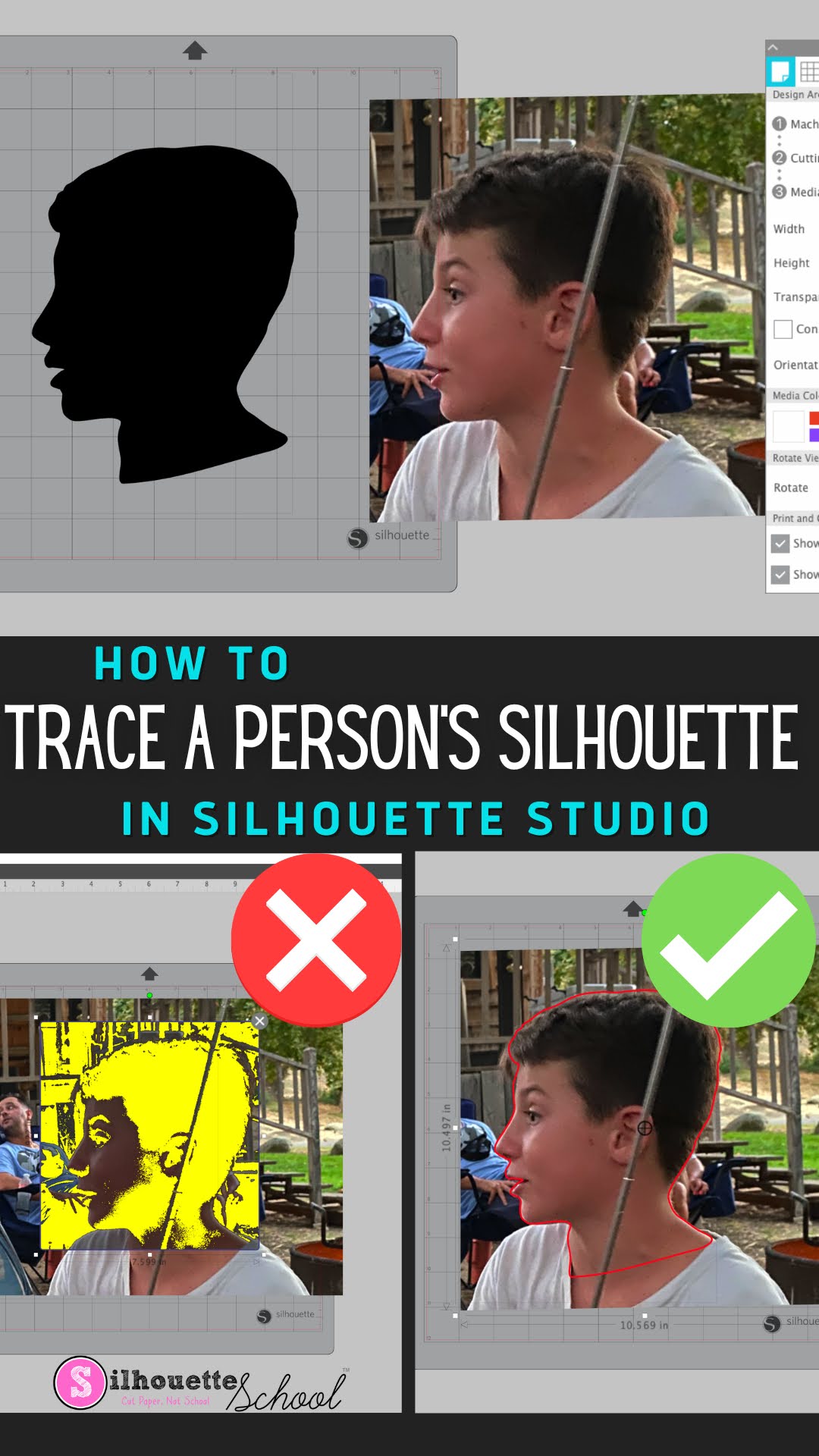
You can trace a Silhouette of a person in Silhouette Studio to turn it into a cut file to create silhouette art. 

silhouette 101, silhouette america blog, silhouette studio v4, trace silhouette, trace tool

What's even better is this can be done in the free version of Silhouette Studio. Read on for the full tutorial on how to trace a silhouette of a person in Silhouette Studio.

How to Fill an SVG with a Photograph in Silhouette Studio

There's no better way to customize your projects than using your own photographs! 

silhouette 101, silhouette america blog, silhouette studio v4, digital patterns, designer edition, fill design

In this tutorial, we'll show you how to fill an SVG design with a photograph in Silhouette Studio.

How to Easily Crop Photos in Silhouette Studio

Did you know you can crop photos right in Silhouette Studio?! 

silhouette america blog, silhouette 101, crop photo, silhouette studio, silhouette studio v4.2

It's nothing more than a few clicks which means it's super easy and fast. This Silhouette Studio tutorial will show you exactly how to crop photos in the Silhouette software. 

How to (Perfectly) Trace a Photo in Silhouette Studio (Updated 2022)

One of the first tutorials I ever shared on Silhouette School was on how to trace a photo to get a silhouette. The point editing method results in a silhouette and it's perfect if that's what you're looking for.  But what if you want more depth and character and really want to keep the essence of the photo?  The trace function is about to become your new BFF.

silhouette 101, silhouette america blog, Silhouette Studio, trace photo, gift idea


The first thing you want to do is find a photo.  It's best to pick a photo that doesn't have a ton of background.  I went with this picture of me and my daughter paddle boarding.  It's obviously a color photo and while you can trace a color photo I find it easier to trace a black and white image since the trace feature works on finding contrast.  Never did I think I'd share a picture of me in a bathing suit on this blog....but...

How to Use SVG Files for Scrapbooking with Silhouette CAMEO

You aren't limited to t-shirts and wood signs when it comes to your SVG files and your Silhouette Cameo. SVG files can also be used with your scrapbooking projects. 

silhouette 101, silhouette america blog, silhouette studio, paper crafts, scrapbooking, digital scrapbooking

In this post, we'll share the tips, tricks, and hacks to using your SVG files for scrapbook layouts in Silhouette Studio as well cutting those SVGs for scrapbook pages.

How to Sublimate a Photo on Wood

If you've never tried to sublimate a photo on wood..you are missing out! 

silhouette 101, silhouette america blog, wood signs, silhouette and sublimation, heat press

Sublimation seems to have no limits...and yes you can sublimate on wood which makes for stunning and unique custom wood pieces!

How to Import Photos to Silhouette Studio To Use as Fill Patterns (3 Easy Steps)

You can import photos into Silhouette Studio and use the photo to fill a shape in just a few easy steps. 

silhouette 101, silhouette america blog, silhouette studio v4, patterns, photos

Importing photos to Silhouette Studio through the Patterns folder allows you the greatest control including cropping photos in Silhouette Studio, filling other shapes with the image and printing and cutting photos. 

Sublimation Face Masks and Free Mask Template (Exclusive Mask Discount, too!)

There's no quicker way to make sublimation face masks than if you have the free mask template to match the mask!

silhouette 101, silhouette america blog, sublimation, silhouette studio, face masks

It's one of the big reasons I love these sublimation-ready masks from Pro World - there's no guessing if my design is going to fit the mask. I know it will. 

Read on for how to fill this mask template with a photo, pattern, or digital design so you can print and press! 

New Silhouette Machines and Products for 2019 in Photos! (CAMEO 4, Heat Press, & More!)

The excitement around the Silhouette CAMEO 4 and 15" CAMEO Plus and 20" Silhouette CAMEO Pro continues...so I thought I'd share some additional photos of the new Silhouette CAMEO products. 

Cameo 4, Silhouette America Blog, Silhouette Cameo plus, Silhouette Cameo pro, Silhouette 101

It's important to realize that while the Silhouette CAMEO 4 features have been announced Silhouette America has not officially announced details of the new machine.  Silhouette School obtained prior special permission to share details and prototype photos of the CAMEO 4 and other new 2019 Silhouette products with you including the Silhouette CAMEO Plus, CAMEO Pro, Silhouette Heat Press and Silhouette sheet feeder.

Hands Down Fastest Way to Open Images in Silhouette Studio (Mind Blowing)

Sometimes you just need to quickly open an image in Silhouette Studio.

Silhouette Studio designer edition tutorials, Silhouette Studio Software tutorials, Silhouette Design Studio tutorials, silhouette tutorial, silhouette cameo tutorial for beginners

There are countless ways to open a design, picture or photo in Silhouette Studio, but the copy/paste method has to be the fastest.

How to Remove a Photo Background in Silhouette Studio: Magnet Trace Tutorial

Did you ever want to remove the background from an image in Silhouette Studio? Of course you have!


There's no need to use any other software - Silhouette Studio can do it! Silhouette School contributor Elly from Silhouette Secrets is here today to explain how to do just that with the help of the Magnet Trace tool.

Turn Color Photos to Black and White in Silhouette Studio

Did you know you can turn your color photos to black and white in Silhouette Studio?

silhouette studio tips, silhouette studio tricks, silhouette cameo tutorials, silhouette studio black and white photos

It's so easy...and really helpful when trying to trace!

9 Steps to MockUp Photos for Your Silhouette Designs

If you're running a Silhouette-based business, chances are you've needed a mock up photo at some point.


You can purchase stock mockup photos or you can create your own - which is what I do.