Copyright Silhouette School 2016. Powered by Blogger.


Showing posts with label Page Setup panel. Show all posts

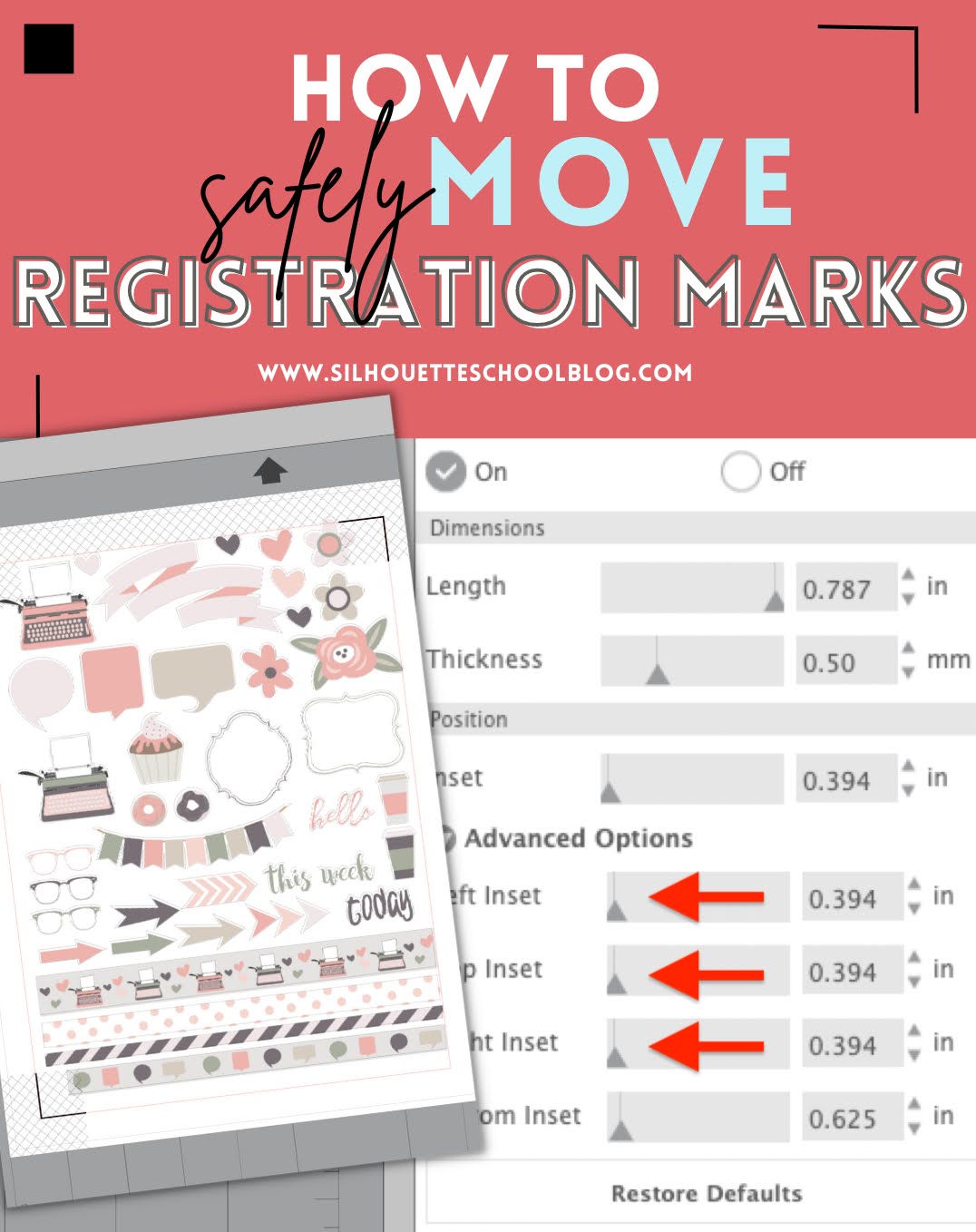
How to Change Position of Registration Marks in Silhouette Studio

You can change the position of registration marks in Silhouette Studio to create a larger printable and cuttable space. 

silhouette 101, silhouette america blog, registration marks, stickers, print and cut

It may also be necessary to change the position of print and cut registration marks to ensure all of your marks print correctly.  Read on for how to move registration marks in Silhouette Studio. 

5 Silhouette Studio Page Setup Panel Tools You NEED to Know

The Page SetUp Panel is one of the most important panels in all of Silhouette Studio. But hidden within the panel is a tab that controls six Silhouette Studio tools and features that somehow seem to have a life of their own. 

silhouette 101, silhouette america blog, silhouette studio, page setup panel, silhouette cameo tutorials

If your Silhouette Studio ruler has disappeared..if you can't move designs freely around Silhouette Studio...if you suddenly have crosshairs in Silhouette Studio - you know what I'm talking about.  This tutorial will show you exactly where to find the controls for all of these options.  

How to Turn off the Blue Lines in Silhouette Studio (Smart Snapping)

If you have blue lines following you around in Silhouette Studio all the sudden you can easily turn them off. 

silhouette 101, silhouette america blog, smart snaps, page setup panel, silhouette studio

Smart Snapping is a tool that was rolled out in Silhouette Studio V4.3 as a way to help with instant alignment during the design process. But if you're not sure what's causing the blue lines to it can be frustrating to figure out how to turn them on and off. This Silhouette Studio tutorial will show you how! 

How to Change the Grid Size in Silhouette Studio (to Match CAMEO 4 Cutting Mat)

Silhouette Studio has two different types of grid lines - both of which assist with lining up designs to match the placement of materials on the cutting mat. 

silhouette america blog, silhouette 101, page setup panel, grid lines, silhouette studio

The older Silhouette CAMEO cutting mat had 1 inch grid lines, but the Silhouette CAMEO 4 cutting mats (including for the 15" CAMEO 4 Plus and 24" CAMEO Pro cutting mat) have quarter inch grid lines. To best match these cut lines for cutting accuracy, you can adjust the grid in Silhouette Studio.