Copyright Silhouette School 2016. Powered by Blogger.


Showing posts with label inkjet printable. Show all posts

Print and Cut with Brother Fabric Printer and Silhouette CAMEO

Giving new meaning to 'print and cut'... I'm not sure there's ever been a more perfect duo than the Printmoda Brother Fabric Printer and Silhouette CAMEO! 

cameo 5,brother sewing,Sewing,Rotary Blade,inkjet printable,CAMEO 4,fabric printer,Home Printer,Fabric,


Read on for a step by step beginner project printing on Printmoda from Silhouette Studio then cutting with the CAMEO Rotary blade. 

Is a Real Epson Sublimation Printer Really THAT Much Better Than a Converted Epson Ecotank?

We are finally getting to the bottom of what is the difference between converting an Epson Ecotank for Sublimation vs purchasing a real Epson Sublimation Printer. 

epson sublimation,epson ecotank,Epson F170,Sublimation Printing,epson f570,

Is investing in a real sublimation printer really worth it? The answer may surprise you!

How to Make Clipart Stickers with Silhouette CAMEO

You can easily turn clipart into stickers in Silhouette Studio. 
Stickers,Print and Cut,inkjet printable,Home Printer,online labels,sticker printer,Sticker Paper,


Clipart is great because it often comes in a set of full color images making them perfect for stickers or stickers sets. Read on for the quickest way to make clipart stickers. 

Sticker Paper Vs Printable Vinyl: Which Should I Use?

It's not always super clear the differences between Sticker Paper vs Printable Vinyl and when to use one over the other. 

silhouette america blog, silhouette 101, stickers, inkjet printable vinyl, sticker paper, sticker printer

I've used both materials, from Online Labels, extensively over the years and am happy to be able to share some tips on when to use each. 

Printer Stands to Save You Space (When You Have too Many Like Me...)

If you're looking for a printer stand to save space in your small craft room or office, I have a few that I love! 

silhouette 101, silhouette america blog, small business, printer stands, home office

I searched Amazon high and low looking for the cheapest and best printer stands to save space...so check out my favorites

Sticker Business Idea to Stand Out: Print on the BACK of Your Stickers

If you want to stand out among the many sticker businesses you may be looking for some ways to make sure your customers remember you and repeat order.

silhouette 101, silhouette america blog, stickers, sticker shop, print and cut

This sticker business idea is so simply yet often overlooked. In this tutorial I'll show you how print your website name and logo on the back of your stickers as an easy reference for customers. 

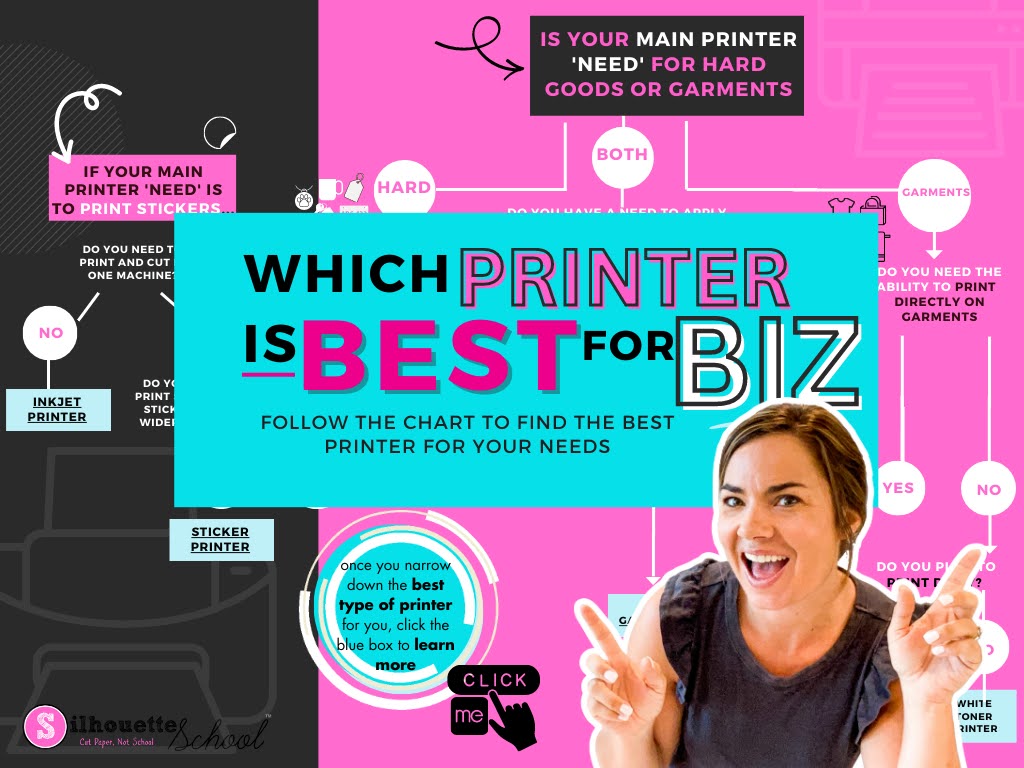
Best Printer for Small Business 2023: Is Inkjet, Sublimation, Ecosolvent, Print and Cut, DTF, DTG Best for You?

Whether you're a home crafter looking for a basic inkjet printer to do print and cut with Silhouette, want a low cost sublimation printer or are looking to expand a small business by investing in some type of sticker printer or transfer printer - I'm going to help you finally decide which is BEST for you. 

silhouette 101, silhouette america blog, small business, printers, print and cut

Unfortunately there's not one printer that will do it all. Especially if you're on a budget and have space restrictions. However, there are a wide variety of printers for both hobby crafters and small businesses. 

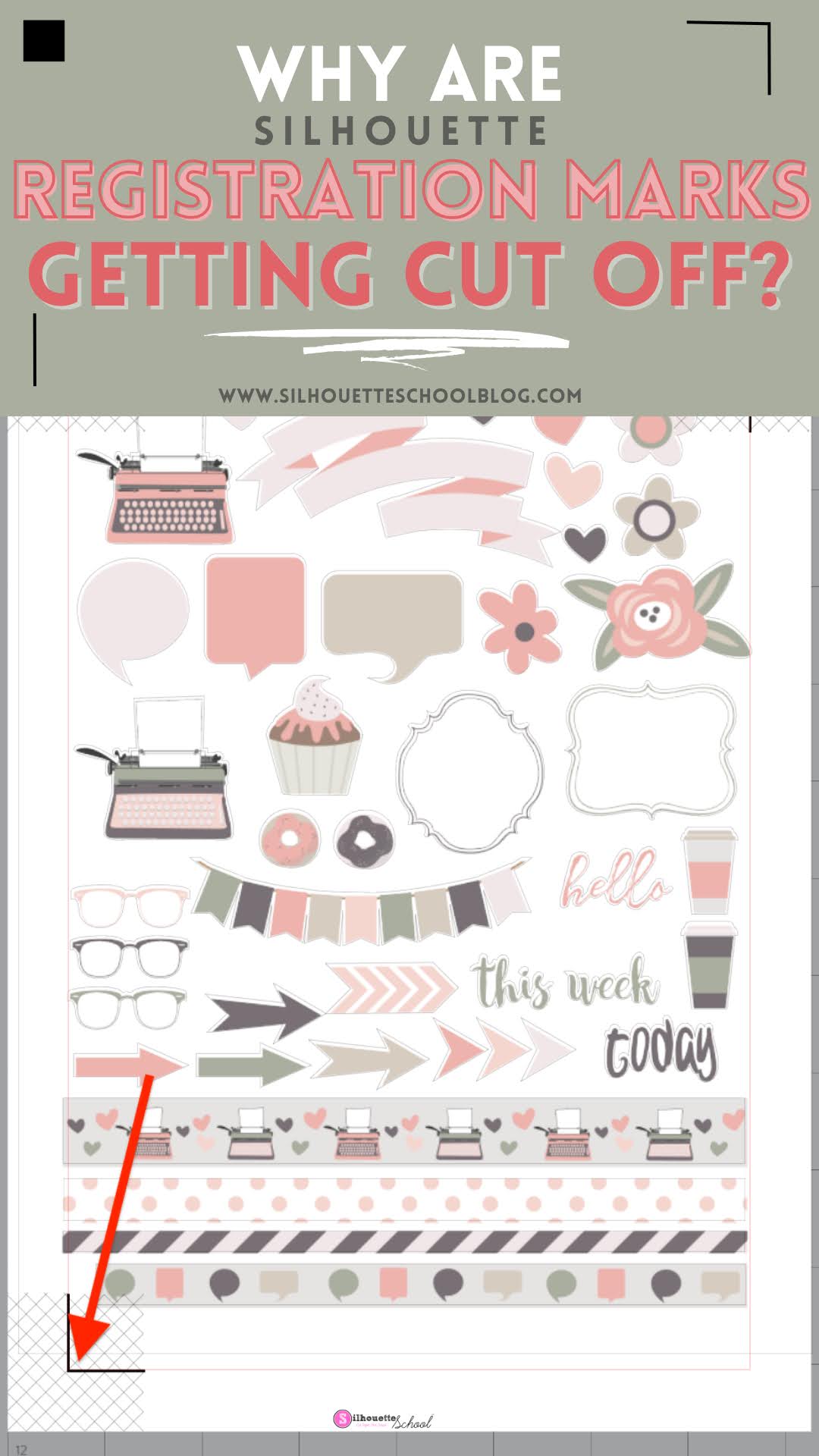
Why Are My Silhouette Registration Marks Not Fully Printing?

If your printer is not printing the full registration marks for Silhouette print and cut it's usually a pretty simple fix. 

silhouette 101, silhouette america blog, registration marks, print and cut, sticker paper

However, if you don't fix this issue - most often affecting the bottom left registration mark - you'll almost always have print and cuts that are not aligned. Read on for how to fix Silhouette registration marks that are not fully printing. 

Perf Cut Stickers with Silhouette CAMEO 4 Tutorial

Perf cut stickers are stickers that cut through both the sticker material and the backing, but also remain as part of the larger sheet until after the cutting is complete. 

silhouette 101, silhouette america blog, stickers, print and cut, online labels

Since the Silhouette CAMEO 4 can perform a "perf cut", where small areas around the edge go uncut, the stickers are held into the larger sheet by small tabs until they are later popped out. Read on for how to make perf cut stickers with Silhouette CAMEO 4.

Making Planner Stickers with Silhouette CAMEO 4

Making planner stickers with Silhouette CAMEO 4 will allow you to make custom stickers and save some money on buying them! 

Silhouette 101, silhouette america blog, stickers, silhouette print and cut, online labels

So if you're wondering "How do I make my own planner stickers?"...read on for this step by step tutorial. 

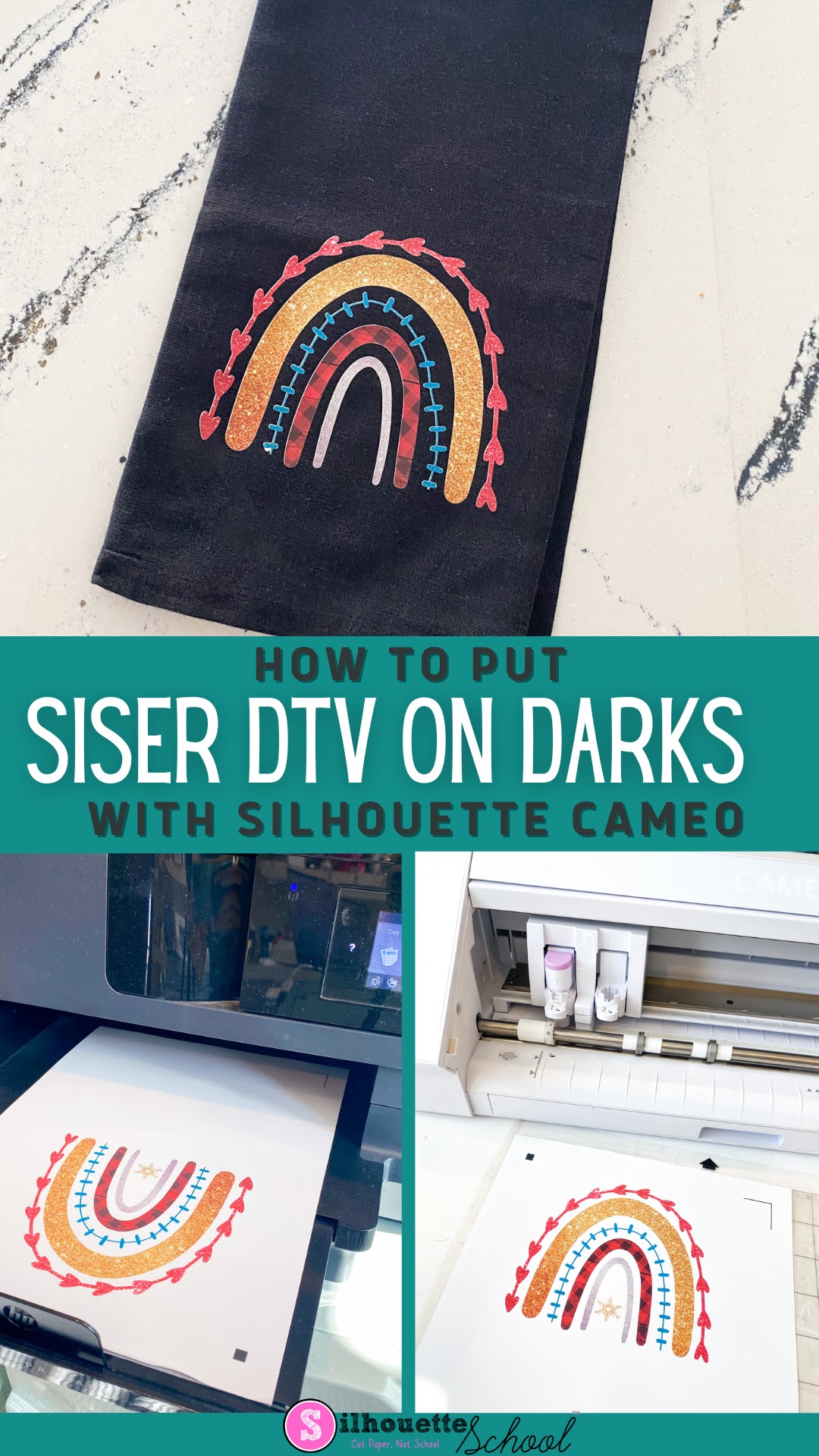
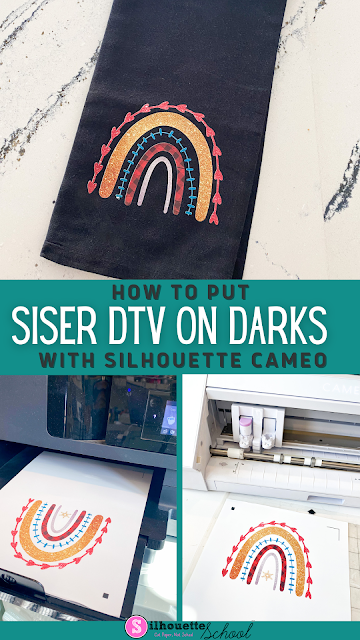
How to Use Siser Easy Color DTV on Darks for Beginners

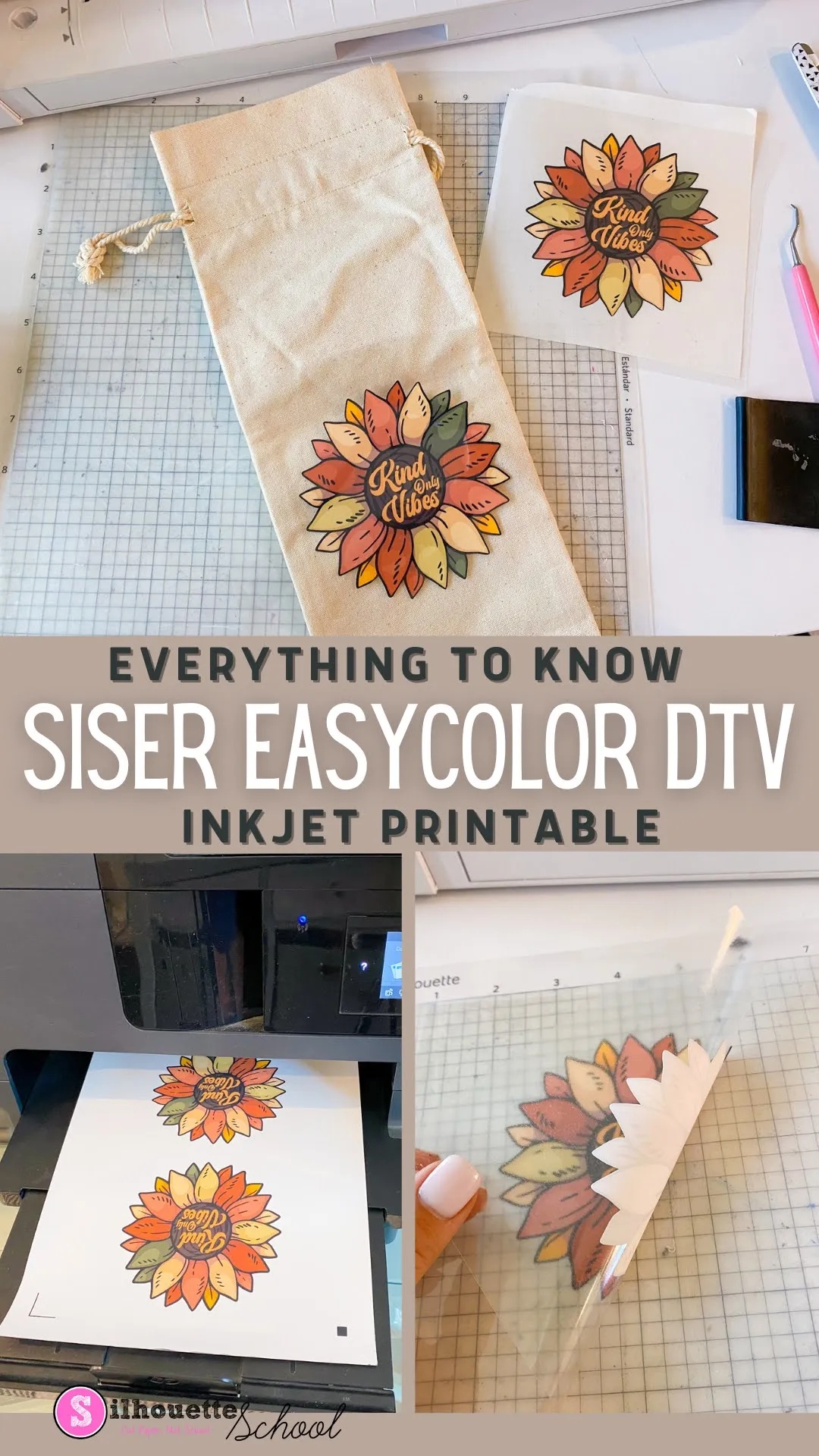
Siser EasyColor DTV is an inkjet printable heat transfer vinyl material that allows you to print full color images directly on heat transfer vinyl and apply to light or dark garments.  
silhouette 101, silhouette america blog, siser easycolor, DTV, print and cut

That means no layering and no bulky transfers on your shirt! This beginning tutorial will walk you through exactly how to put Siser Easy Color DTV on a dark shirt or surface using Silhouette CAMEO 4.

How to Set Up Silhouette Studio for Print and Cut with EasyColor DTV

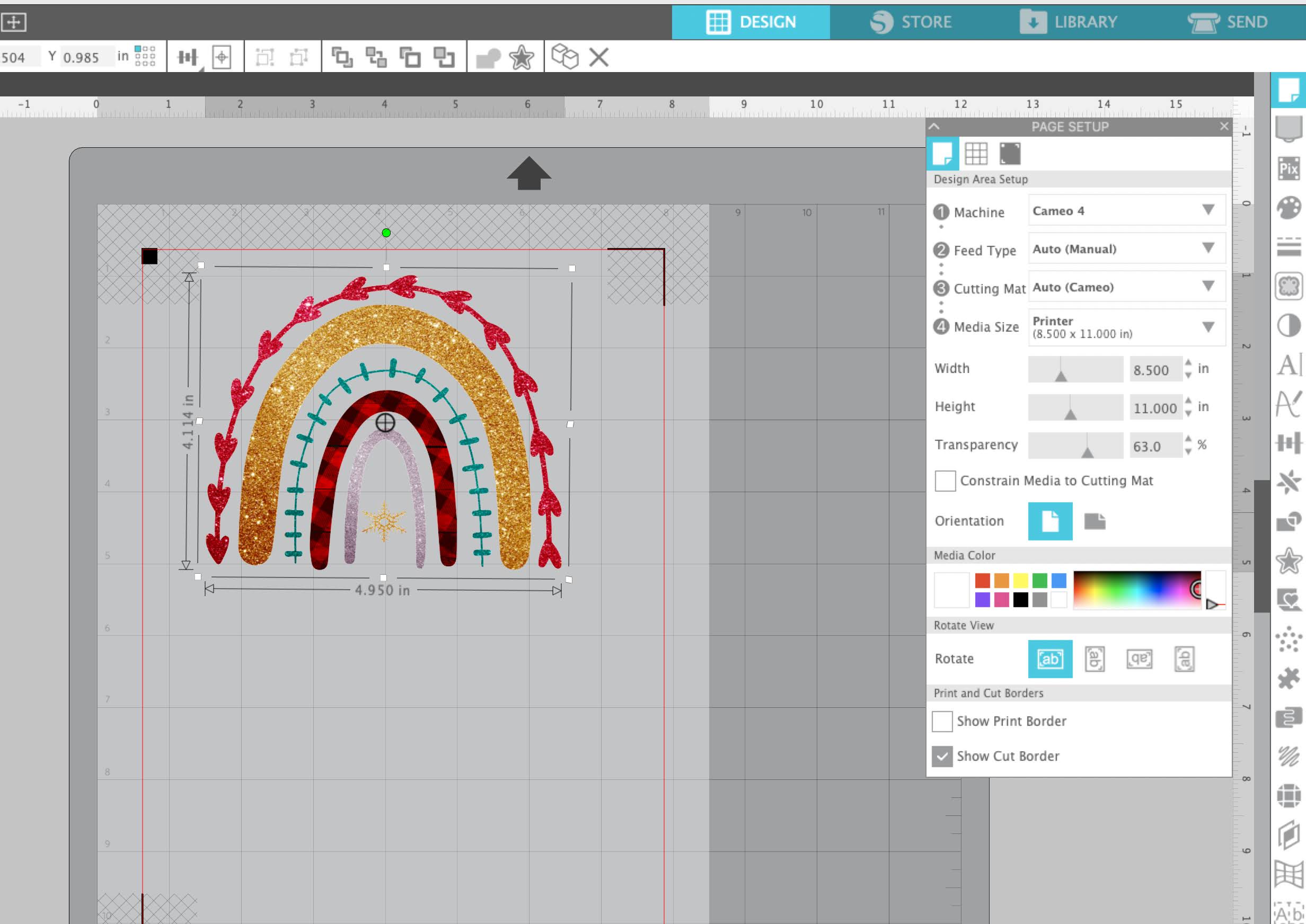
Launch Silhouette Studio and start by adjusting your page size to match your inkjet printer. I'm using an 8.5x11 printer. 

From the right sidebar, open Page Setup panel and be sure the Machine is set to CAMEO (Auto), select 12x12" cutting mat, and change the Material Size to "Printer".  

siser easycolor, DTV, print and cut, full color heat transfer, printable heat transfer

Turn on the printer border and cut borders by checking the boxes for Show Print Border and Show Cut Border. 

Finally, turn on the registration marks by pressing "M" on your keyboard or toggling the button to "On" on the Registration Marks tab of the Page Setup Panel. 

How to Open a Design in Silhouette Studio Work Area for Print and Cut

If you haven't already, open your design into the work area by going to File > Merge. I'm using this Boho Rainbow Christmas design from So Fontsy's Mini Christmas $5 Buck Bundle.

 
Silhouette SVG, Cricut SVG, Commercial use SVG, Silhouette cut files, Cricut Cut Files


It's easiest to use a SVG file or a PNG file (and keep auto trace turned on in Silhouette Studio).  This will help you avoid needing to trace the image to create the cut lines.  If you are using an JPEG or PNG that needs to be traced these beginner tracing tutorials will help you prepare you design. 

Once the design has cut lines, scale it so it fits inside the print and cut boundaries and will fit on the surface where you plan to apply it. 

You also want to make sure no part of the design is touching any of the hashed areas around the registration marks. 

Best Printer Settings for Siser EasyColor DTV

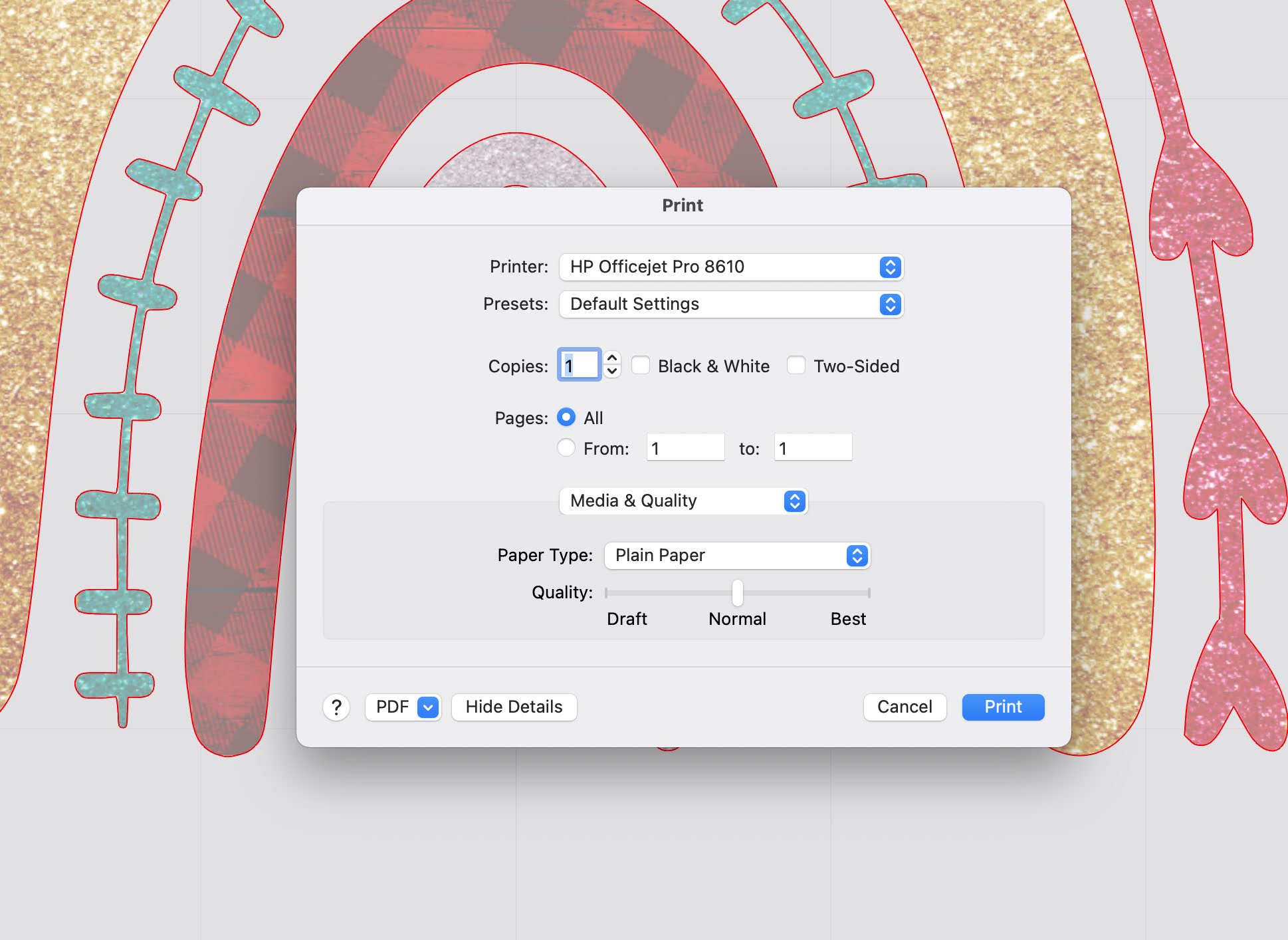
From Silhouette Studio click the "Print" button. Adjust the print settings for "Plain Paper". Usually I recommend putting the quality on "high quality" or "Best" but with Siser DTV that actually lays down too much ink so keep the quality on "Normal". 

siser easycolor, DTV, print and cut, full color heat transfer, silhouette cameo

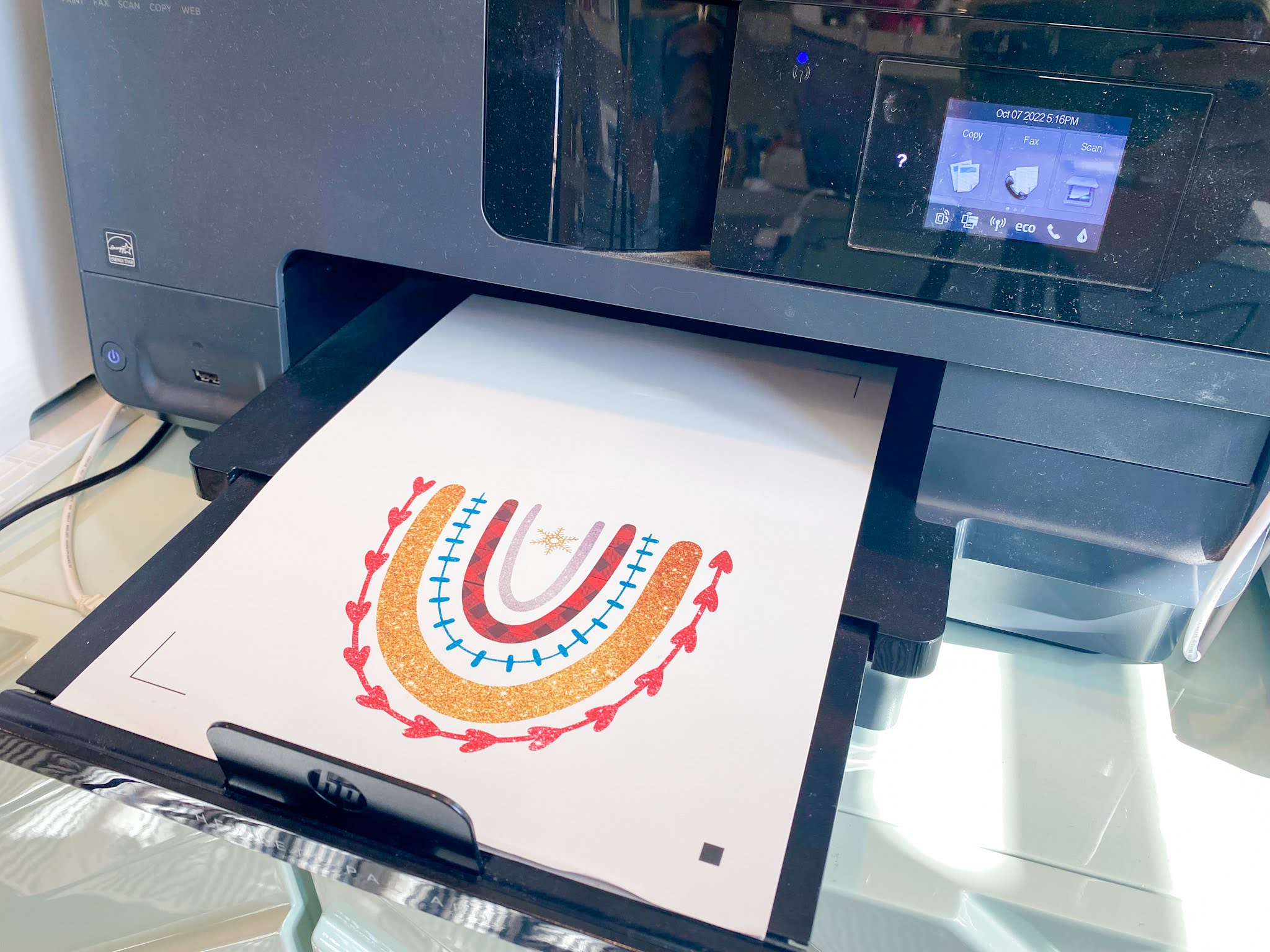
Place a sheet of EasyColor DTV in your printer so it will print on the rougher side of the material.

siser easycolor, siser DTV, print and cut, full color heat transfer, printable heat transfer

Best Silhouette Cut Settings for Siser EasyColor DTV

Once the sheet is printed place it on the Silhouette cutting mat and load into the CAMEO 4. 

siser easycolor, siser DTV, print and cut, full color heat transfer, printable heat transfer

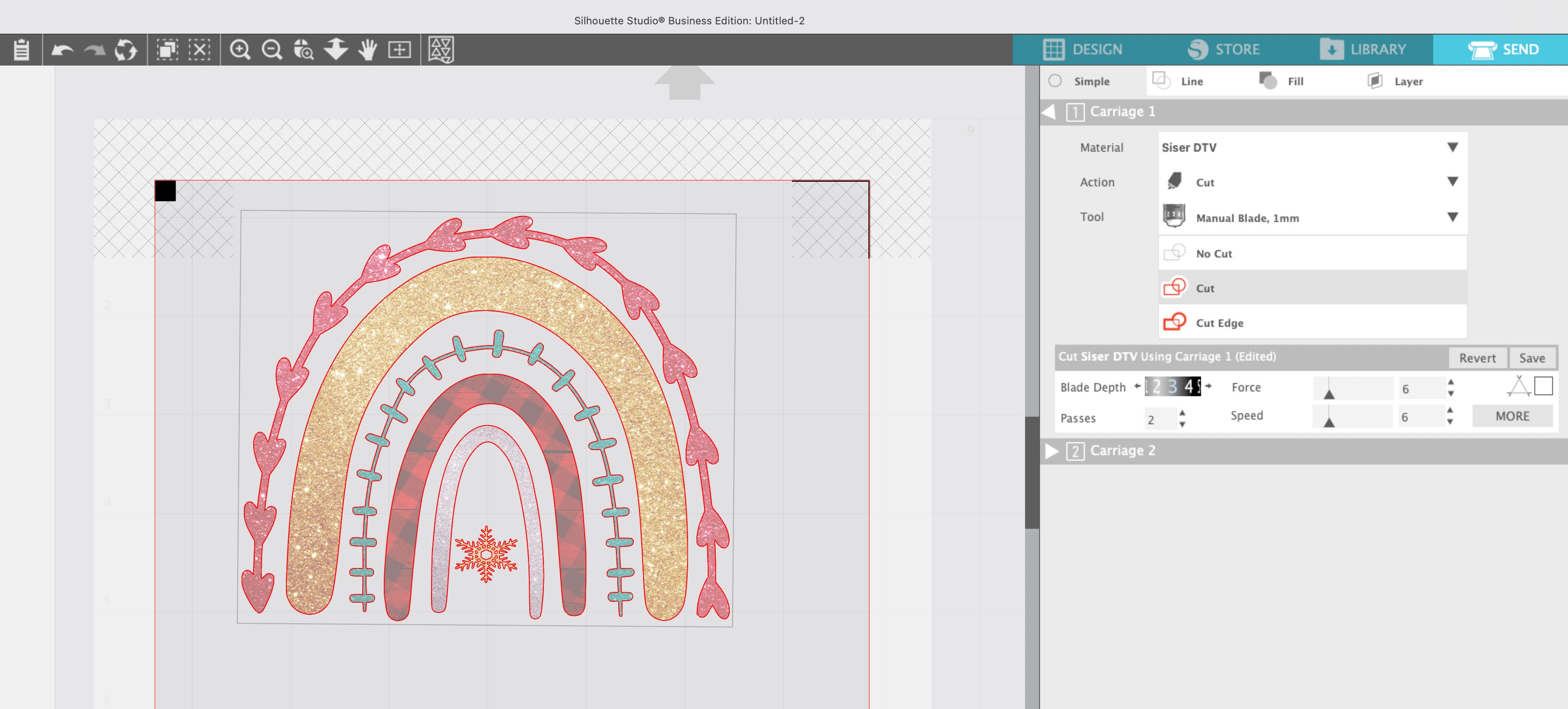
In Silhouette Studio, move to the Send panel and adjust the cut settings. I found the best Silhouette CAMEO cut settings for Siser EasyColor are Blade 3, Force 6, Speed 8, 2 Passes. 

siser easycolor, siser DTV, print and cut, full color heat transfer, printable heat transfer

From the Send panel send the design to cut. 

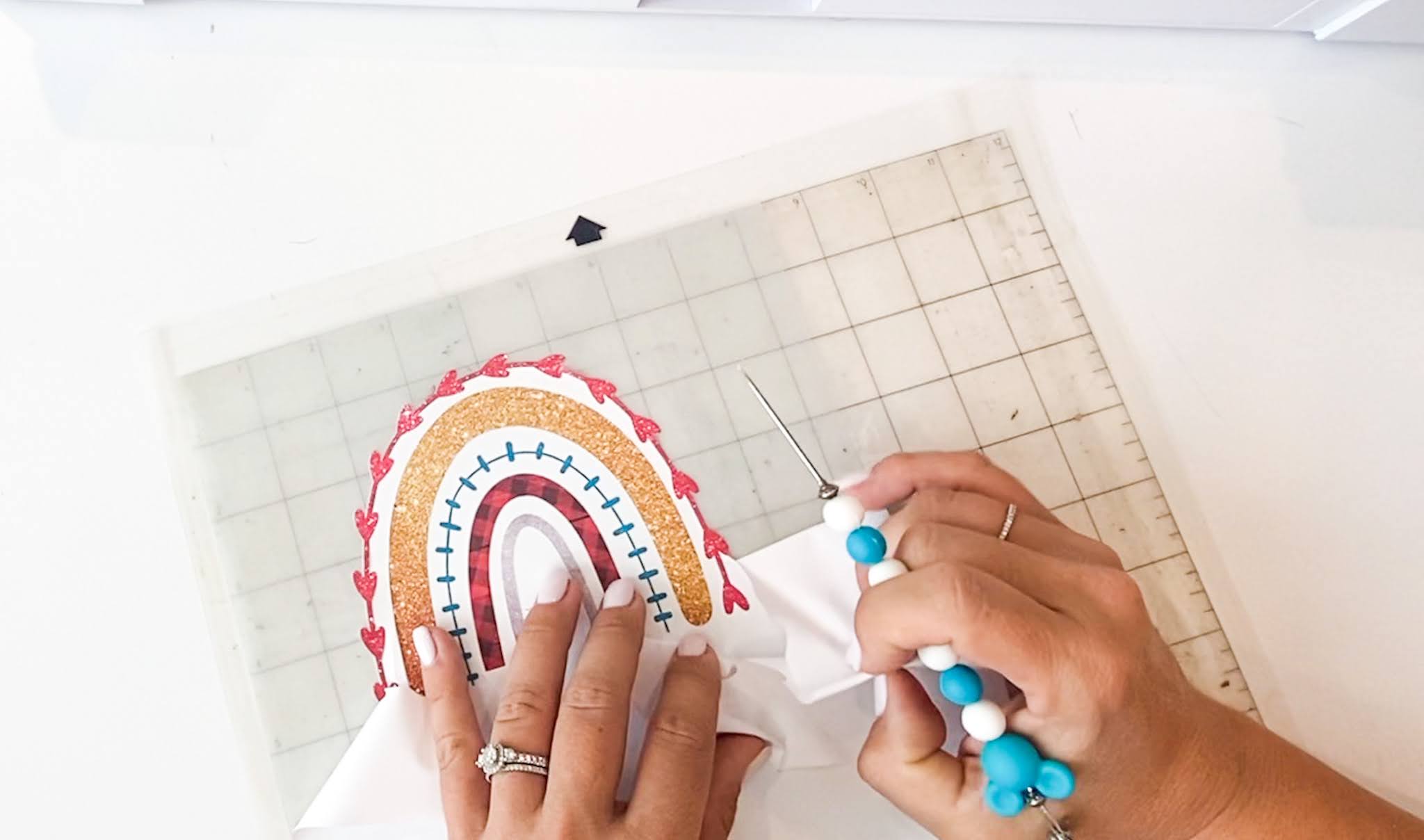
When the cutting is complete, do not unload the material. Do a test weed to make sure that the cut is complete. You want to make sure the EasyColor DTV has been fully cut through and it's easy to weed otherwise it will peel, stretch, and curl when weeding. 

How to Transfer EasyWeed DTV Transfer to Garment 

Weed away the excess material around the transfer.  Be aware the backing is not sticky so thin areas of the design that are not fully cut through may stretch and come off the backing. 

siser easycolor, siser DTV, print and cut, full color heat transfer, printable heat transfer

You'll want to use a piece of low tack mask over your transfer to pick it up off the backing and place on the garment. 

siser easycolor, siser DTV, print and cut, full color heat transfer, low tack mask

After covering with the mask, use a scraper to burnish well so you can easily remove the backing sheet. 

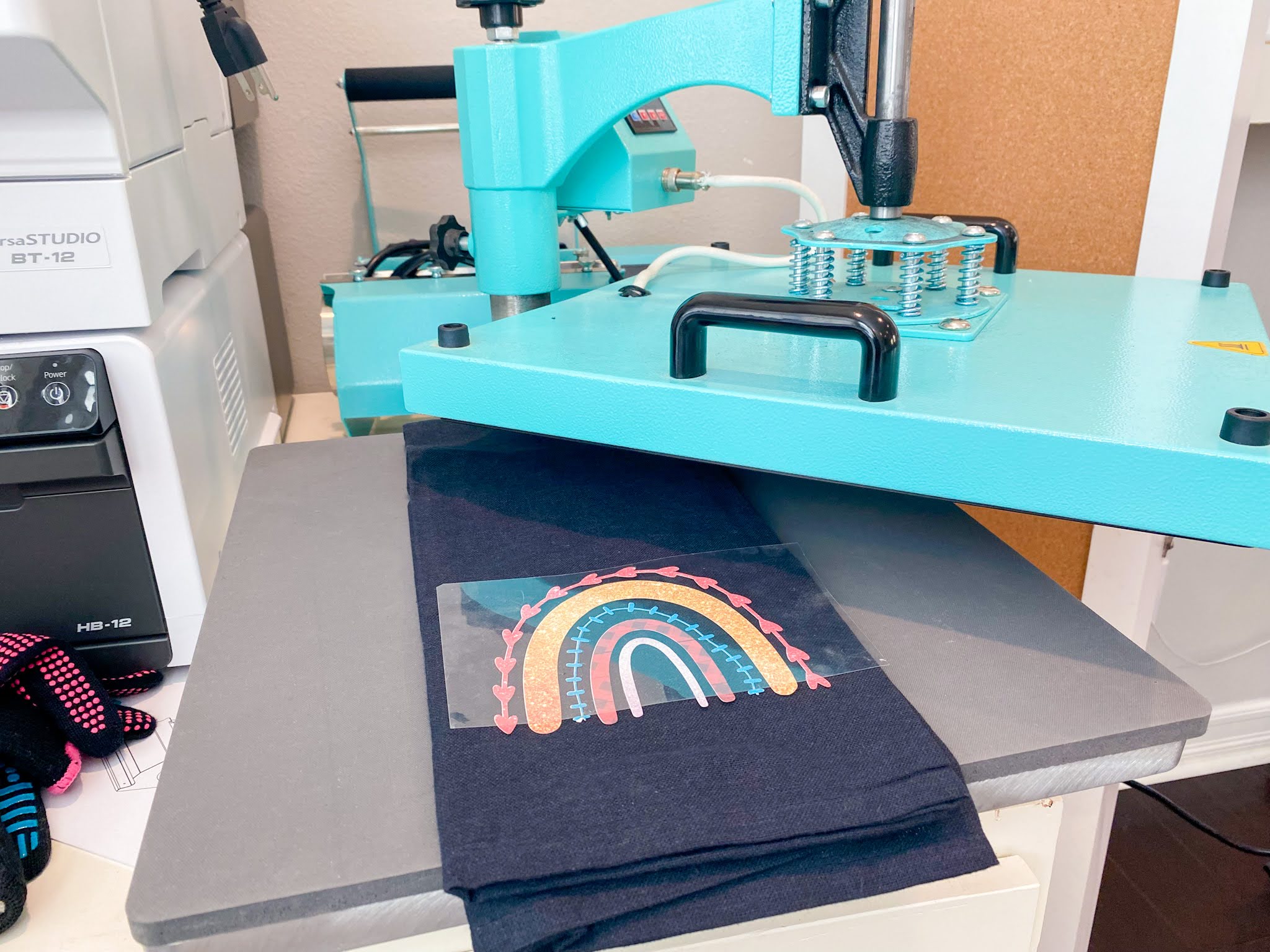
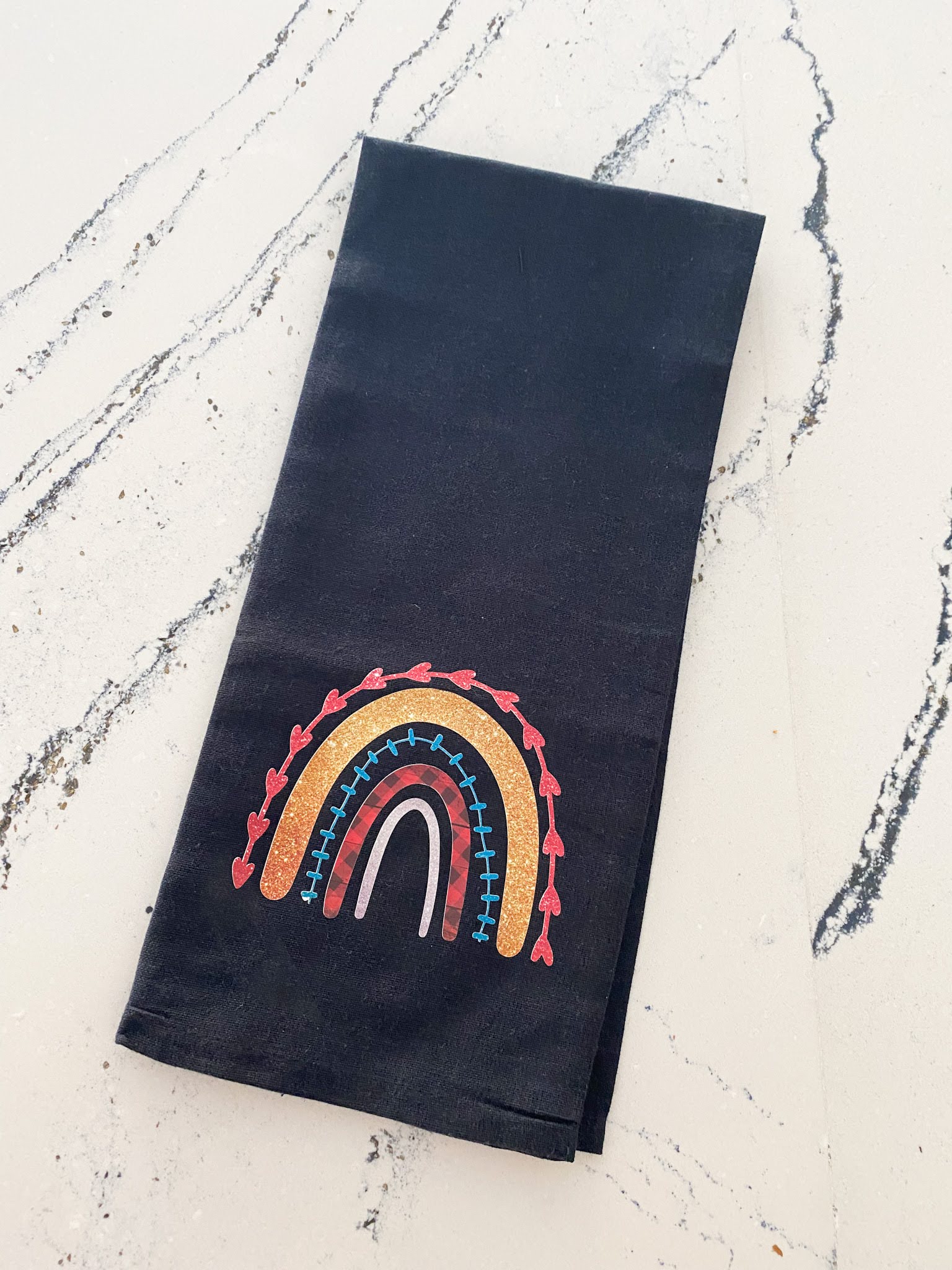
Place the design face up on your dark shirt or surface. I am putting this EasyColor DTV transfer on a black tea towel. 

siser easycolor, siser DTV, print and cut, full color heat transfer, printable heat transfer

Have your heat press warmed up to 310 degrees and set to 15 seconds.  Press the design with medium pressure and then remove the carrier sheet/mask. 

siser easycolor, siser DTV, print and cut, full color heat transfer, printable heat transfer

Wait at least 24 hours to wash the garment to help keep the colors bright and bold! 

Want to learn more about EasyColor DTV and how to use it on lights and whites? Check out everything you'll want to know about Siser EasyColor DTV! 

siser easycolor, siser DTV, print and cut, full color heat transfer, dark fabrics


Note: This post may contain affiliate links. By clicking on them and purchasing products through my links, I receive a small commission. That's what helps fund Silhouette School so I can keep buying new Silhouette-related products to show you how to get the most out of your machine!


Get Silhouette School lessons delivered to your email inbox! Select Once Daily or Weekly.


www.silhouetteu.com

How to Use Printable Heat Transfer Vinyl on Wood

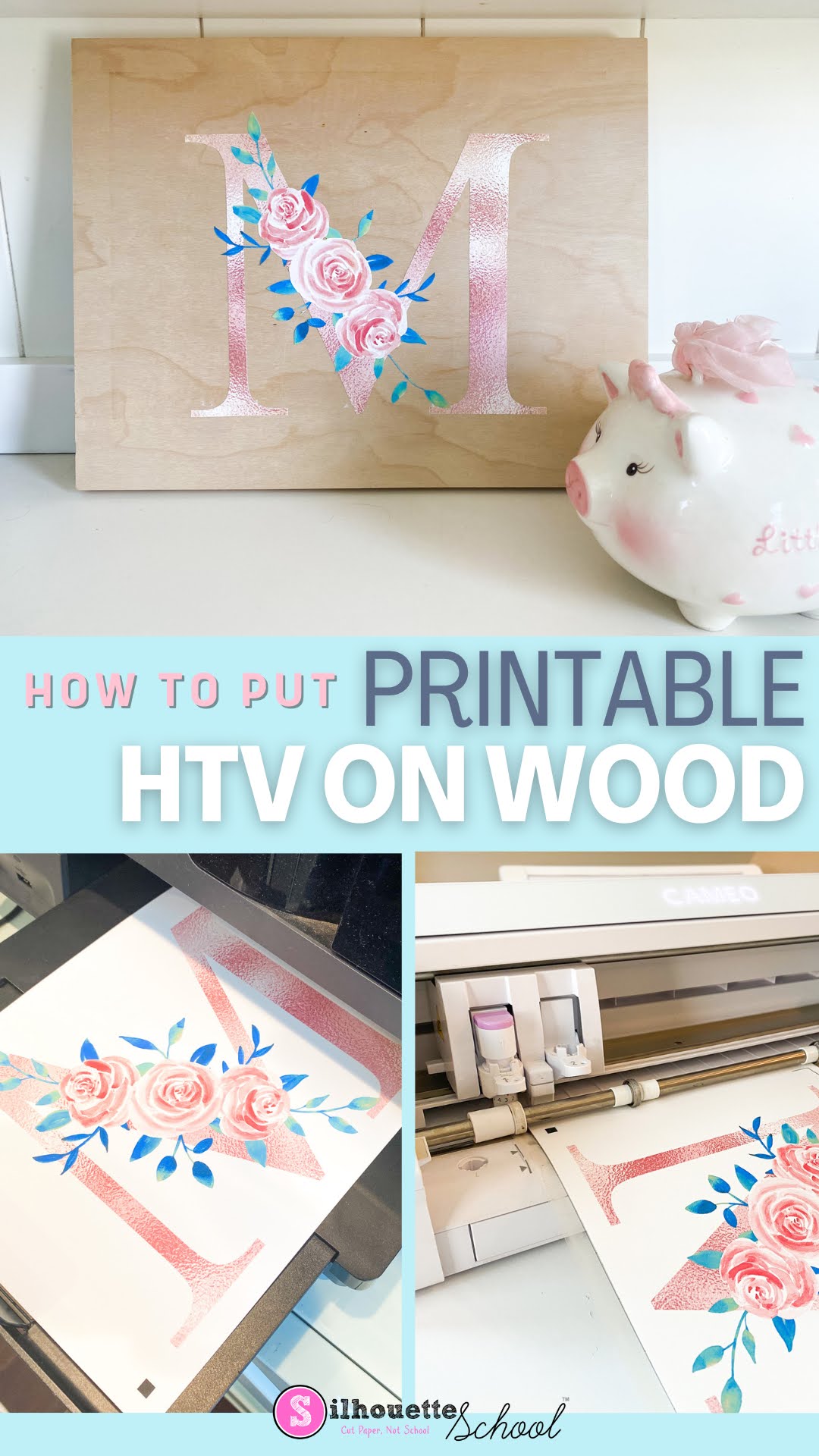
Heat transfer vinyl on wood is a game changer for so many reasons!! 

silhouette 101, silhouette america blog, printable heat transfer, wood signs, heat transfer paper

In this tutorial I'll show you how to put heat transfer vinyl on wood...and why this thicker inkjet printable HTV is my go to for signs! 

How to Print and Cut Layered Fonts with Silhouette

Layered fonts are perfect for printing because they usually have lots of fun design elements to them and you can make them really colorful - but what if you want to print and cut them? 

silhouette 101, silhouette america blog, print and cut, layered fonts, inkjet printable

You can print and cut layered fonts with a few modifications to the file. This tutorial will explain. 

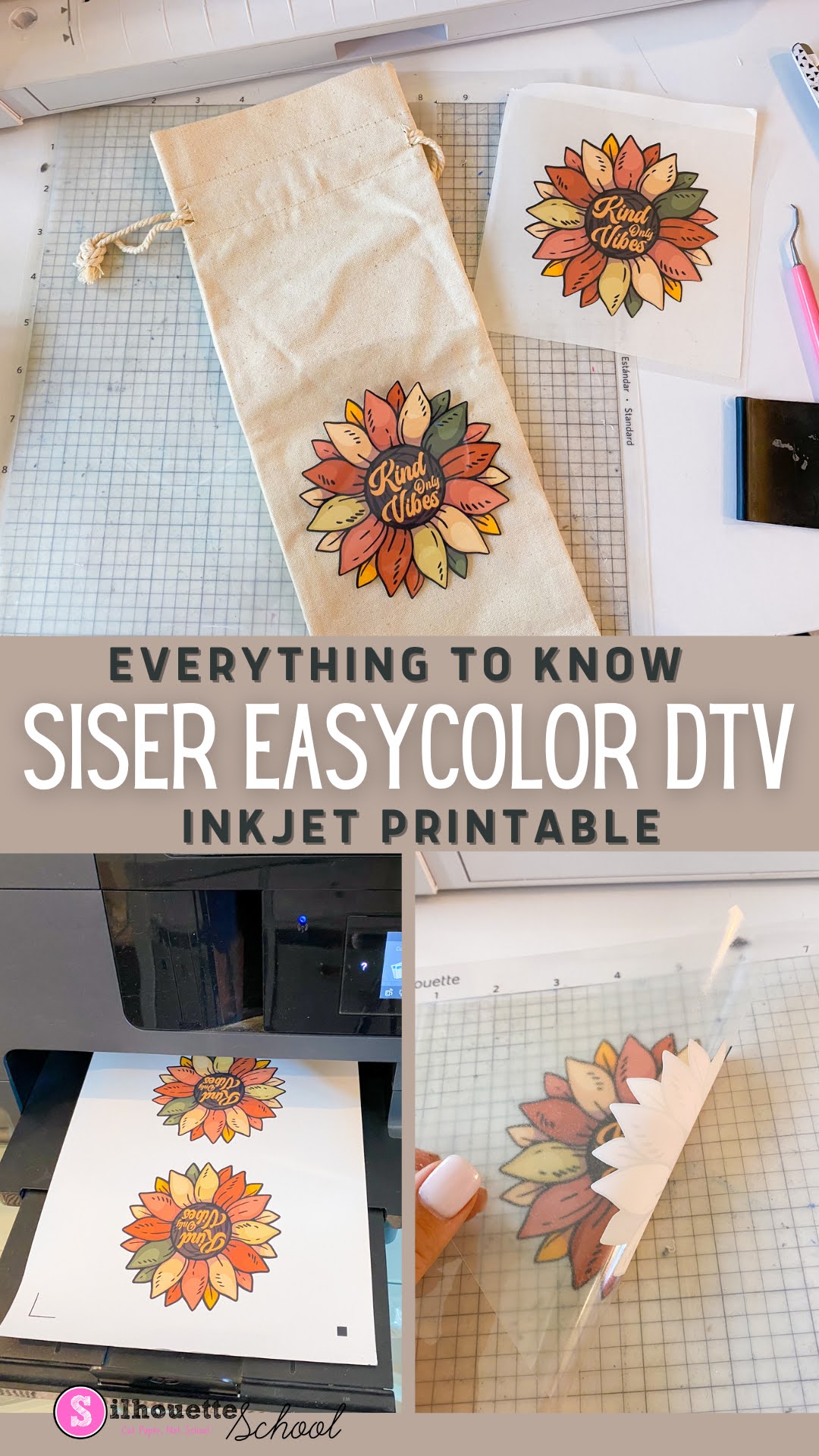
What is Siser EasyColor DTV Exactly? Everything to Know About the Inkjet Printable HTV

The newly released Siser EasyColor DTV is the latest inkjet printable heat transfer to hit the market. 

silhouette 101, silhouette america blog, inkjet printable, Siser DTV, printable heat transfer paper

If you're familiar with Siser EasySubli you can think of EasyColor DTV as its sister product - for inkjet printers rather than sublimation printers.  Read on to learn more about Siser EasyColor DTV including how and when you might want to use it and the differences and similarities between it and other inkjet printable heat transfers on the market.

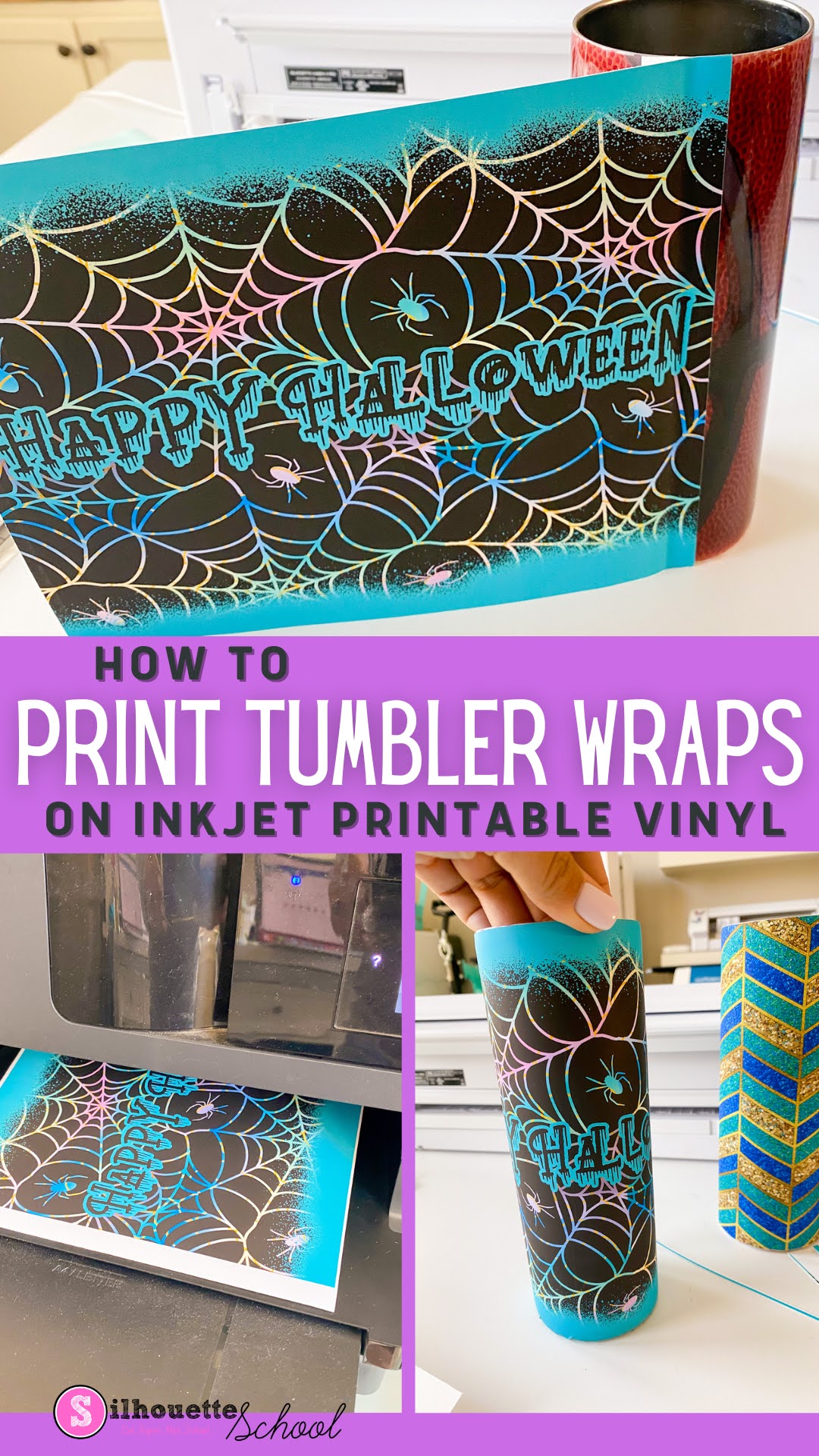
How to Print Vinyl Wraps Using Sublimation Tumbler Templates and Inkjet Printable Vinyl

Sublimation isn't the only way to make tumblers. You can also make vinyl wraps for tumblers using sublimation templates and designs. 

Silhouette 101, silhouette america blog, silhouette and sublimation, roland, inkjet printable

This is a great alternative if you are in one of the following situations: 
  • Wondering how to make skinny tumblers without a sublimation printer 
  • Looking for ideas on how to fix messed up sublimation tumblers
  • Need a way to customize non-sublimation ready tumblers
In this tutorial I'll share how to print vinyl wraps for tumblers using skinny tumbler sublimation templates and inkjet printable vinyl.